Chapter 2 · User guide · 1B Recorder
Recording
Tap Record and put the phone away: it records with the screen off for as long as it takes, and saves as it goes.
Start recording
Tap Record in the library. You can also start from the quick setting of the notification panel (add the 1B Recorder tile), from the home-screen widget or from the app icon's shortcuts (New recording, Dictate a note, Search your recordings).
The microphone it uses appears at the top: Phone mic, Bluetooth mic or Wired mic.
Let people know
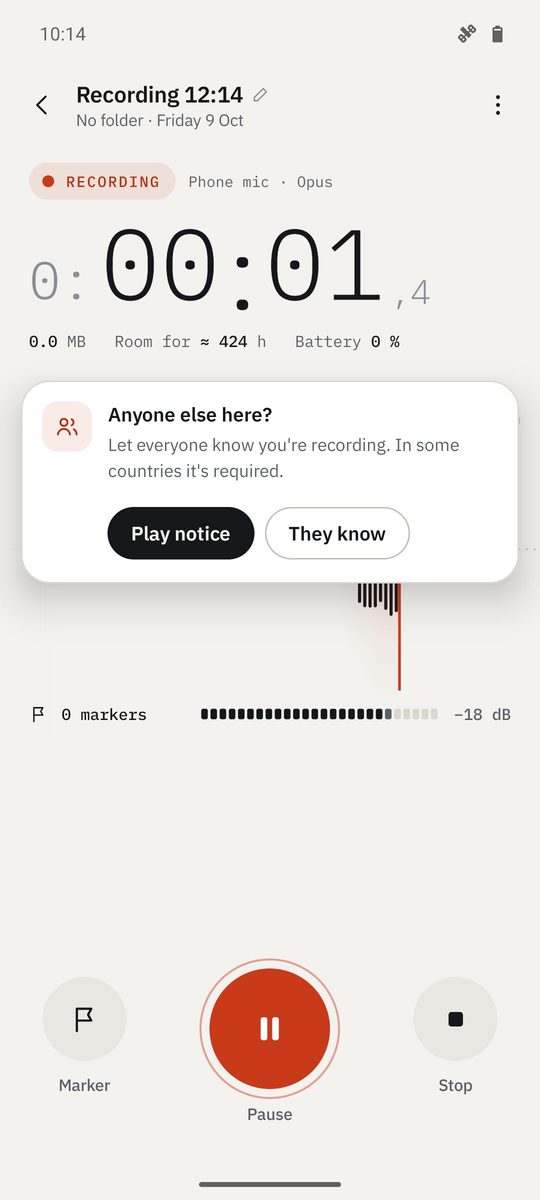
At the first recording of each session, a card asks Anyone else here?. Telling everyone you're recording is good manners, and in some countries it's required. Play notice reads a short notice aloud; They know closes the card. You can turn it off in Settings.
While recording
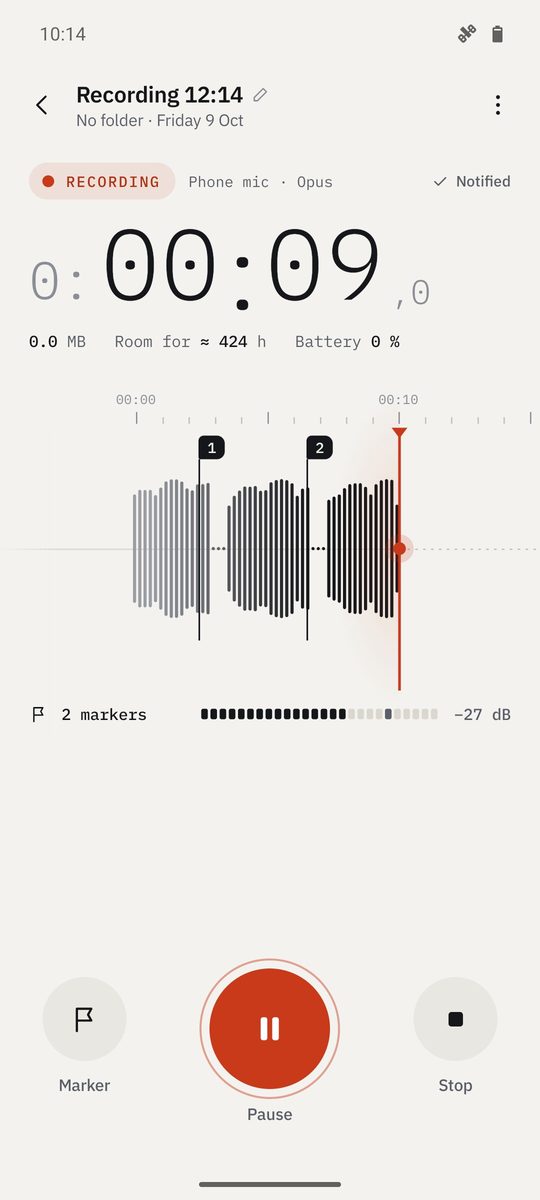
- Pause and Resume whenever you need; the pause shows on the tape.
- Marker marks an important moment (the volume buttons can do it too, if you turn that on in Settings). Markers appear in the player and the transcript.
- Live text shows the text as it's spoken, on capable phones.
- If you see Too loud: move the phone a little further away, move the phone back a little.
- Stop ends the recording.
You can turn the screen off or switch apps: the notification keeps Pause, Marker and Stop at hand. The audio is saved in encrypted one-minute pieces as you record, so at most a second is lost if the battery dies.
Save and transcribe
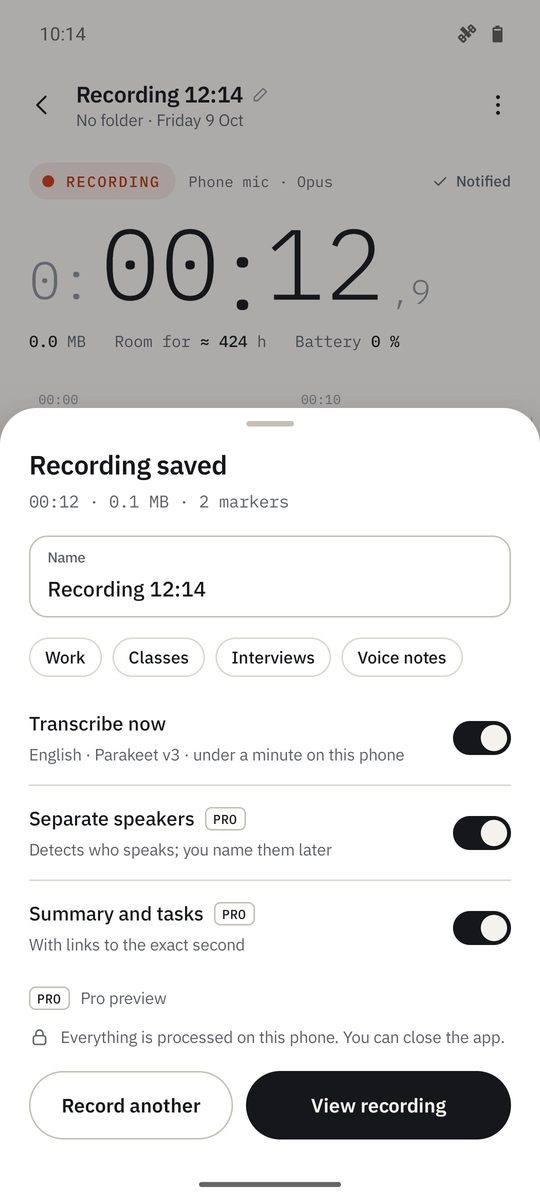
When you stop, Recording saved lets you give it a Name and choose what to do now: Transcribe now, Separate speakers and Summary and tasks. It tells you roughly how long it'll take on this phone.
Everything is processed on this phone. You can close the app. Tap View recording to open it, or Record another.
Written for 1B Recorder 1.0 on Android 11 or later, with its Wear OS watch app. Real screenshots with example data.