Chapter 1 · User guide · 1B Recorder
Getting started with 1B Recorder
Install 1B Recorder, tell it which languages you speak and let it download their speech models. From then on, everything works without a connection.
The first time
- Install 1B Recorder from Google Play and open it. The first screen reminds you that recording, transcription, speakers and summaries all happen on the phone; Check it: turn on airplane mode if you want to see it for yourself.
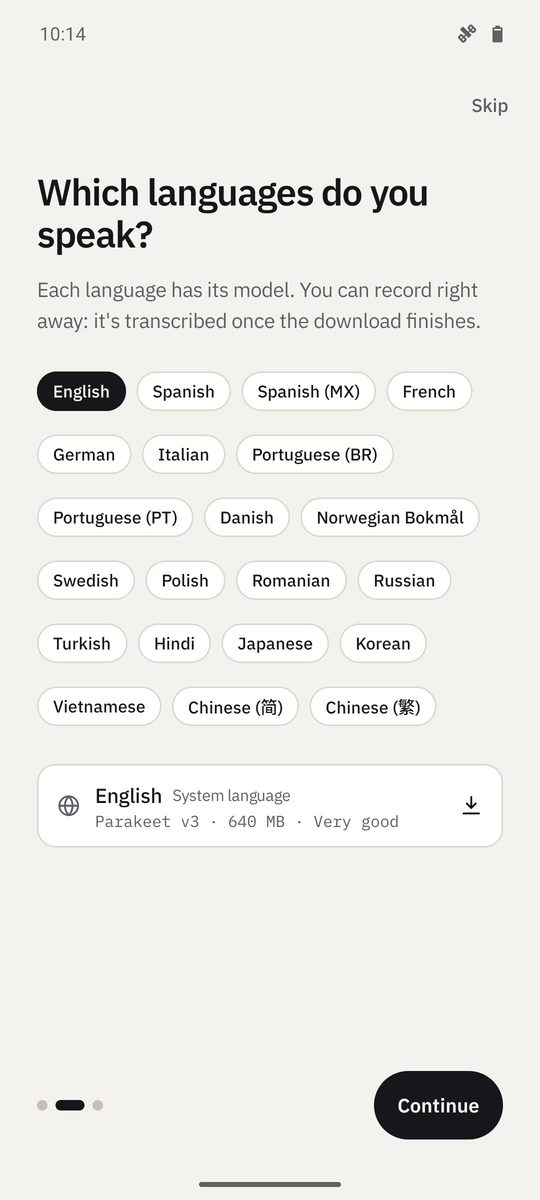
- In Which languages do you speak?, tick your languages. Each one has its model; you can record right away, and the recording is transcribed once the download finishes.
- In Permissions, only when needed, Allow notifications to see the recording notification with Pause, Marker and Stop. The microphone is asked for the first time you tap Record.
- Press Get started.
Language models
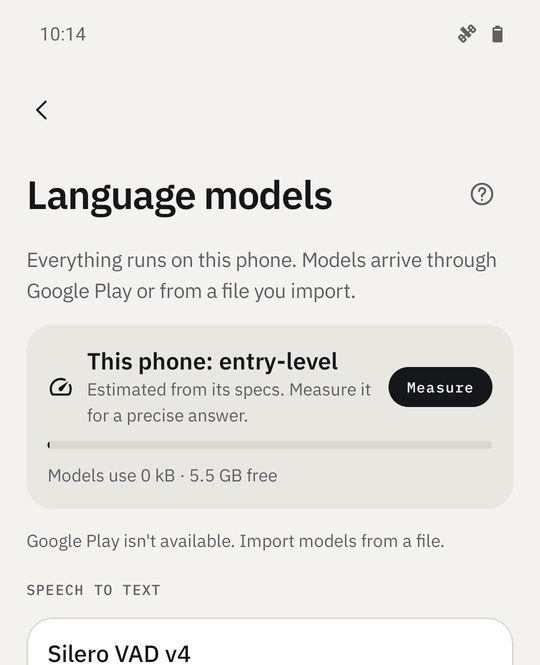
Each spoken language needs its speech model, and summaries need their own. Open them with the Language models button at the top of the library: you'll see what's installed, what's Recommended for your languages, how much space they use and how fast they run on your phone.
Models arrive through Google Play, so the app itself never connects to anything. Without Google Play, Import model file installs a .1bmodel file signed by 1Byte Systems.
Measure times this phone with a short sentence and picks the models that suit it: This phone: high-end, This phone: mid-range or This phone: entry-level.
A quick look around
The main screen is Recordings: your recordings by day, with folder chips and the search box at the top, next to the Language models and Settings buttons. At the bottom, Record in the middle, with Dictate and Import on either side.
Each card shows its status: Transcribing, Queued · transcribes while charging, Not transcribed yet… Tap a card to open the recording.
Written for 1B Recorder 1.0 on Android 11 or later, with its Wear OS watch app. Real screenshots with example data.