Chapter 8 · Guide · 1B Files
Copy files between the phone and the computer by Wi-Fi
Copy files between the phone and a computer on the same Wi-Fi with just the browser: no cable, no programs and no account.
Turn on access
- Connect the phone to Wi-Fi, or turn on its hotspot and connect the computer to it.
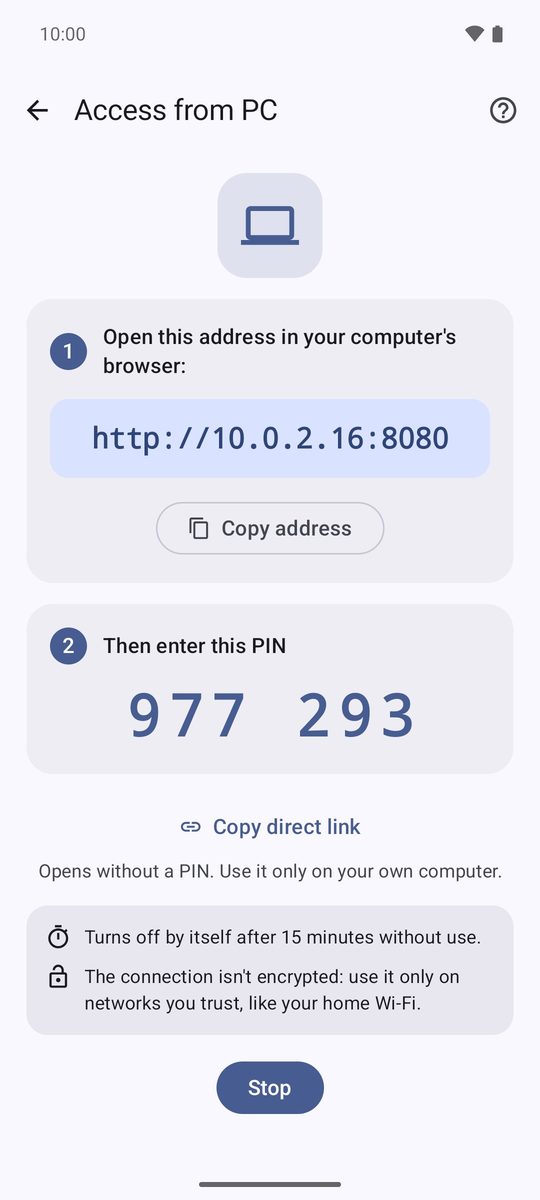
- On the home screen, tap Access from PC and then Turn on access.
- The screen shows an address and a 6-digit PIN.
On the computer
- Type the address in the browser (Chrome, Edge, Firefox, Safari…).
- Enter the PIN shown on the phone.
- Browse the folders, download files or whole folders (as a ZIP), and drag files onto the page to upload them to the folder you're in.
Copy direct link gives you a link that opens without a PIN. Use it only on your own computer.
Use it safely
The connection isn't encrypted, so use it only on networks you trust, like your home Wi-Fi. The PIN changes every time you turn access on, too many wrong attempts block it, and access turns off by itself after 15 minutes without use or if the Wi-Fi changes. Tap Stop when you've finished.
Written for 1B Files 1.0 on Android 11 or later, with real screenshots and example files.