Chapter 6 · Guide · 1B Files
The safe folder: encrypted files only you can open
A folder only you can open: its files are encrypted on the phone, other apps can't see them and they don't appear in screenshots.
Move files to the safe folder
- Select the files and, in the ⋮ menu, tap Move to safe folder.
- If your phone has no screen lock, the app asks you to set one up first (Set up): the key that protects the folder depends on it.
- The files disappear from where they were and are kept, encrypted, in the safe folder.
Open, take out and lock
Tap the Safe folder tile and confirm it's you with your fingerprint, face or PIN. Inside you can open the files, or select them to Move to Downloads (take them out) or Delete forever.
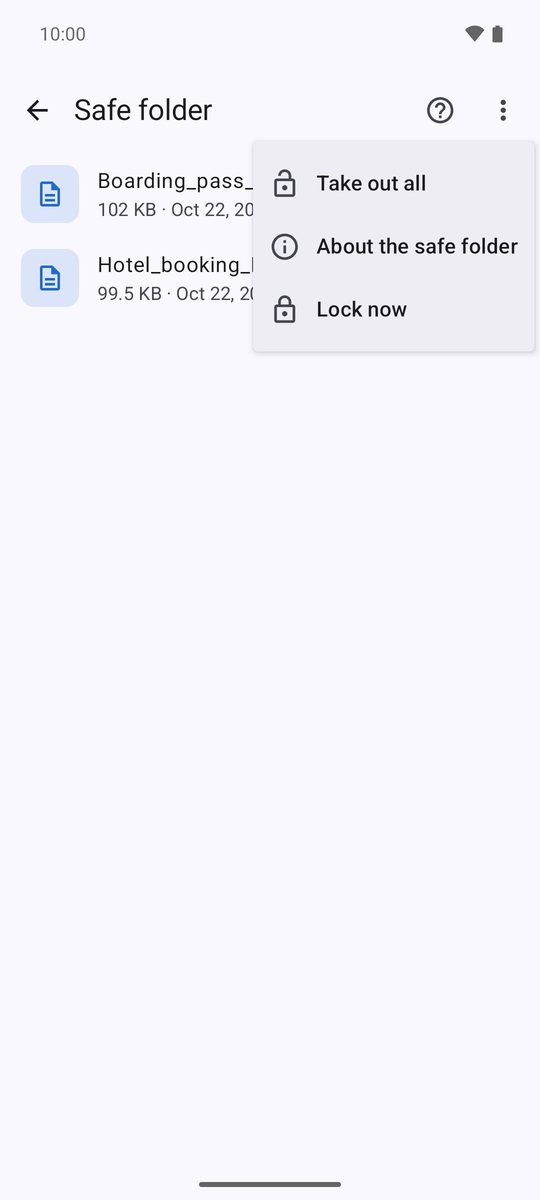
The ⋮ menu has Take out all, About the safe folder and Lock now. It also locks itself when you leave and after 5 minutes without use.
How it's protected
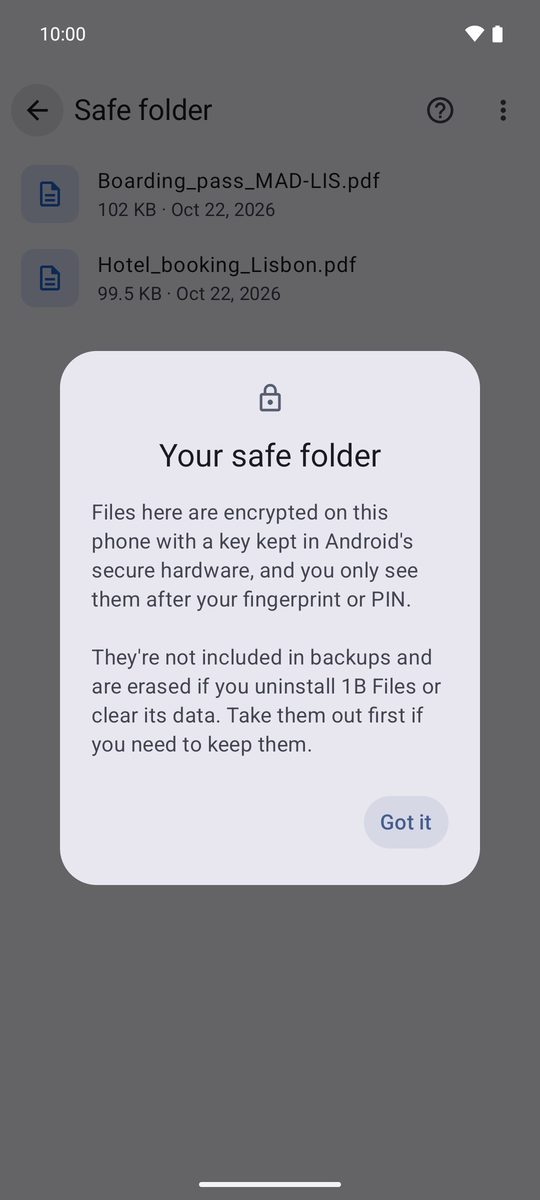
Each file is encrypted with AES-GCM using a key kept in Android's secure hardware, and the folder can only be opened after your fingerprint or PIN. Screenshots are blocked and it doesn't appear in recent apps.
The safe folder isn't included in backups and is erased if you uninstall 1B Files or clear its data. Take your files out before changing phones.
Written for 1B Files 1.0 on Android 11 or later, with real screenshots and example files.