Chapter 7 · Guide · 1B Files
SFTP, SMB, FTP and WebDAV servers and cloud folders
Open the files of your computer, NAS or own server from the phone and copy them in both directions, as if they were one more folder.
Add a server
- On the home screen, tap Remote and then Add server.
- Choose the type: SFTP (SSH), FTP, FTPS, SMB (shared folders of Windows or a NAS) or WebDAV (Nextcloud and similar).
- Fill in Name, Address, Port, Username and Password. With SFTP you can use a Private SSH key (optional) instead of the password. Start folder (optional) opens that folder directly.
- Tap Save, then tap the server to connect.
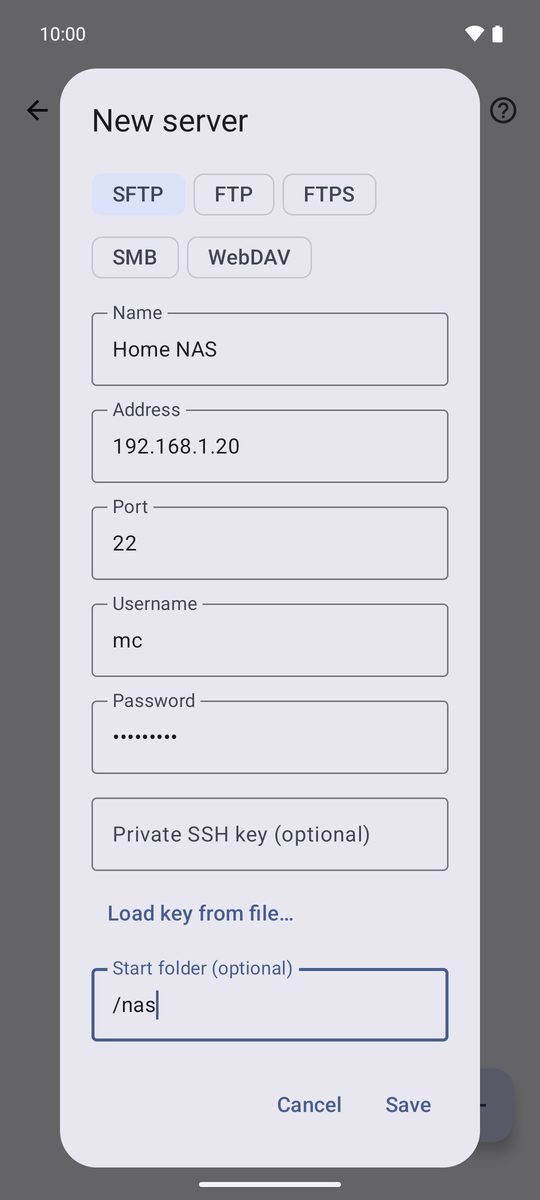
The first SFTP connection
The first time, 1B Files shows Verify the server with the server's fingerprint. Compare it with the server's if you can and tap Trust and connect. If it ever changes, the app warns you (The server's identity has changed) before sending your password.
Work with the server's files
Browse as in any folder. Select files to Copy, Cut, Download or Delete them; Upload files sends files from the phone. To transfer, copy on one side and paste in a folder on the other. Videos and music play straight from the server.
Servers have no trash: what you delete there is gone.
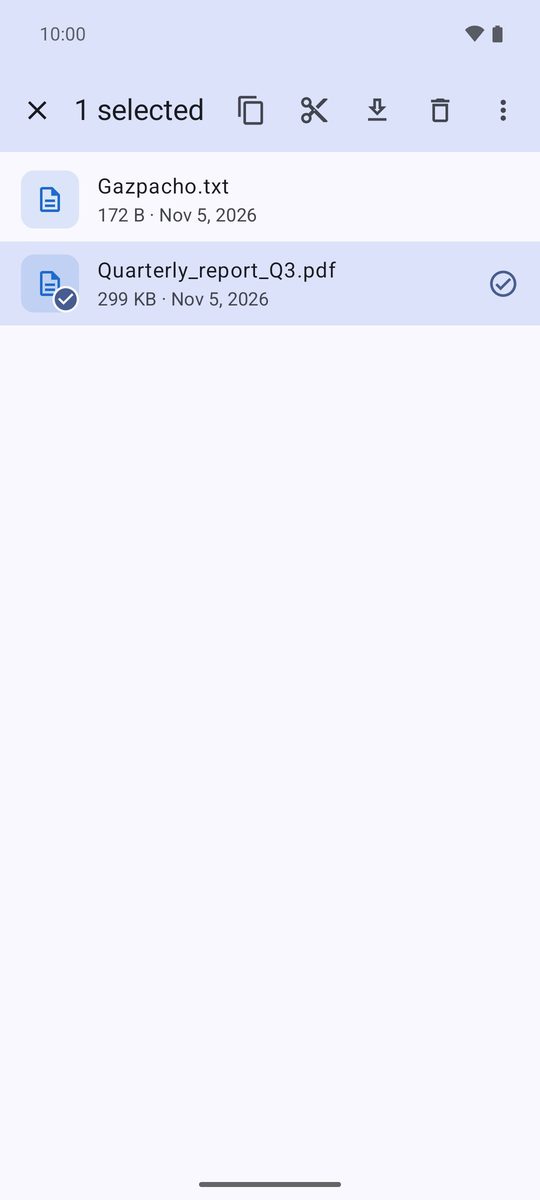
FTP and WebDAV over http
These connections travel unencrypted, and the app marks them Not encrypted. Use them only on your home network or through a VPN; when you can, choose SFTP, FTPS or WebDAV over https.
Cloud folders
Cloud adds folders from Nextcloud, OneDrive, Dropbox or any app that offers its files to Android. Tap +, choose the folder in the Android window, and it appears in the list. 1B Files only sees the folders you add.
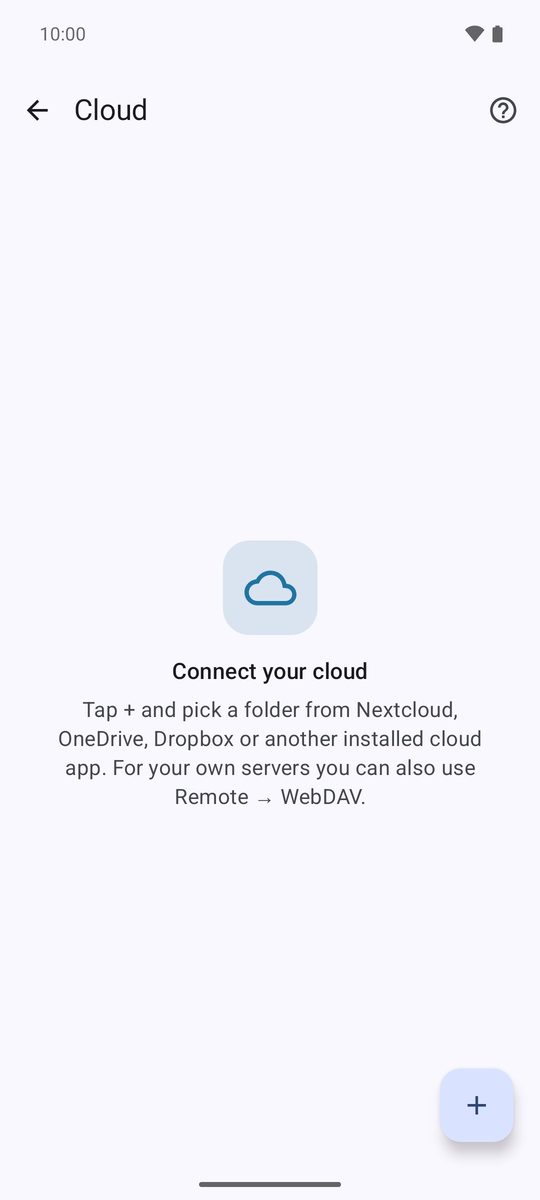
Written for 1B Files 1.0 on Android 11 or later, with real screenshots and example files.