Chapter 4 · Guide · 1B Files
ZIP, 7z and RAR archives, with or without a password
Pack files into a ZIP to send them in one go or protect them with a password, and open the archives you receive without installing anything else.
Make a ZIP
- Select the files or folders.
- In the ⋮ menu, tap Compress to ZIP.
- Type a name and tap Compress. The ZIP appears in the same folder.
To share a whole folder, compress it first: Android doesn't let apps share folders.
Protect it with a password
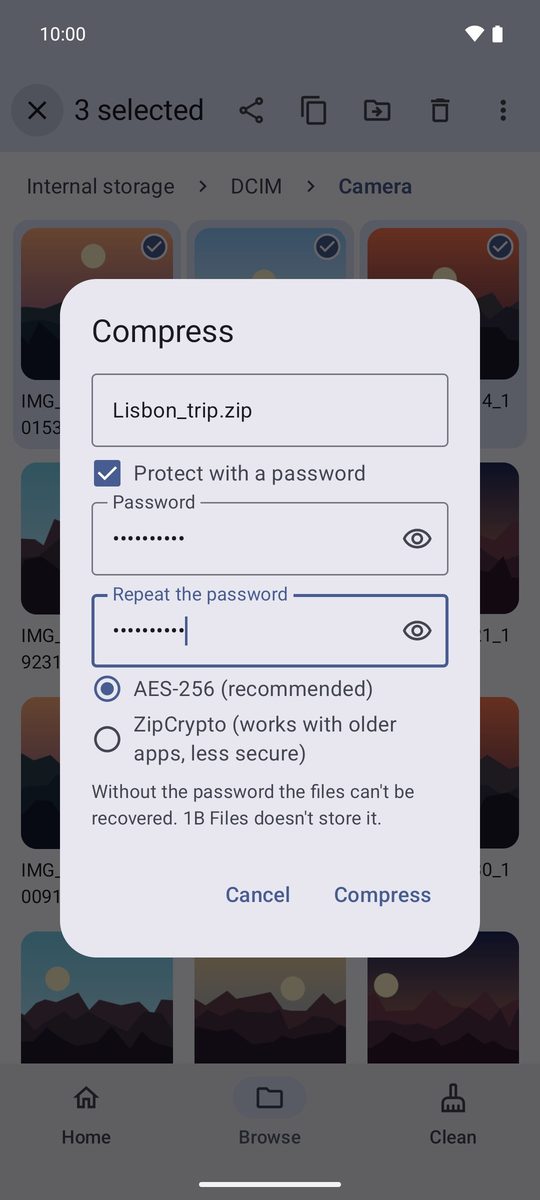
In the same window, tick Protect with a password, type the password twice and choose AES-256 (recommended) or, only if it has to open in very old programs, ZipCrypto (works with older apps, less secure).
Keep the password somewhere safe: 1B Files doesn't store it, and without it nobody can open the files.
Look inside and extract
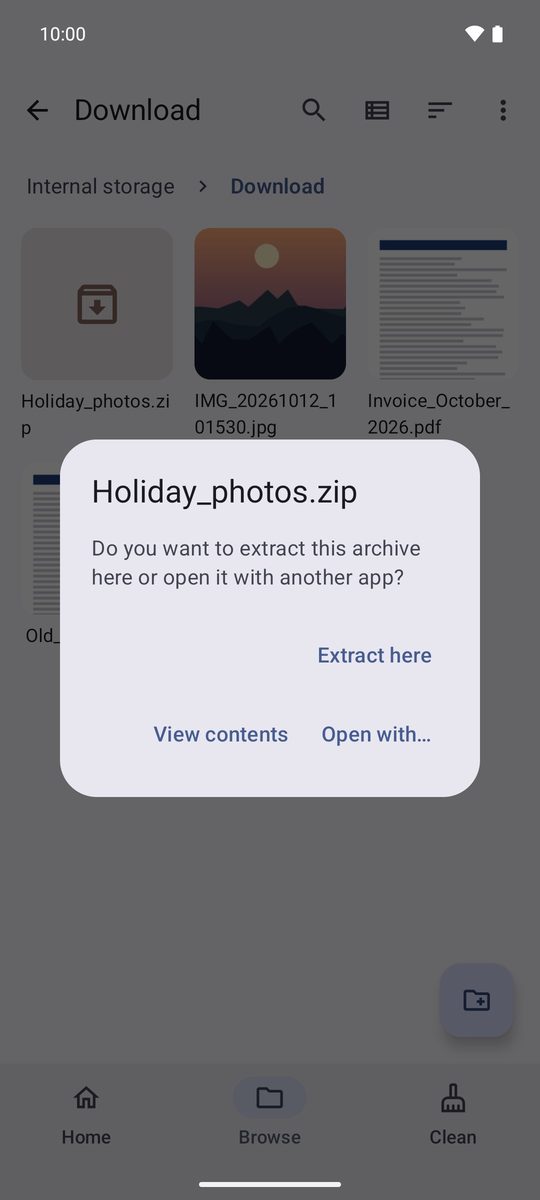
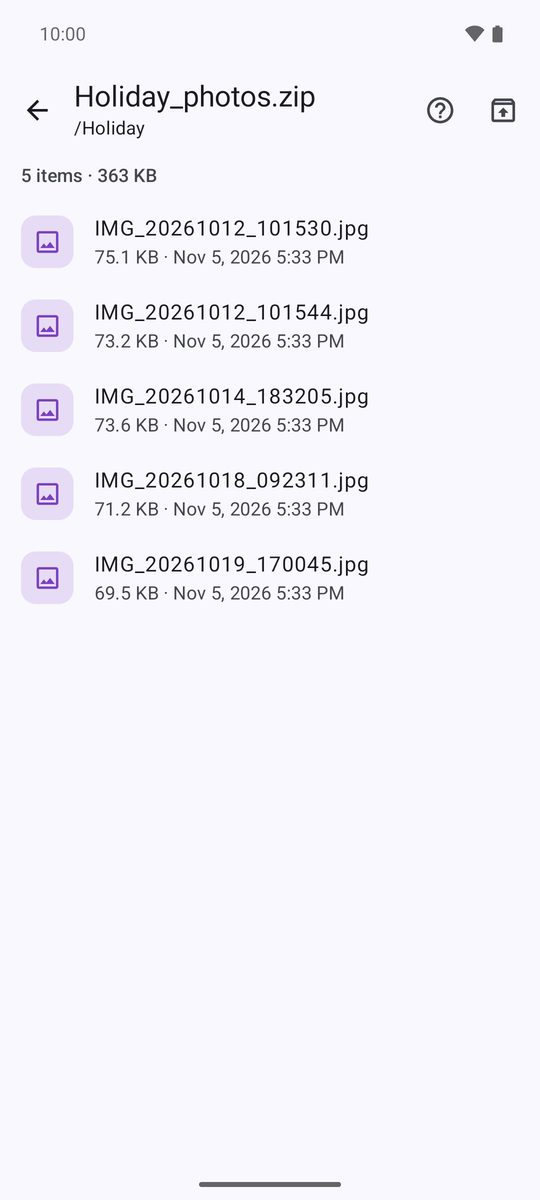
Tap an archive: Extract here unpacks it into the folder you're in, View contents lets you browse it without extracting anything, and Open with… passes it to another app.
Inside, tap a file to open just that one, or use the button at the top to Extract all. If the archive has a password, the app asks for it.
Formats
1B Files opens ZIP (also with an AES or ZipCrypto password), 7z, RAR and TAR (also .tar.gz and .tar.xz), and creates ZIP. Password-protected RAR5 archives can't be opened yet.
Archives that would expand to an absurd size (“zip bombs”) are stopped before they fill your phone, and nothing is left halfway.
Written for 1B Files 1.0 on Android 11 or later, with real screenshots and example files.