Chapter 5 · Guide · 1B Files
Batch rename, text editor and checksums
Small tools that save a lot of time: renaming a whole holiday's photos in one go, fixing a text file or checking that a download arrived intact.
Rename many files at once
- Select the files and, in the ⋮ menu, tap Rename.
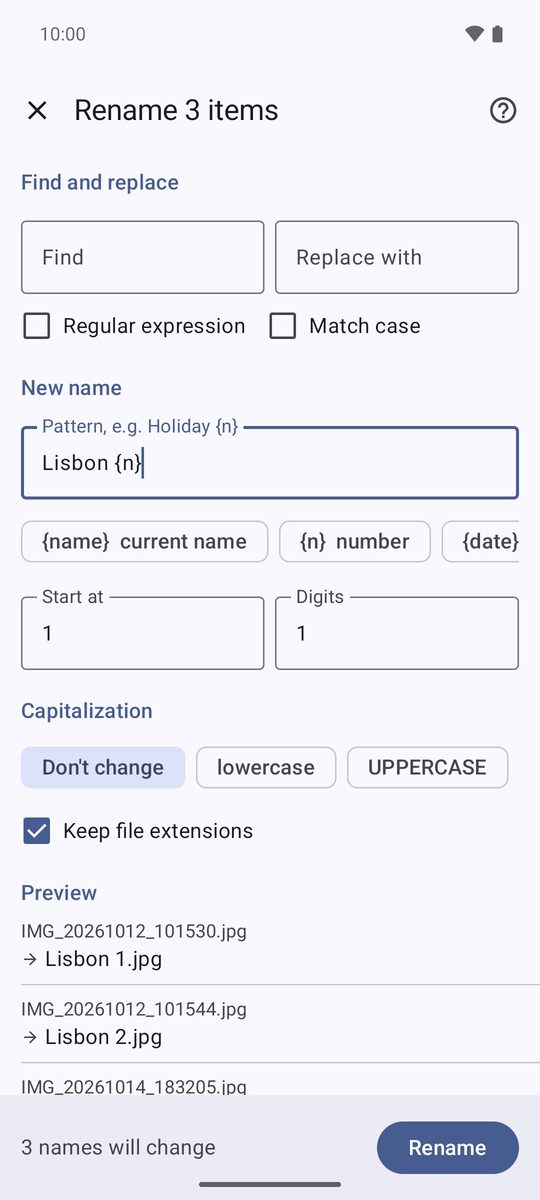
- Use Find and replace to change part of the names, or write a New name with {name}, {n} and {date}: “Lisbon {n}” gives Lisbon 1, Lisbon 2…
- Adjust Start at, Digits and Capitalization, and check the Preview below.
- Tap Rename. If a name already exists, the app asks what to do.
With a single file selected, Rename simply asks for the new name.
Edit text files
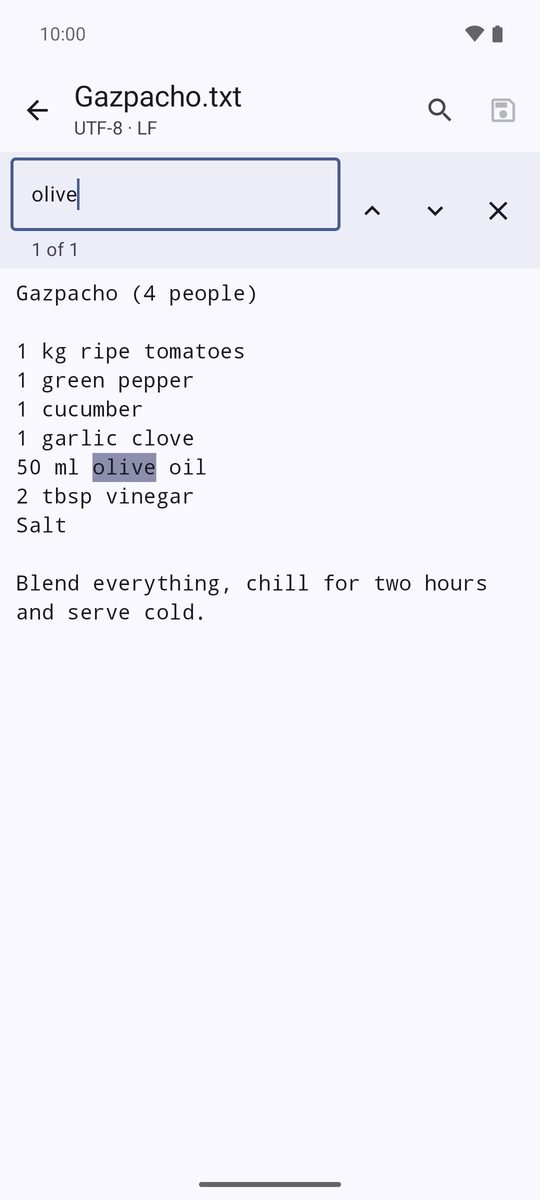
Open a text file (.txt, .md, .json, .csv…) and tap the pencil to edit it. The magnifier opens Find in text. Save with the disk icon; if you leave with changes, the app asks Save changes?
The editor works with files up to 2 MB.
Details and checksums
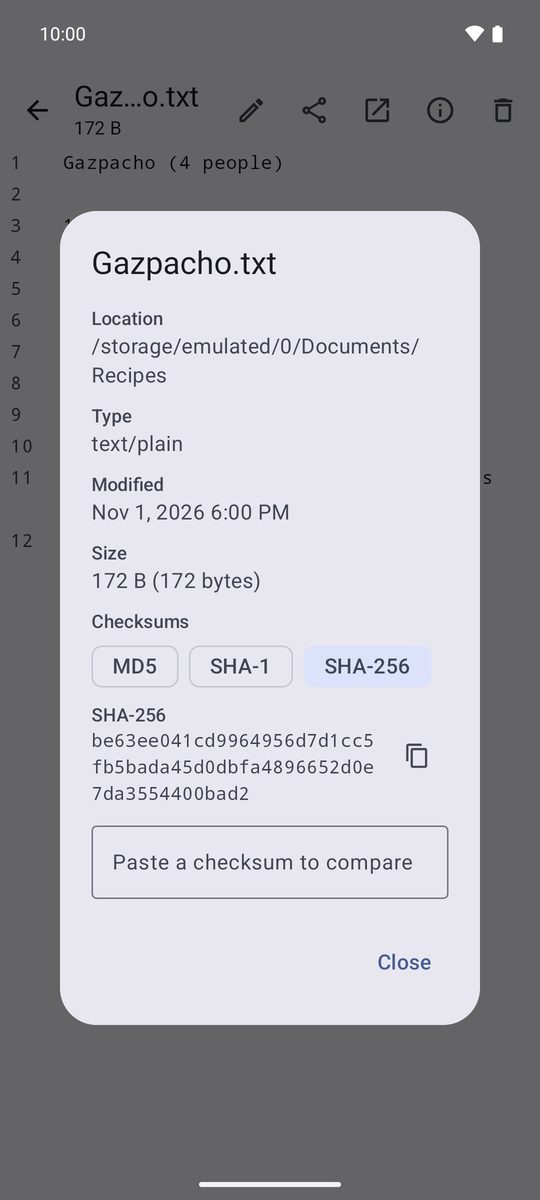
Details shows where a file is, its type, date and size. Under Checksums, tap MD5, SHA-1 or SHA-256 to calculate it, then paste the one published by the website in Paste a checksum to compare: you'll see Matches or Doesn't match. It's the way to check that a download arrived intact.
Open with another app and share
Tapping a file opens it in the built-in viewer (photos, videos, music, PDF and text). Open with lets you choose another app, and Share sends it. Other apps can also use 1B Files when they ask you to choose a file.
Written for 1B Files 1.0 on Android 11 or later, with real screenshots and example files.