Chapter 2 · Guide · 1B Files
Browse folders, copy, move and delete files
Open folders, select files and copy, move, rename or delete them. Every copy is checked before anything is removed.
Move through your folders
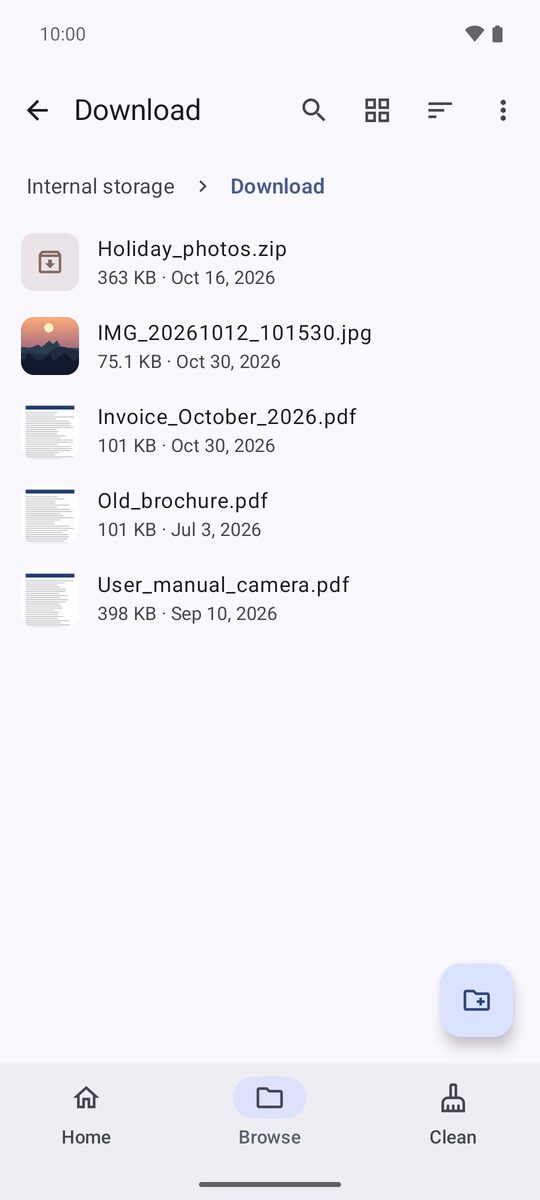
In Browse, tap a folder to open it. The path at the top shows where you are: tap any part of it to jump back. The arrow at the top left goes up one level, and so does Android's back gesture.
The buttons at the top switch between list and grid (Change view) and change the order (Sort): by name, date, size or type. The ⋮ menu has New folder, Select all, Show hidden files and Add folder to favorites.
Select files
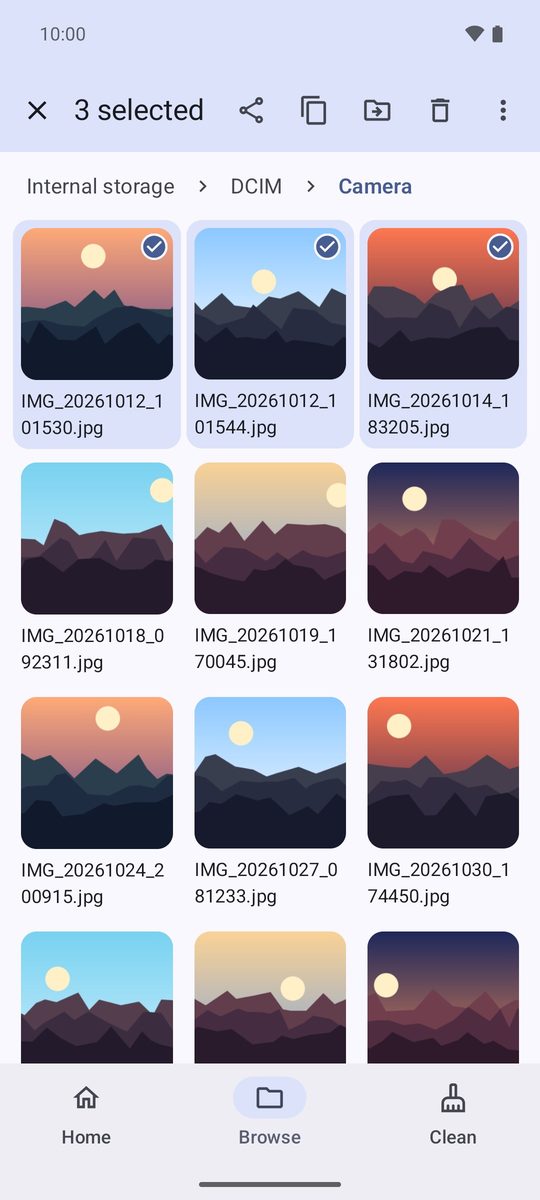
Touch and hold a file to start selecting, then tap others to add them. The bar at the top shows how many are selected and the main actions: Share, Copy, Move and Delete.
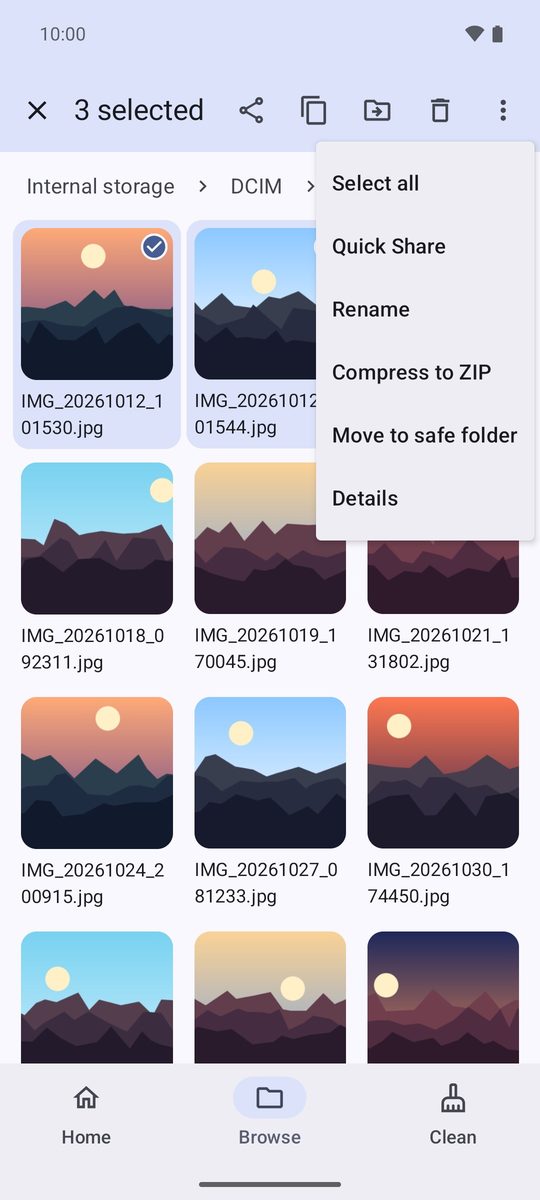
The ⋮ menu has the rest, such as Rename, Compress to ZIP, Move to safe folder and Details.
Copy or move
- Select the files and tap Copy or Move.
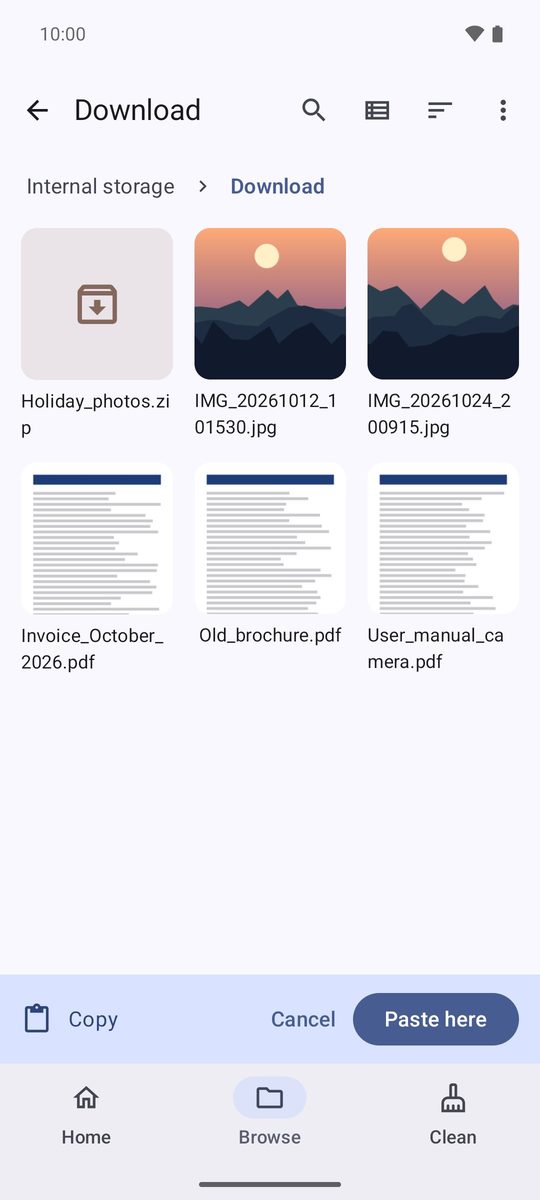
- Open the destination folder. A bar at the bottom reminds you what's waiting.
- Tap Paste here. Long copies keep going in the background, with their progress and a Cancel button in the notification.
1B Files writes the copy first, checks it and only then removes the original when you move. If something fails halfway, nothing is lost.
When a file with that name already exists
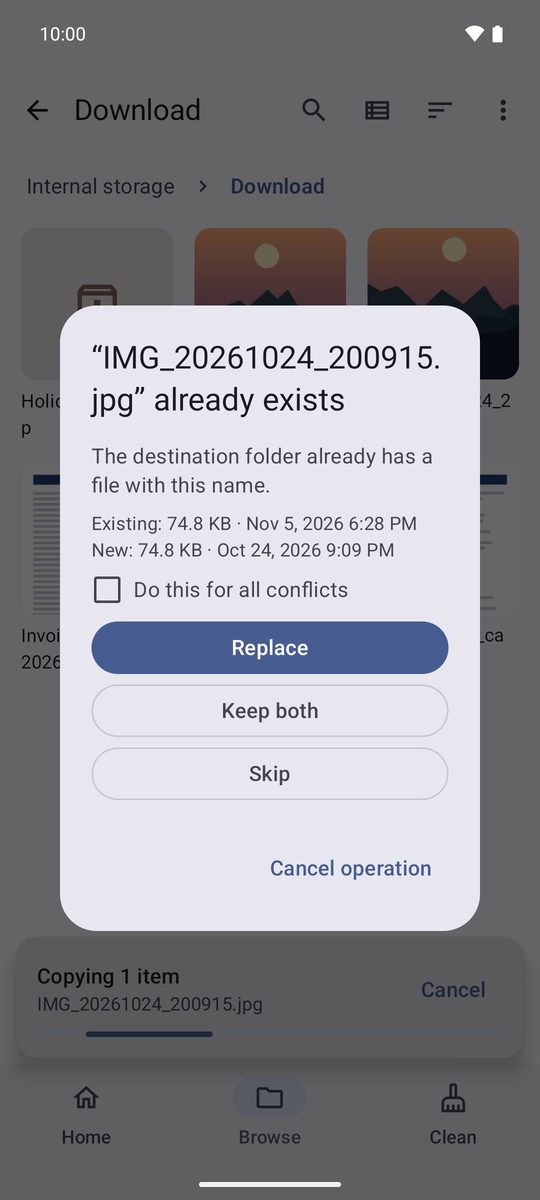
1B Files asks before overwriting anything: Replace, Keep both (the new one gets a number) or Skip, and for folders also Merge folders. Tick Do this for all conflicts to answer once for the whole operation.
Delete and undo
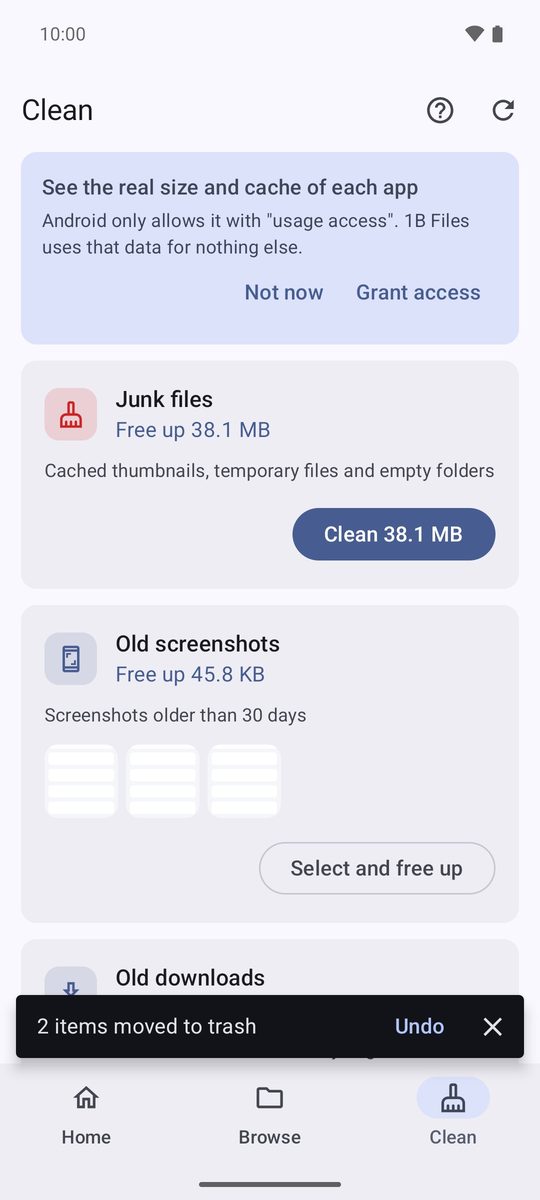
Delete sends the files to the trash and shows Undo for a few seconds. Afterwards you can still restore them from the trash for 30 days (see the chapter on freeing up space).
If you turn off Use trash in settings, the app asks first, because the files are deleted for good.
Two panes on tablets and foldables
On a wide screen, the Two panes button at the top shows two folders side by side. Drag files from one to the other, or select them and use Copy to the other pane or Move to the other pane. Folding or unfolding the phone keeps your folder, your selection and where you were in the list.
Written for 1B Files 1.0 on Android 11 or later, with real screenshots and example files.