Chapter 1 · Guide · 1B Files
Getting started with 1B Files
Setting up takes a few seconds: one permission and you're in. The home screen takes you to every kind of file, and search finds any of them by name.
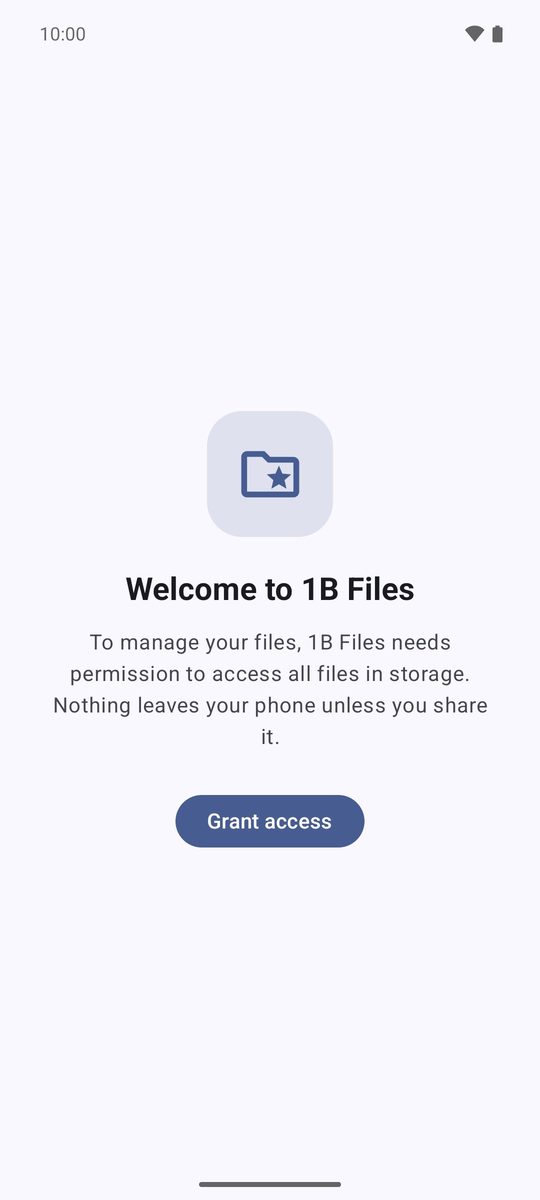
Allow access to your files
A file manager needs to see all your storage, so the first time Android asks for one permission.
- Open 1B Files and tap Grant access.
- On the Android screen that opens, turn on the switch next to 1B Files (it's called something like “Allow access to manage all files”).
- Go back: the home screen appears.
Nothing leaves your phone unless you share it: 1B Files has no account, no ads and no tracking.
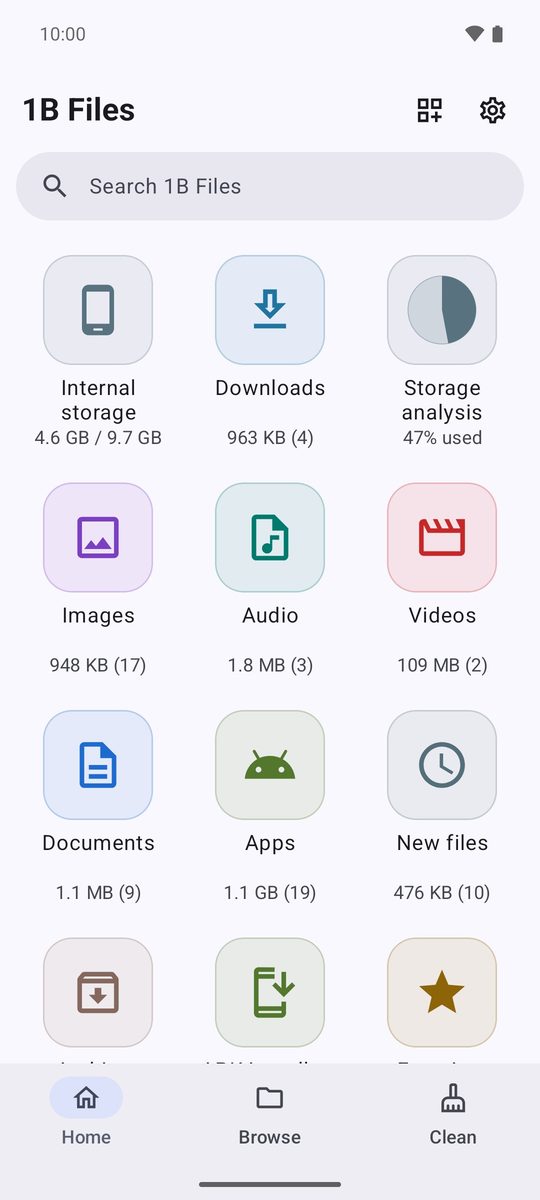
The home screen
Each tile shows its size and, in brackets, how many files it holds. Internal storage opens your folders, Downloads goes straight to what you've downloaded and Storage analysis shows what takes up space.
Further down are Images, Audio, Videos, Documents, Apps, New files, Archives, APK installers, Favorites, Safe folder, Trash, Cloud, Remote and Access from PC, and at the bottom your Recent files.
The bar at the bottom switches between Home, Browse and Clean. On a tablet or an unfolded phone it moves to the side.
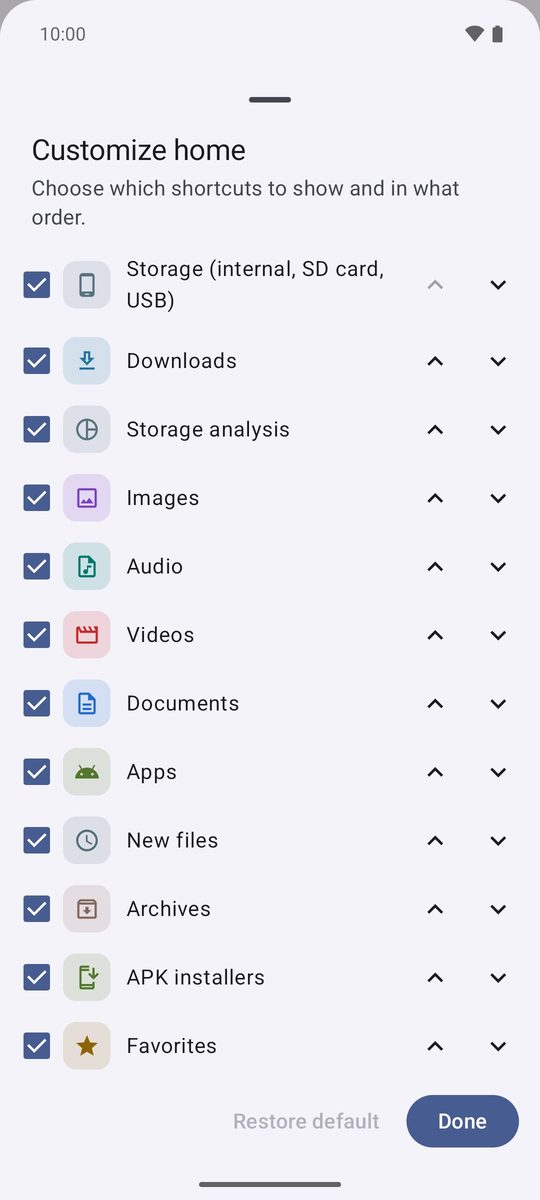
Choose which tiles you see
- Tap the tiles icon at the top (Customize home).
- Untick what you don't use and change the order with the arrows (Move up and Move down).
- Tap Done. Restore default brings back the original layout.
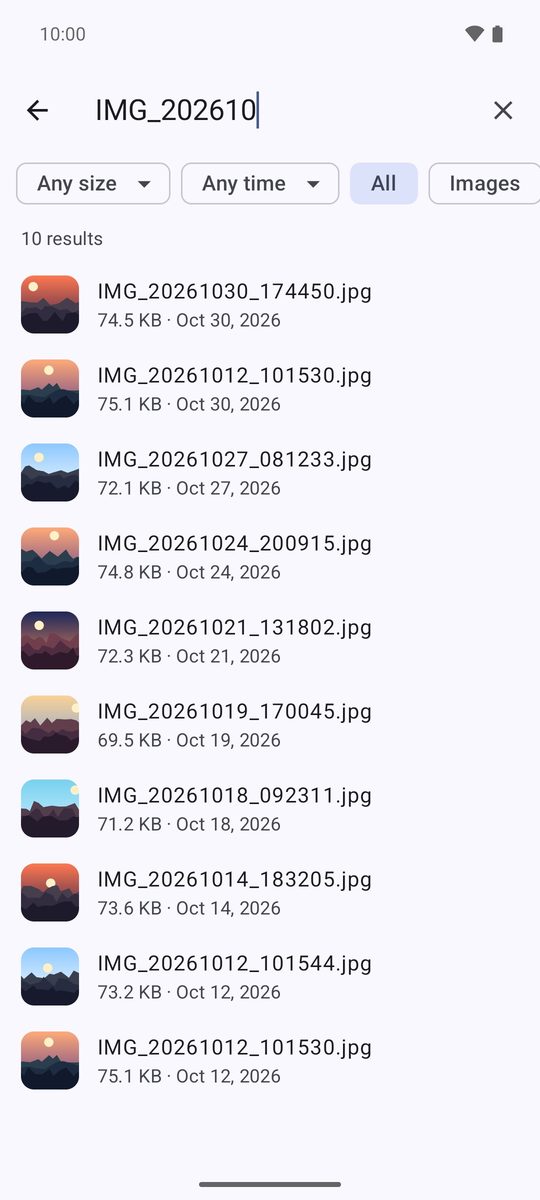
Find any file
Tap Search 1B Files and type part of the name; accents and capitals don't matter. Results appear as you type, and the chips at the top narrow them by size (Any size), date (Any time) and type.
Inside a folder, the magnifier at the top searches only in that folder.
Settings
The gear on the home screen opens Settings: light or dark theme, Show hidden files, Use trash and how many days the trash keeps files, and Add widget to home screen.
Written for 1B Files 1.0 on Android 11 or later, with real screenshots and example files.