Chapter 8 · Guide · 1B Pass
Security and privacy: how 1B Pass protects your vault
1B Pass is built so that your passwords never depend on anyone else: not on a server, not on an account, not on us. This is how.
How your vault is encrypted
Every item is encrypted on its own with AES-256-GCM, using a random key that only your master password (or your recovery key) can unlock. The master password is strengthened with Argon2id, tuned on your phone so that each attempt costs memory and time; Settings › About › Encryption shows the values used on yours.
The vault is also signed as a whole: if anyone modifies, reorders or truncates the file, 1B Pass detects it and refuses to open it.
No Internet permission
1B Pass doesn't declare Android's Internet permission, so it can't send anything anywhere: no account, no ads, no tracking, no analytics, no website icons downloaded and no breach-checking service called. Backups and sync reach your cloud only because you choose a folder of an app that already syncs; that app moves a file that is already encrypted.
Android's own backup of app data is turned off for 1B Pass, so your vault only leaves the phone when you export it or sync it.
No back door: the emergency kit
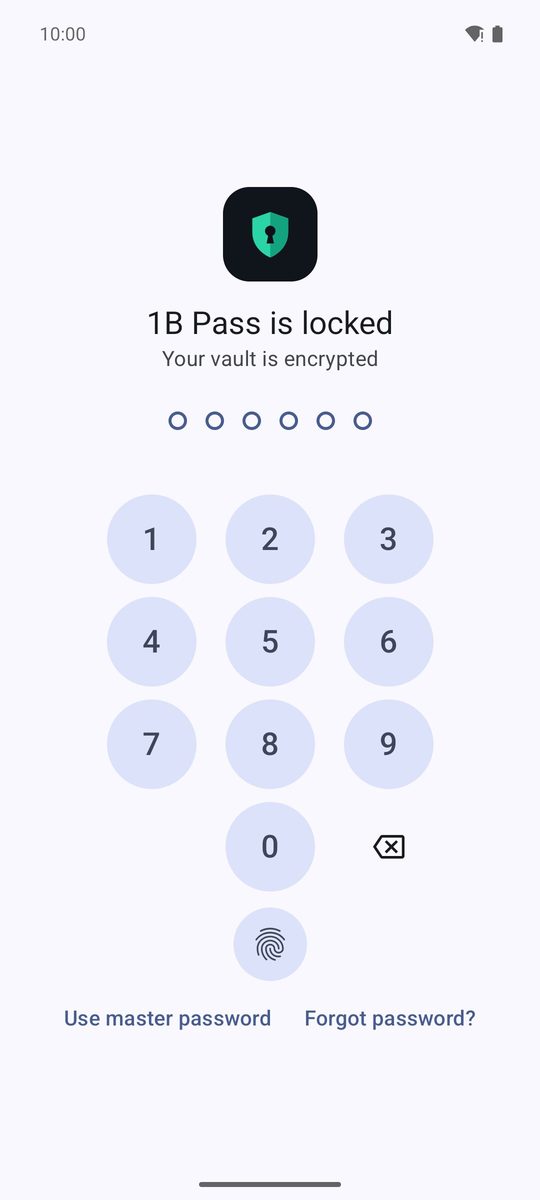
Nobody can reset your master password, because nobody else has a way in. If you forget it, tap Forgot password? on the lock screen, type the recovery key from your emergency kit and choose a new master password.
Creating a new kit (New emergency kit) makes the old key stop opening this vault; backups made earlier still open with the key that was valid when they were made. Without the master password and without the recovery key, nobody can recover your data.
Locking and quick unlock
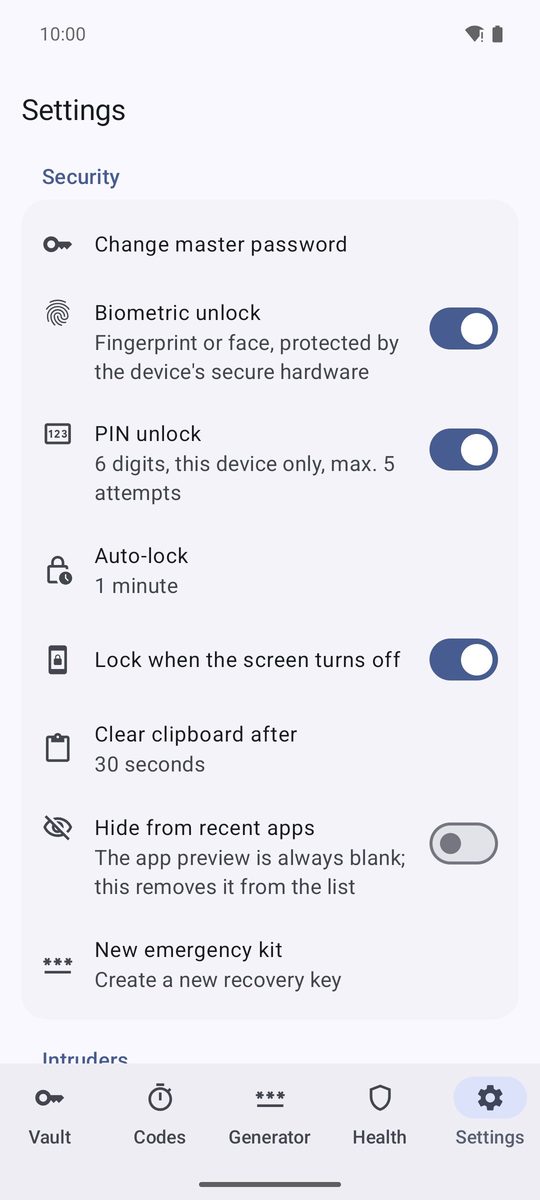
In Settings › Security, Auto-lock locks the vault after some time in the background (1 minute by default, from Immediately when leaving the app to Never (only when the screen turns off, if enabled)) and Lock when the screen turns off locks it when the screen turns off.
Biometric unlock and PIN unlock (6 digits) work only on this phone and are protected by its secure hardware. After 5 wrong PINs the PIN is turned off, and if you add a new fingerprint to the phone, biometric unlock is turned off too: in both cases, unlock with the master password and turn them on again.
Screen, clipboard and keyboard
Screenshots and screen recording of 1B Pass are blocked and its preview in recent apps is blank; Hide from recent apps also removes it from that list. Copied secrets are marked as sensitive and cleared after the time set in Clear clipboard after (30 seconds by default). Text fields ask the keyboard not to learn what you type.
Intruder photo and erasing after failed attempts
Both are optional and off by default. Intruder photo takes a photo with the front camera after a number of failed unlock attempts and keeps it on the phone (Intruder photos). Erase after failed attempts erases the vault from this phone after 5 to 20 failed attempts in a row: use it only if you keep backups.
What no app can protect against
Being honest about limits is part of security. 1B Pass can't protect a phone that is already compromised (malware with root, a malicious keyboard) while the vault is open, a weak master password, someone watching you type it, or losing both the master password and the recovery key.
Written for 1B Pass 1.1 on Android 11 or later, with real screenshots and example data.