Chapter 7 · Guide · 1B Pass
Encrypted backups and folder sync
Your vault lives on your phone, so keep a copy somewhere else. A backup is the same encrypted file, and folder sync keeps the same vault on several devices, all without giving 1B Pass Internet access.
Make an encrypted backup
The backup opens with the master password the vault had when you made it, or with your recovery key. Without them it is useless to anyone.
- Go to Settings › Backup & restore › Export encrypted backup.
- Choose where to save it: Drive, a USB stick, Downloads… The file ends in .1bpass.
- You'll see Encrypted backup saved.
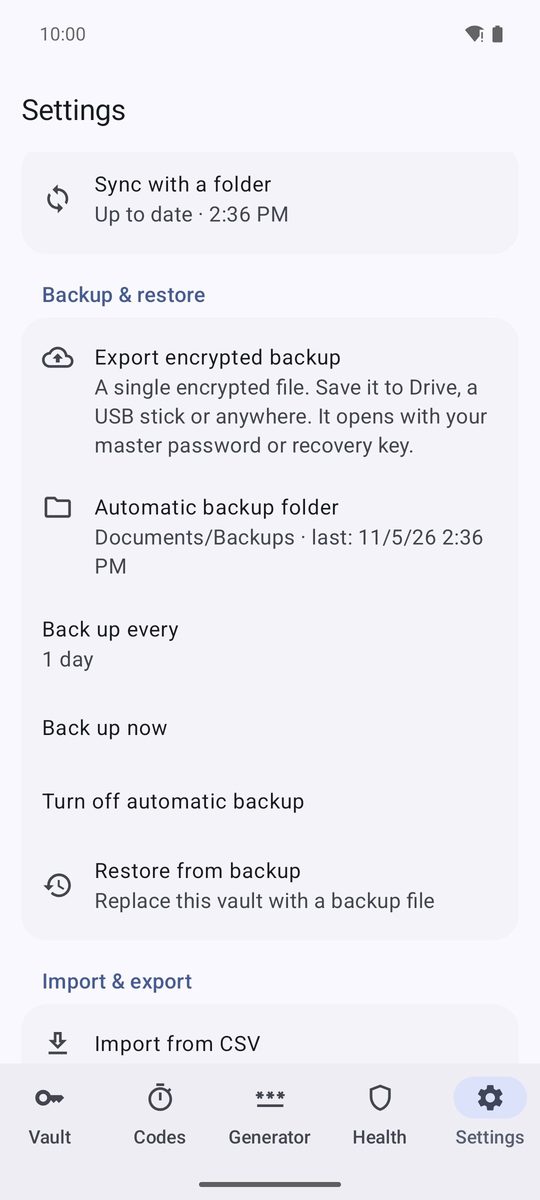
Automatic backups
Tap Automatic backup folder and choose a folder: on the phone, on an SD card or in a cloud app such as Drive. 1B Pass then copies the vault there regularly (Back up every: from 6 hours to 7 days), keeps the last 10 copies and skips the copy if nothing has changed. Back up now makes one at once and Turn off automatic backup stops them.
If there is no recent copy, the vault shows No recent backup with a Back up button.
Restore a backup
On a new phone, tap Restore from a backup on the first screen, then Choose backup file, and type the Master password of the backup (or tap Use recovery key instead). Tap Restore.
On a phone that already has a vault, Settings › Backup & restore › Restore from backup replaces it with the backup: anything added after that backup was made is lost.
Sync with a folder
New in 1.1. Choose a folder that another app already keeps in sync, such as Google Drive, Dropbox, OneDrive, Nextcloud or Syncthing. 1B Pass saves one encrypted file there and merges the changes made on your other devices. 1B Pass still has no Internet permission: the app that manages the folder moves the file.
- Go to Settings › Sync › Sync with a folder.
- Tap Choose folder and pick a folder in your cloud app (or any folder another app keeps in sync).
- 1B Pass saves the vault there and shows Up to date · 10:00.
From then on it syncs a few seconds after each change, when you open the app and every hour in the background. Sync now syncs at once, Change folder picks another folder and Stop syncing stops it (the file in the folder isn't deleted).
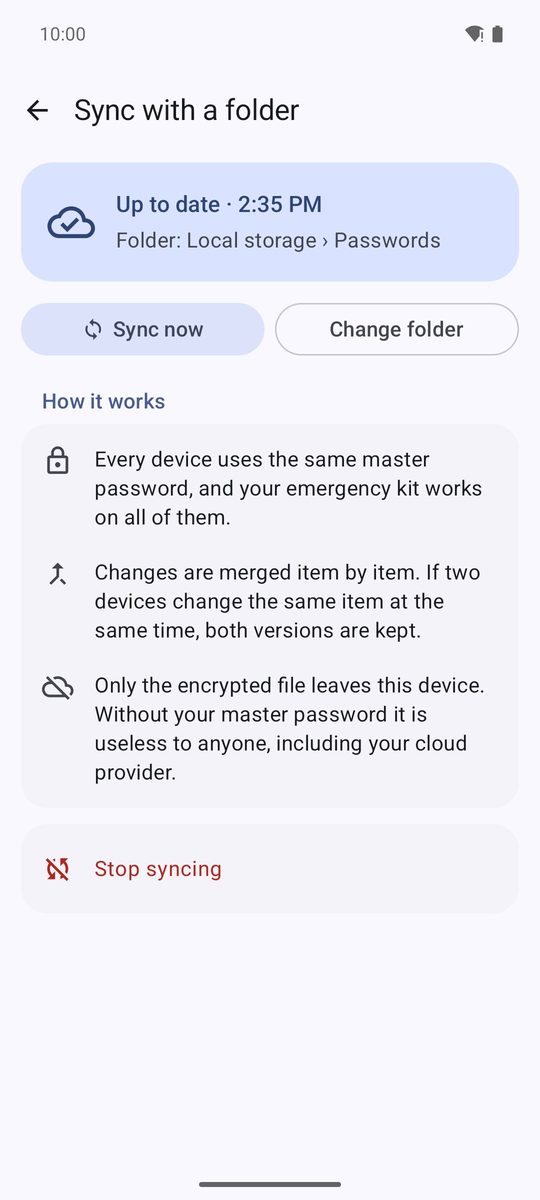
Add another device
On the second device, install 1B Pass and tap I use 1B Pass on another device on the first screen. Tap Choose the sync folder, choose the same folder (you'll see Vault found in the folder ✓), type the master password of that vault and tap Connect. Every device uses the same master password and the same emergency kit.
If that device already has a vault of its own, choose the folder from Settings › Sync instead. 1B Pass says This folder already has a vault, asks for the folder vault's password and asks What about the items on this device?: Add them to the folder's vault (nothing is lost) or Use only the folder's vault. Then turn fingerprint and PIN back on in Settings: they belong to each device.
Conflict copies
Changes are merged item by item. If two devices change the same item before syncing, both versions are kept: the second one appears marked Conflict copy. Open it, compare with Open the original and choose Keep as a separate item or Delete this copy.
When sync needs you
If something stops sync, the screen says Needs your attention and explains why. If the folder can't be opened, choose it again with Change folder. If it holds a different vault, Connect to that vault joins it. If the file was damaged or modified, 1B Pass doesn't use it and offers Replace it with this device's vault. If another device made changes while this one is locked, the status is Waiting for you to unlock: they are added when you unlock.
Written for 1B Pass 1.1 on Android 11 or later, with real screenshots and example data.