Chapter 2 · Guide · 1B Pass
Autofill: fill and save passwords in apps and browsers
With autofill on, 1B Pass offers your username and password right where you sign in, in apps and in browsers, and offers to save new logins. Your vault stays locked until you unlock it.
Turn on autofill
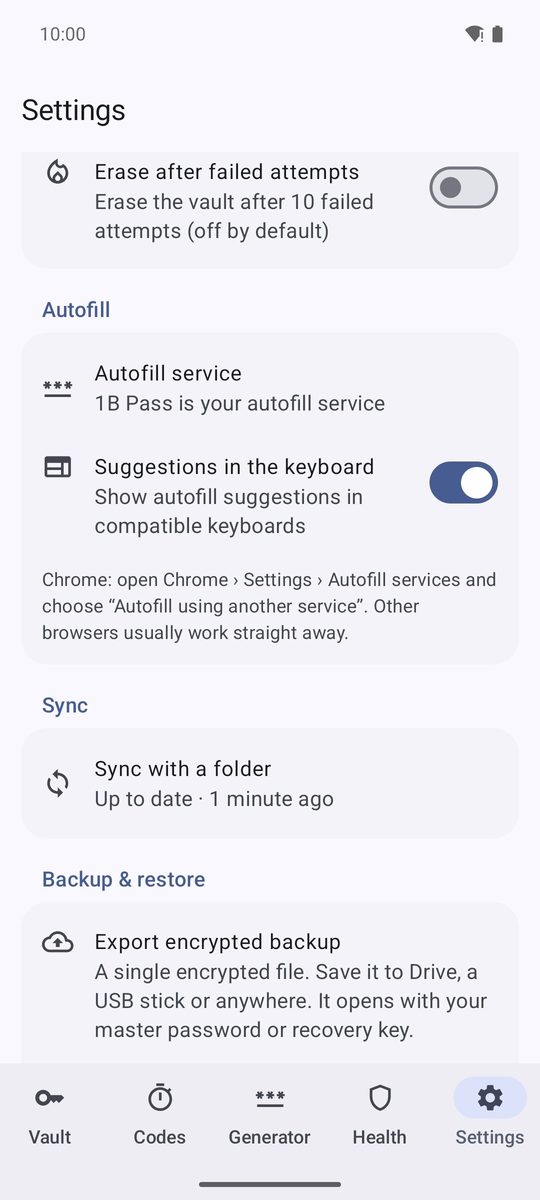
- Tap Turn on autofill on the last step of the setup, or go to Settings › Autofill › Autofill service.
- Android opens its list of autofill services. Choose 1B Pass and confirm.
- Back in the app, the row says 1B Pass is your autofill service.
Chrome needs one more step: in Chrome, open Settings › Autofill services and choose “Autofill using another service”. Chrome restarts and from then on uses 1B Pass. Other browsers usually work straight away.
Fill a login
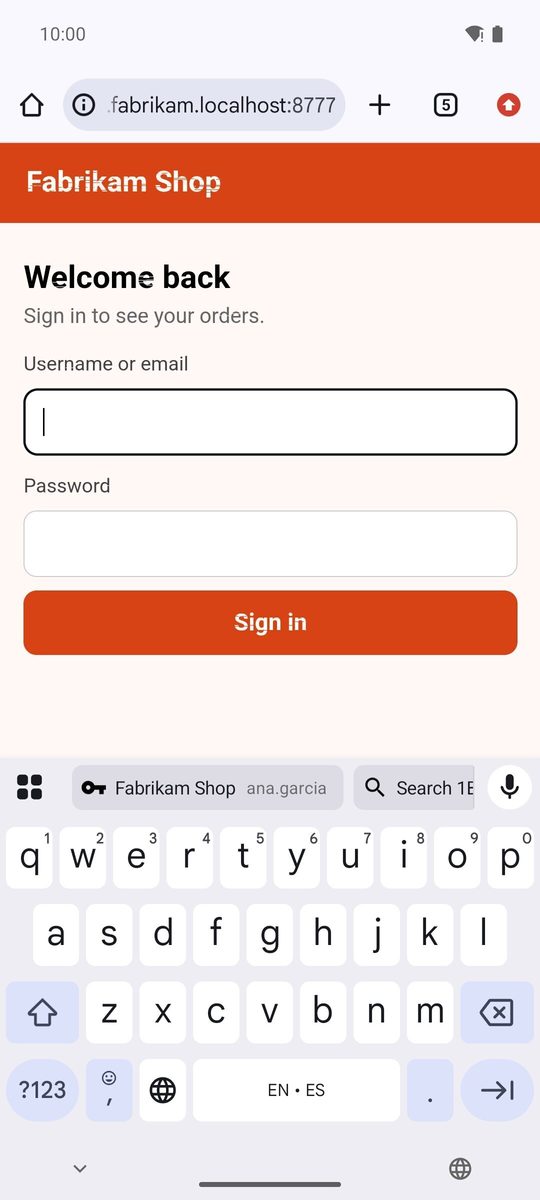
Tap the username or password field. 1B Pass suggests the logins saved for that app or website: tap one and both fields are filled.
Suggestions in the keyboard (on by default) shows the suggestions as chips above compatible keyboards, such as Gboard. If you turn it off, they appear in a drop-down list under the field.
If the vault is locked, the suggestion is Unlock 1B Pass. Tap it, unlock with your fingerprint, PIN or master password, and the login is filled.
Apps are recognised by their package name and websites by their domain. To protect you from fake sites, a website is matched only when you are in a known browser, and only on the same domain: a look-alike address never matches. Cards and addresses from identities are offered in payment and address forms too.
When nothing is suggested: Search 1B Pass
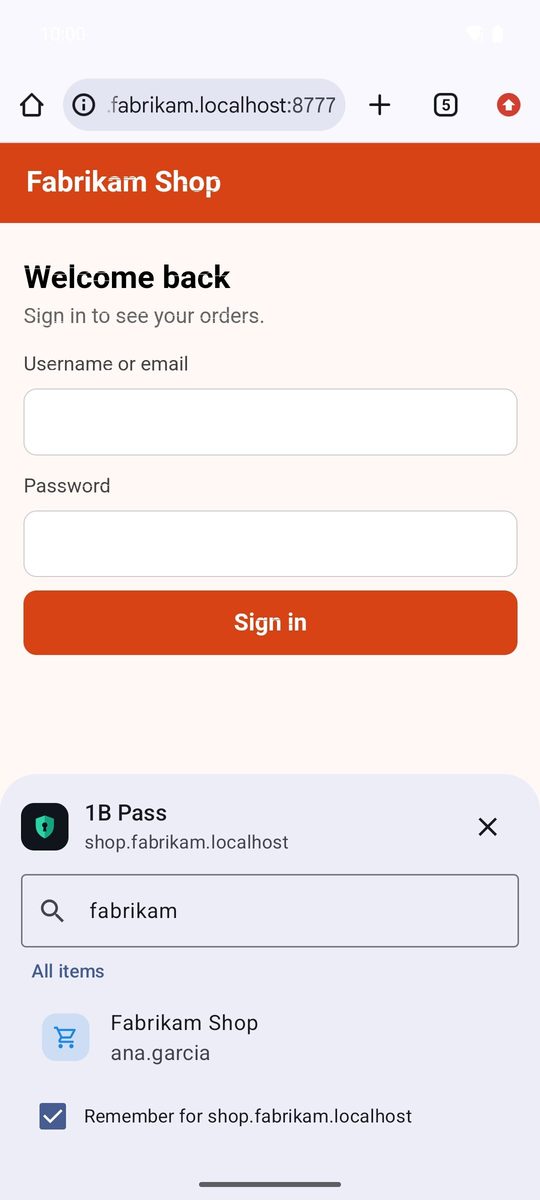
If the app or site isn't saved in any item yet, the suggestion is Search 1B Pass.
- Tap Search 1B Pass. A panel opens with Suggested for this app or site (if any) and All items, already searching by the name of the site or app.
- Type in the search box if you need to and tap the login.
- Leave Remember for … ticked: 1B Pass adds that app or site to the item, so next time it is suggested straight away.
Save and update logins
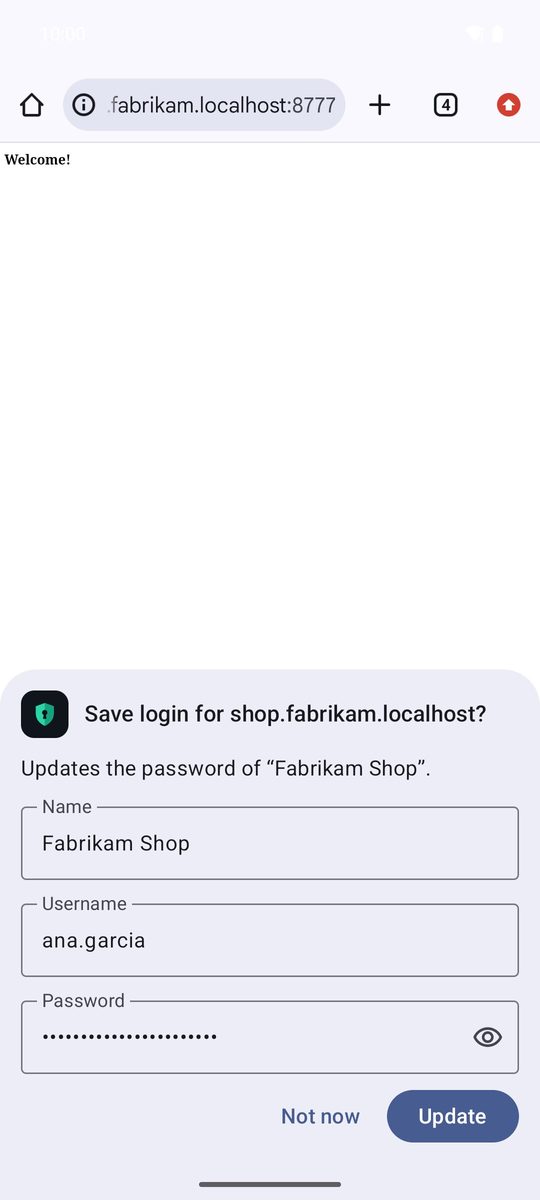
When you sign in with a login that isn't in your vault, or with a new password, Android first asks whether to save it to 1B Pass. Accept, and 1B Pass shows Save login for …? with the Name, Username and Password it will save.
Tap Save, or Not now to skip it. If you already had that login, the panel says Updates the password of “…”. and the button is Update: the old password goes to the item's history. Sign-ins split into two pages (username first, password next) are saved as one login.
What autofill can and can't see
Nothing is filled until the vault is unlocked. Keyboard chips show only the item name and the username, never the password. Android's own screens (settings, lock screen, Play) are ignored, so your phone's PIN is never offered for saving, and what you type when you sign in stays in memory until you confirm the save.
Written for 1B Pass 1.1 on Android 11 or later, with real screenshots and example data.