Chapter 1 · Guide · 1B Pass
Getting started: create your vault
Setting up takes a couple of minutes. You'll choose one master password, keep a recovery key somewhere safe and, if you like, unlock with your fingerprint or a PIN from then on.
Create your vault
Your vault is a single encrypted file on your phone. It holds your logins, cards, notes, identities and Wi-Fi networks.
- Open 1B Pass and tap Create a new vault.
- Read Only you hold the key: nobody, not even 1Byte Systems, can reset your master password. Tap I understand.
- On Choose your master password, type your password in Master password and again in Repeat password. The meter under the first field tells you how strong it is.
- Tap Create vault. The phone encrypts the new vault in a moment.
- Save your emergency kit, choose how to unlock quickly and decide about autofill (see below and the next chapter).
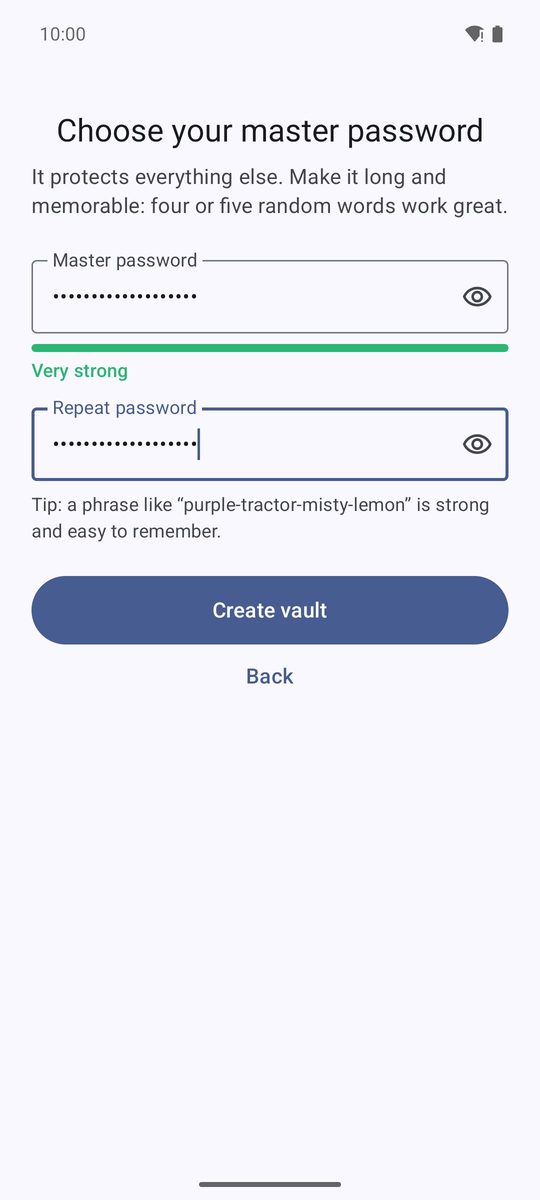
Choose a good master password
It must have at least 10 characters and can't be too easy to guess. The best choice is a phrase of four or five random words, such as the one the app suggests: long, strong and easy to remember.
Don't reuse a password you use anywhere else. You can change it later in Settings › Security › Change master password; your fingerprint and PIN keep working.
Save your emergency kit
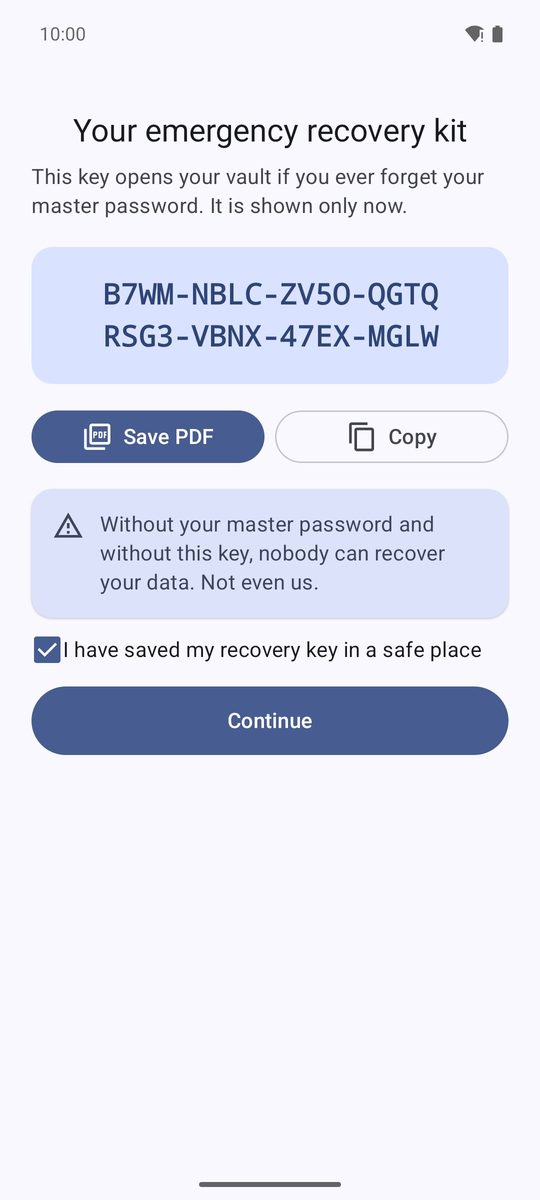
Right after creating the vault you'll see Your emergency recovery kit with your recovery key: 32 letters and numbers in groups of four. It opens your vault (and your backups) if you ever forget the master password, and it is shown only now.
- Tap Save PDF to save a one-page PDF, or Copy to copy the key.
- Print the PDF or keep it off the phone, for example on a USB stick in a drawer.
- Tick I have saved my recovery key in a safe place and tap Continue.
Lost it? Create a new one in Settings › Security › New emergency kit. The old key stops opening this vault.
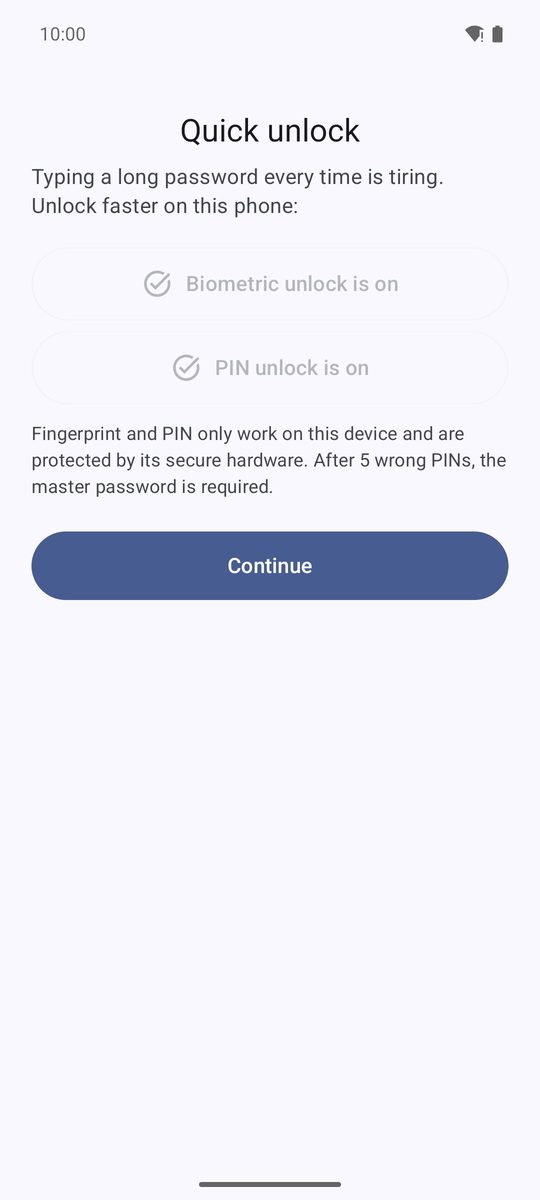
Unlock with your fingerprint or a PIN
On Quick unlock, tap Use fingerprint or face and confirm with your fingerprint, and/or Set a 6-digit PIN and type it twice. Then tap Continue (or Skip to use only the master password).
Fingerprint and PIN work only on this phone and are protected by its secure hardware. After 5 wrong PINs, 1B Pass asks for the master password. You can change both later in Settings › Security.
Already have a vault?
On the first screen, Restore from a backup opens a .1bpass backup file, and I use 1B Pass on another device connects to the vault you already sync from another device. Both are explained in the chapter on backups and sync.
Find your way around
The bar at the bottom has five tabs: Vault (all your items), Codes (two-step codes), Generator, Health (the health check) and Settings. On a tablet or an unfolded phone they move to a side bar and the vault shows the list and the selected item side by side.
The padlock at the top of Vault is Lock now: it locks the vault immediately.
Written for 1B Pass 1.1 on Android 11 or later, with real screenshots and example data.