Chapter 5 · Guide · 1B Pass
Authenticator: two-step verification codes
Many websites ask for a six-digit code that changes every 30 seconds. 1B Pass can generate those codes for you, next to the login they belong to.
How two-step codes work
When you turn on two-step verification on a website, it shows a QR code that contains a secret key. Your authenticator keeps that key and, with the time, calculates the code. 1B Pass supports standard codes (TOTP with SHA-1, SHA-256 or SHA-512) and Steam codes. The keys are encrypted in your vault like your passwords.
Scan a QR code
- Open the Codes tab and tap Scan QR code.
- The first time, Android asks for the camera. 1B Pass uses it only to read the QR code; images are processed on the phone and never stored.
- Point the camera at the QR code the website shows. If it's on this same phone, take a screenshot and use From image instead.
- If a login matches the code's issuer and has no code yet, 1B Pass asks Add to an existing login?: tap that login or Create new. Otherwise a new login opens with the name, account and key already filled in. Save it.
- Type the code the app shows into the website to finish turning on two-step verification.
Add a key by hand
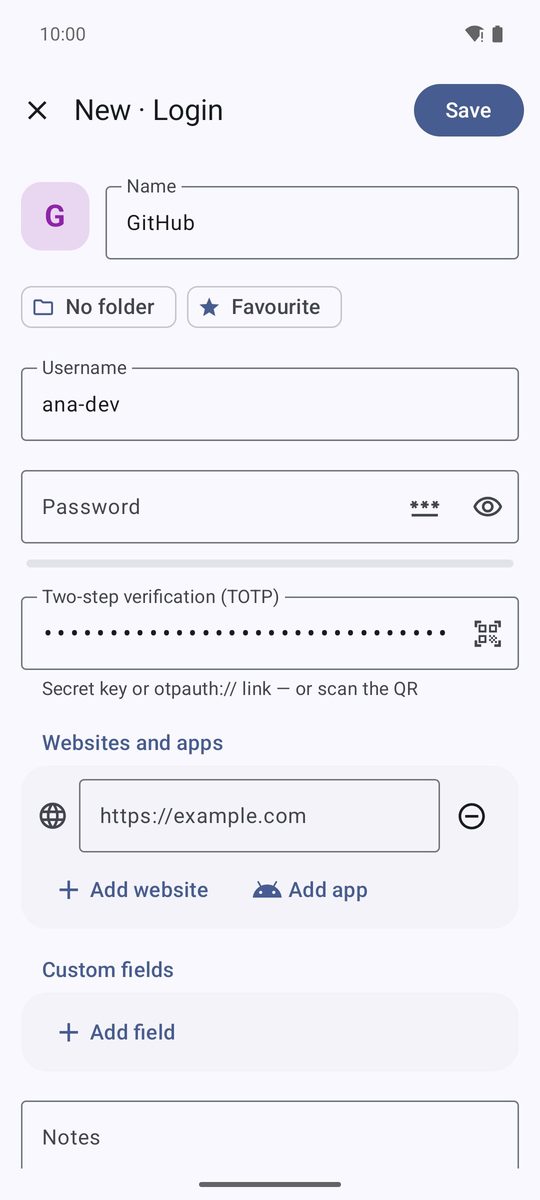
Websites usually offer a text version of the QR code. Edit the login and paste it into Two-step verification (TOTP): both the secret key and a whole otpauth:// link work. The QR button in that field opens the scanner.
Bulk export QR codes from other authenticators aren't supported (This is a bulk export QR from another authenticator. Export accounts one by one or enter the secret key by hand.).
Use the codes
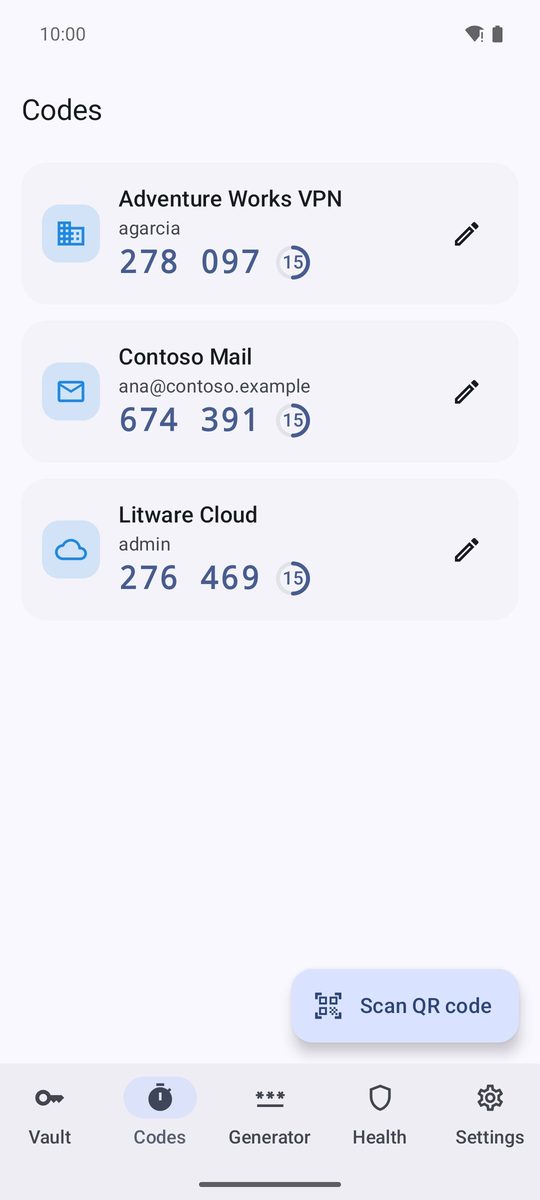
The Codes tab lists every login with a code, with a ring that shows the seconds left. Tap a card to copy its code (the clipboard is cleared automatically); the pencil opens the login. The code also appears in the login itself, under Two-step code, and the 2FA filter of the vault shows those logins.
Don't lose your codes
Your two-step keys travel inside your encrypted backups and through folder sync, so a new phone gets them back with the rest of the vault. Keep the backup codes each website gives you too, in a Secure note for example.
Written for 1B Pass 1.1 on Android 11 or later, with real screenshots and example data.