Chapter 6 · Guide · 1B Pass
Import and export passwords (CSV)
Moving to 1B Pass takes one file: export your passwords to CSV from your current manager or browser and import it. The format is detected automatically.
Import from another manager
- In your current password manager or browser, export your passwords as a CSV file and save it on the phone.
- In 1B Pass, go to Settings › Import & export › Import from CSV and tap Choose file.
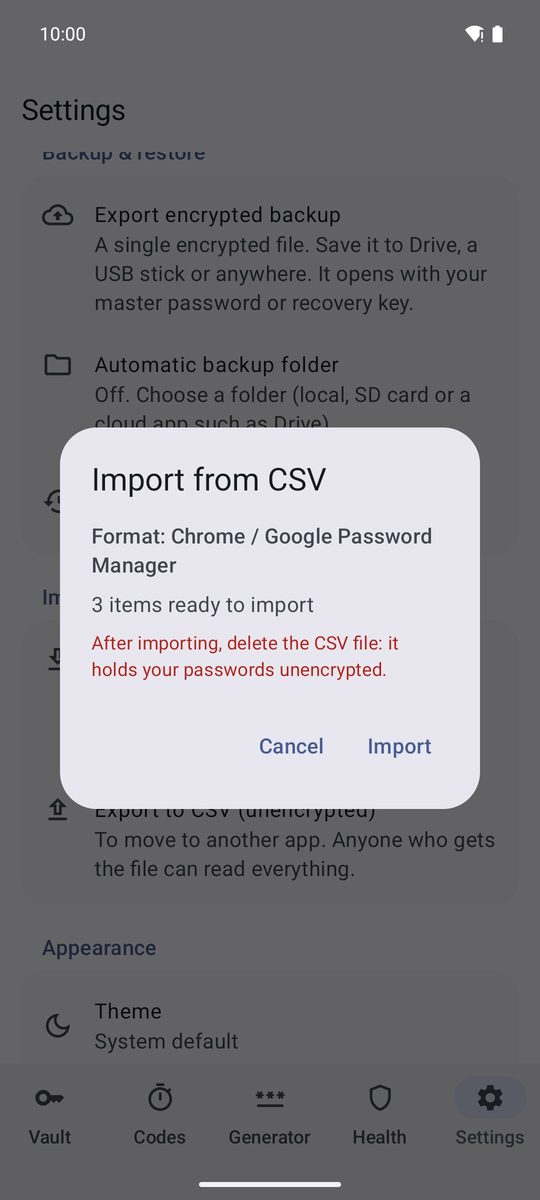
- Check what 1B Pass found: Format: … and how many items are ready to import.
- Tap Import.
- Delete the CSV file: it holds your passwords unencrypted.
Supported formats
Chrome / Google Password Manager, Bitwarden, KeePassXC, KeePass 2, 1Password, LastPass, Firefox and 1B Pass's own CSV. Most Chromium-based browsers export the same CSV as Chrome.
Any other CSV with a header row also works if it has columns such as name or title, url, username, password and notes. Folders and two-step keys are imported when the file has them, and empty rows are skipped.
Export to CSV
To move to another app, use Settings › Import & export › Export to CSV (unencrypted). Read the warning, type your master password and tap Export unencrypted. The file uses the Bitwarden layout plus a few extra columns, so 1B Pass can import it back without losing anything.
A CSV file is not a backup: anyone who gets it can read every password. For backups, use the encrypted backup in the next chapter, and delete the CSV as soon as you have imported it elsewhere.
Written for 1B Pass 1.1 on Android 11 or later, with real screenshots and example data.