Chapter 3 · Guide · 1B Pass
Items and folders: logins, cards, notes and more
Everything you save is an item. Each type has the fields it needs, and you can add your own. Folders, favourites and search keep a long list easy to use.
Add an item
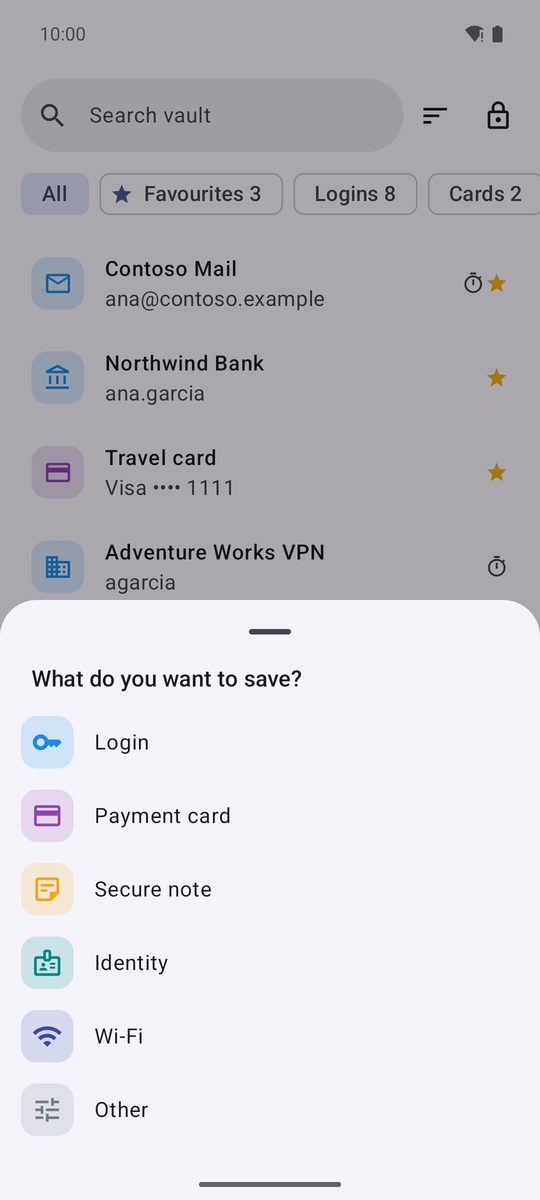
- On Vault, tap Add.
- In What do you want to save?, choose Login, Payment card, Secure note, Identity, Wi-Fi or Other.
- Fill in the fields. Give it a Name, choose a folder (No folder by default) and tap Favourite if you use it often.
- Tap Save.
Logins: websites and apps
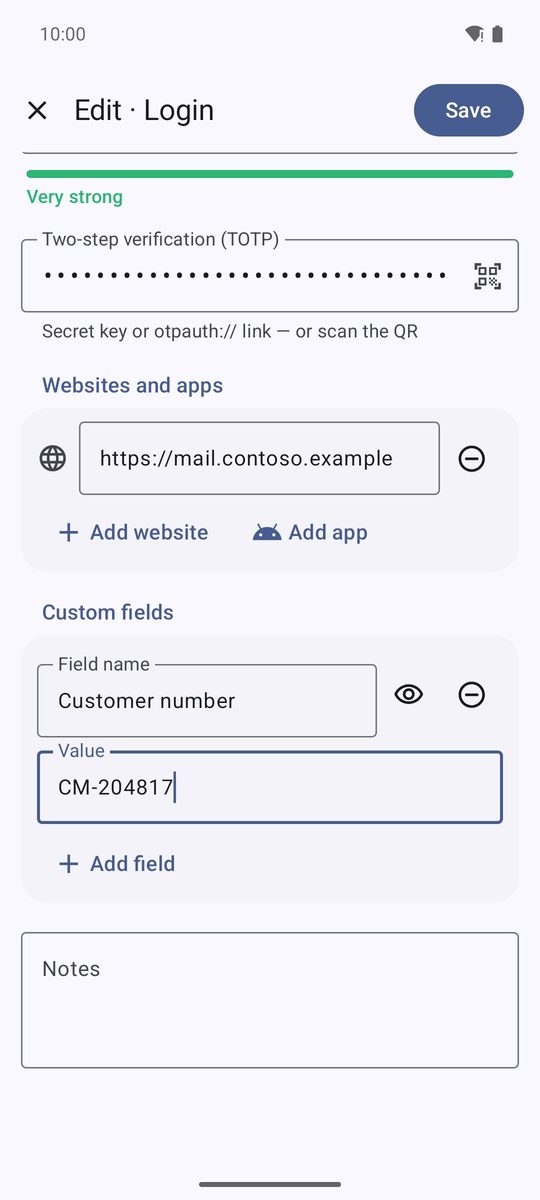
A login has Username, Password (the key button next to it is Generate), an optional Two-step verification (TOTP) and Websites and apps. Under websites and apps, Add website adds an address and Add app lets you pick an installed app: autofill uses this list to know where to offer the login.
Custom fields › Add field adds any extra information with a Field name and a Value. The eye button switches between Visible field and Hidden field; hidden values are shown as dots until you tap Show. Every item also has Notes.
Cards, identities, Wi-Fi and notes
Payment card: the brand is recognised from the Card number and the number is checked as you type (if it says This number fails the card checksum — check it, look for a typo). The card is shown as a card, with every value ready to copy.
Identity keeps names, addresses, phone, email and document numbers, and fills address forms. Wi-Fi keeps the Network name (SSID) and its password; Share with QR shows a QR code your guests can scan to join. Secure note holds any text you like, encrypted like everything else, and Other is an item made only of your own fields.
Each item gets a built-in icon or a coloured initial (Icon in the editor). 1B Pass never downloads website icons.
Favourites, folders, search and sorting
Favourites appear first in the list and under the Favourites filter. The filters at the top also show one type at a time (Logins, Cards…) or only the items with two-step codes (2FA).
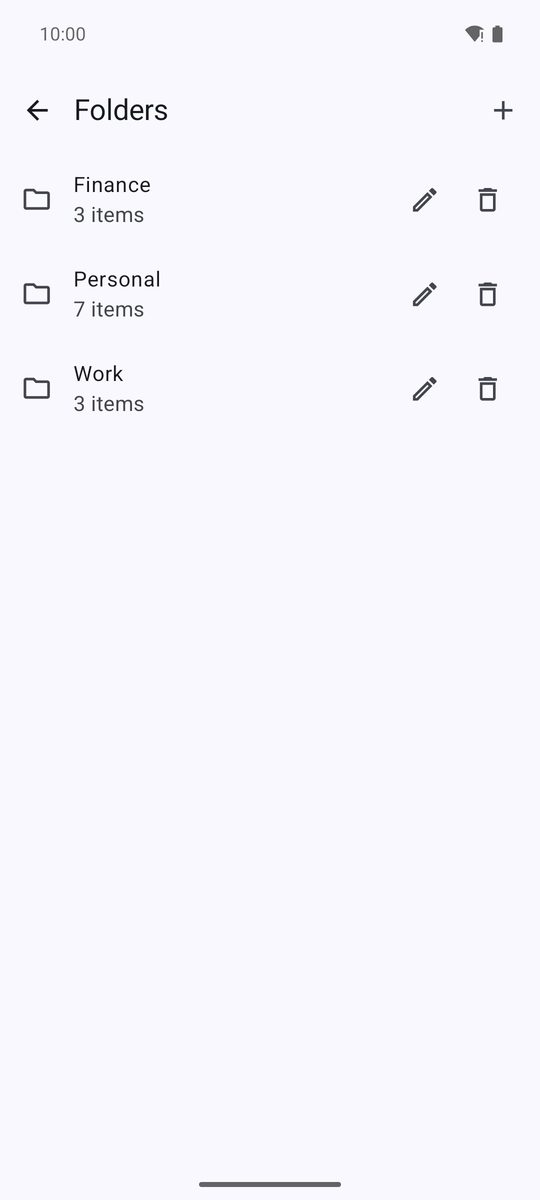
Your folders appear as filters too, and the last chip, Folders, opens the list of folders: create one with the + button, or rename and delete them. Deleting a folder keeps its items, without a folder.
Search vault looks in names, usernames, websites and more, and ignores accents. The button next to it is Sort: Name, Recently changed or Recently added.
Copy, open, duplicate and history
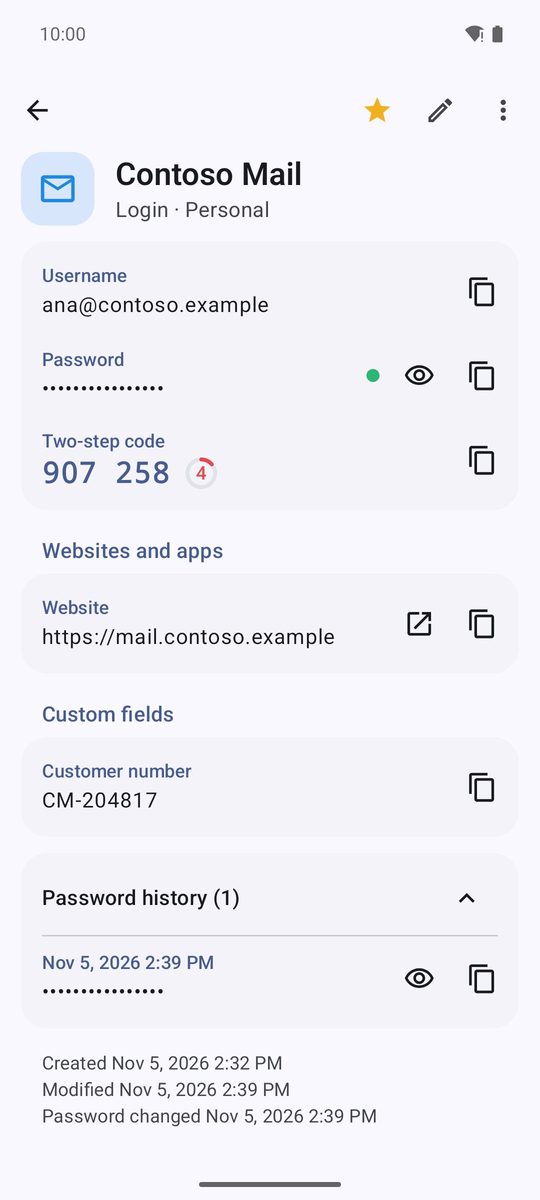
Tap an item to see it. Each value has its own copy button; passwords and other secrets are copied as sensitive, and the clipboard is cleared automatically (Copied. It will be cleared from the clipboard automatically.). Websites have an open button.
Long-press an item in the list for Copy username, Copy password, Favourite and Delete. In an open item, the star marks it as a favourite, the pencil is Edit and More has Duplicate and Delete.
Every time you change a password, the old one is kept in Password history (…), at the bottom of the item, with its date. You'll also see when the item was created, changed and when its password last changed.
Written for 1B Pass 1.1 on Android 11 or later, with real screenshots and example data.