Chapter 4 · Guide · 1B Pass
Password generator and health check
The generator makes passwords that nobody can guess, and the health check shows which of your passwords to change first. Both work entirely on your phone.
Generate a password
Under the result you'll see its strength and an estimate of its entropy in bits. Passphrases use the EFF Large Wordlist (7,776 English words), included in the app.
- Open the Generator tab and choose Password or Passphrase.
- For a password, set the length with the slider and choose Uppercase (A-Z), Lowercase (a-z), Digits (0-9), Symbols (!@#…) and Avoid look-alike characters (l, 1, O, 0…).
- For a passphrase, choose the number of words, the Separator, Capitalize words and Include a number.
- Tap New until you like it and then Copy.
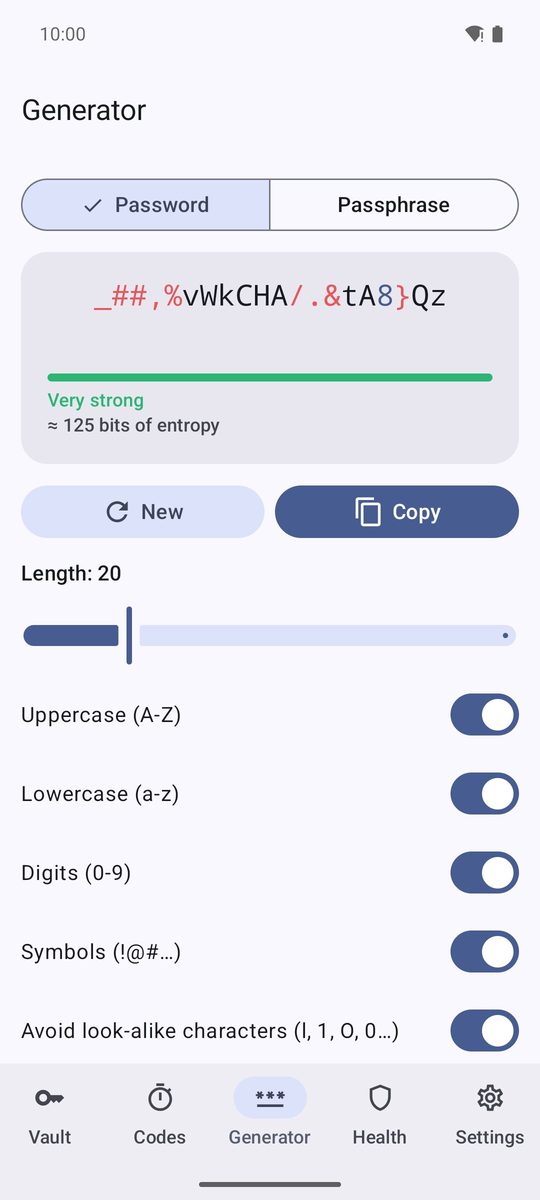
Generate while editing
When you add or edit a login (or a Wi-Fi network), the key button next to the password field is Generate. It opens the same generator in a panel: tap Use this and the password is put in the field. Save the item to keep it.
The health check
The Health tab analyses all your passwords and gives a score: Looking good, Could be better or Needs attention. Below it, four groups:
Weak passwords (easy to guess), Reused passwords (the same password in several items), Old passwords (not changed for more than a year) and Insecure websites (saved with http:// instead of https://). Tap a group to see its items and tap an item to open it.
Everything is checked on your phone: 1B Pass never sends your passwords, or any fingerprint of them, to breach-checking services.
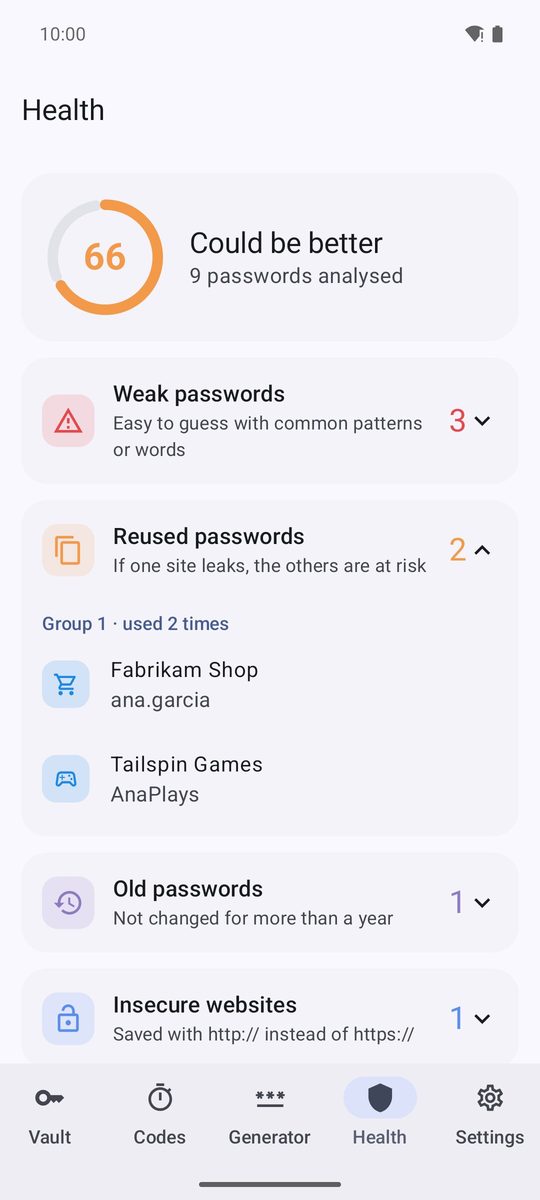
What to fix first
Start with reused passwords for important accounts (email, bank, shops with your card): if one site leaks, the others are at risk. Then the weak ones and finally the old ones. For each one, change the password on the website, generate a new one in the item with Generate and save it; the old one stays in the item's history.
Written for 1B Pass 1.1 on Android 11 or later, with real screenshots and example data.