Chapter 7 · 1B Calendar guide
Answer invitations and see overlaps
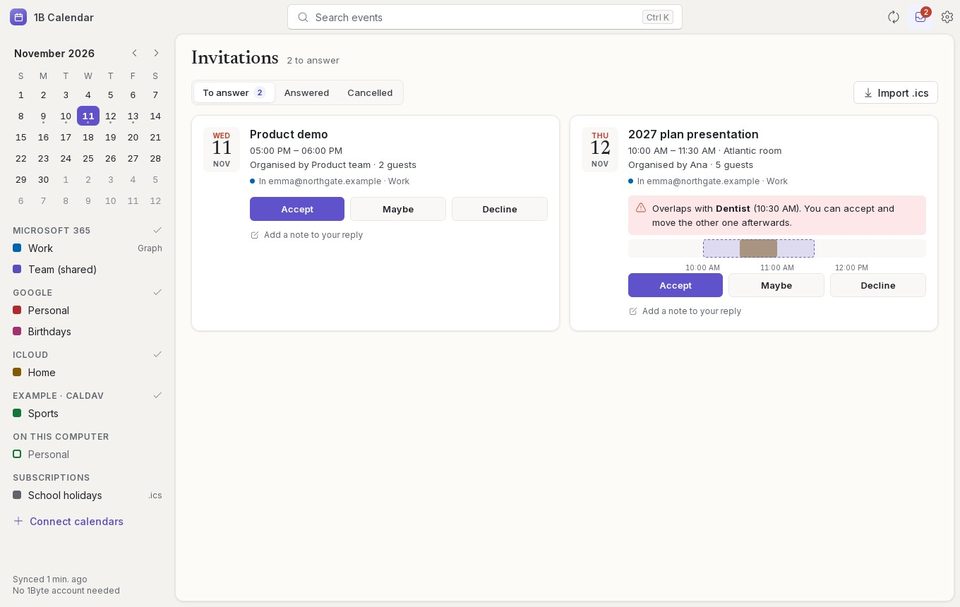
Invitations from all your accounts, and from .ics files you open, wait in one tray. The number on the title bar tells you how many need an answer.
The invitations tray
Click the tray icon in the title bar, or press I. To answer shows what's waiting; Answered and Cancelled keep the rest.
Each card shows the date, the organiser, the guests and where it came from (which account and calendar, 1B Mail or a file). If it overlaps with something you have, a warm notice shows what and when, on a small timeline.
Answer an invitation
- If you want, write a note for the organiser in Add a note to your reply.
- Click Accept, Maybe or Decline. The card folds away and moves to Answered.
- If it overlaps with something else, you can accept and move the other event afterwards.
How the organiser finds out
Invitations that arrived in a connected account (Google, Microsoft 365, iCloud, CalDAV) are answered through that account, so the organiser gets your answer as usual.
Invitations from an .ics file need an email: if 1B Mail is installed, 1B Calendar offers Send with 1B Mail with the reply ready; if not, it reminds you to reply from your email.
Events in your calendar that are waiting for your reply show a dotted edge and will you attend?.
For 1B Calendar 0.1.1 on Windows and Linux.