Chapter 10 · 1B Calendar guide
Updates and settings
New versions arrive inside the app. Nothing is installed until you say so.
Update 1B Calendar
- Open Settings › About and click Check for updates. 1B Calendar also checks on its own shortly after it starts and then once a day.
- If there's a new version, you'll see what's new. The package downloads in the background.
- Click Update and restart. 1B Calendar installs it and opens again.
To stop the automatic check, turn off Check for updates automatically in Settings › About; you can still check by hand whenever you like.
Safe by design
Every new version is signed by 1Byte Systems (Ed25519), and the package is checked — its SHA-256 and its size — before it's installed. If anything doesn't match, nothing is installed.
Windows installs the new version over the old one. With RPM and DEB, your system asks for your password to install it. The AppImage replaces itself.
Checking only reads one file from 1bytesystems.com and sends none of your data; like any connection, our server sees your IP address and the app's version.
What you can change in Settings
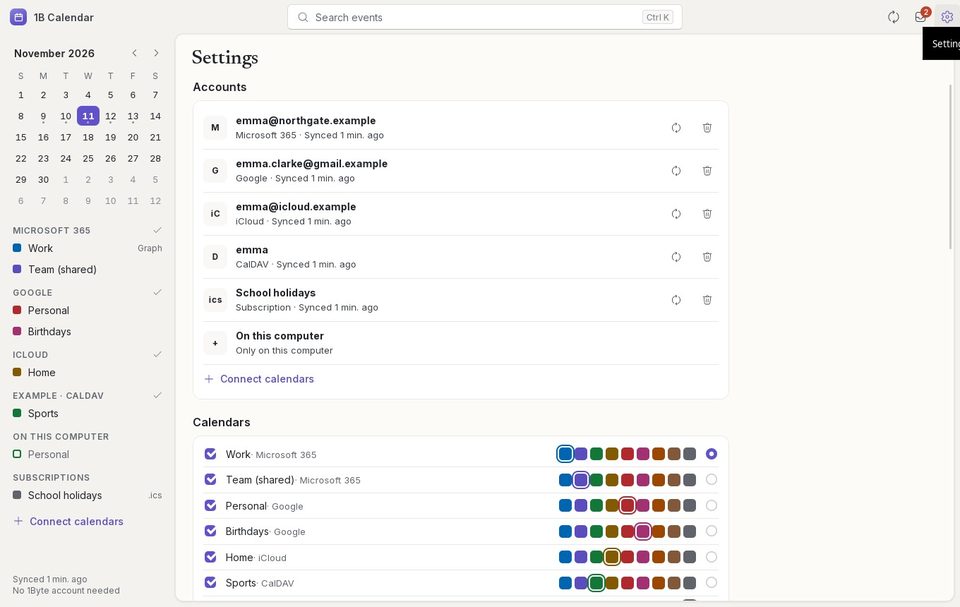
Accounts: the state of each one, Sync now, Reconnect or Sign in again, and Remove account. Calendars: each calendar's ink, whether it's shown, and the Default calendar for new events.
General: language, the day the week starts, Work week (Mon–Fri) or Full week, time format, the view it Opens in, the hour the day view starts, default length and reminder, notifications and week numbers.
Appearance: light, dark or the system's theme, the Title bar on Linux and Reduce motion.
Problems and solutions
“This copy can’t update itself”
That copy wasn't installed from a 1Byte package. Download the new version from the 1B Calendar page and install it once; from then on it updates itself.
“Couldn’t install the update”
The installation was cancelled or your system didn't allow it (for example, you closed the password window). Click Update and restart again; if it keeps failing, download the new version from the 1B Calendar page.
For 1B Calendar 0.1.1 on Windows and Linux.