Chapter 2 · 1B Calendar guide
Connect Google Calendar to 1B Calendar
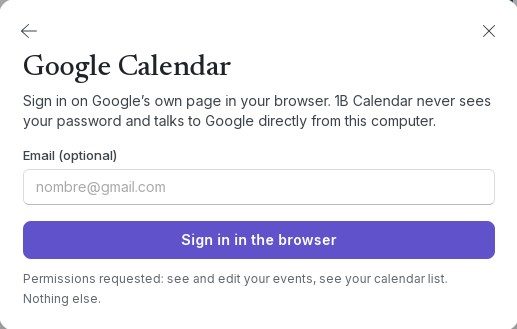
You sign in on Google's own page, in your browser. 1B Calendar never sees your Google password and talks to Google directly from your computer.
Sign in with Google
- Click Connect calendars › Google Calendar.
- If you like, type your address in Email (optional) so Google suggests the right account.
- Click Sign in in the browser. Your browser opens Google's page; 1B Calendar shows Waiting for the browser….
- Choose your account and allow access to your calendars. If Google shows tick boxes, tick the ones for Calendar.
- When the browser says you can go back to 1B Calendar, close the tab. The app shows Connected and your calendars appear in the left column.
What 1B Calendar can see
It asks for two things only: to see and edit your events, and to see your list of calendars. Nothing from Gmail, Drive or your contacts.
The sign-in key Google gives back is stored encrypted on your computer. To disconnect, go to Settings › Accounts and use Remove account; you can also remove 1B Calendar's access from your Google account's security page.
Problems and solutions
“Google didn’t grant access to Calendar.”
You didn't tick the Calendar boxes on Google's page. Click Sign in in the browser again and tick them.
“The browser took too long.”
1B Calendar waits up to 10 minutes for you to finish in the browser. Try again, and finish signing in in the tab that opens.
The account says Sign in again
Google asked you to sign in again (for example after changing your password). Click Sign in again in Settings › Accounts.
For 1B Calendar 0.1.1 on Windows and Linux.