Chapter 4 · 1B Calendar guide
Connect iCloud calendars with an app-specific password
Apple doesn't let other apps use your Apple ID password: you create a password just for 1B Calendar, and you can revoke it whenever you like.
Connect iCloud
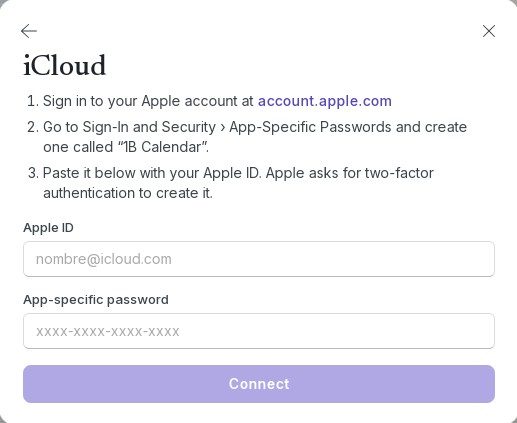
- Click Connect calendars › iCloud. The app shows the three steps.
- Click account.apple.com to open your Apple account in the browser and sign in. Apple asks for two-factor authentication to create the password.
- Go to Sign-In and Security › App-Specific Passwords, create one and call it “1B Calendar”. Copy the password Apple shows (it looks like xxxx-xxxx-xxxx-xxxx).
- Back in 1B Calendar, type your Apple ID and paste it in App-specific password. Click Connect.
- The app finds your iCloud calendars and shows Connected.
If you revoke the password
If you delete the password in your Apple account, or change your Apple ID password, iCloud stops accepting it. The account shows Sign in again in Settings › Accounts: create a new app-specific password, paste it there and click Reconnect.
Problems and solutions
“Apple rejected it.”
Use an app-specific password, not your Apple ID password, and check the Apple ID (it's the address you sign in to Apple with).
I can't find App-Specific Passwords
Your Apple account needs two-factor authentication. Turn it on in your Apple account settings and the option appears.
For 1B Calendar 0.1.1 on Windows and Linux.