1B Mail guide
The complete 1B Mail guide
Everything you need to get the most out of 1B Mail on your computer and your phone, with real screenshots. Pick a chapter or jump straight to a common task.
For 1B Mail 0.3.14 on Windows and Linux and 0.2.9 on Android.
Chapters
Eight short chapters, in the order you'll probably need them. When the computer and the phone work differently, each step says so.
- Chapter 1
Getting started
Install 1B Mail, add your accounts on the computer and the phone, and sign in with Google or Microsoft.
- Chapter 2
Inbox and reading
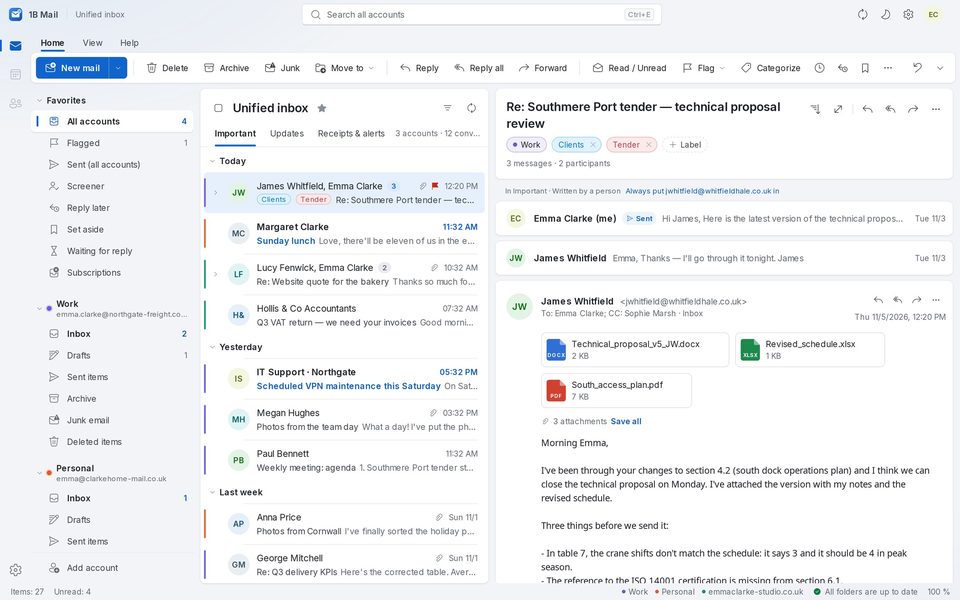
All your accounts together, the inbox by type, the Screener, reading conversations and searching.
- Chapter 3
Writing
Write and reply, attachments, signatures, spelling, templates, send later and undo send.
- Chapter 4
Rules and folders
Labels, folders, simple and advanced rules, and rules shared between the computer and the phone.
- Chapter 5
Phone and computer
Send your accounts to the phone with a QR code, sync again later and keep accounts in sync with end-to-end encryption.
- Chapter 6
Privacy and security
Remote images and trackers, suspicious links, where your passwords and mail are kept, and what connections 1B Mail makes.
- Chapter 7
Settings and Pro
Appearance, notifications, language, sync and battery on Android, and what 1B Mail Pro adds.
- Chapter 8
Troubleshooting
App passwords, work accounts that need approval, the phone transfer, updates and other common problems.
Common tasks
- Add a Gmail, Outlook.com or Microsoft 365 account
- Copy your accounts from the computer to your phone
- Search all your accounts at once
- Schedule a message to go out later
- Send everything from one sender to a folder
- Stop trackers and remote images
- Use an app password for Gmail, Yahoo or iCloud
- Ask your IT department to approve 1B Mail
Private by design
Your mail goes straight to your provider
1B Mail talks directly to your mail servers. No ads, no analytics and no 1Byte servers in between: trackers and remote images are blocked in every email.