Chapter 1 · 1B Mail guide
Getting started: install 1B Mail and add your accounts
Type your address and 1B Mail finds the settings for you. Google and Microsoft accounts sign in on their own page; any other provider with IMAP and SMTP works with your password.
Install 1B Mail
On the computer, download 1B Mail for Windows (installer, no administrator needed) or Linux (RPM, DEB, Flatpak or AppImage) from the 1B Mail page. It checks for new versions by itself and installs them when you agree.
On Android, install 1B Mail from Google Play. The first screen lets you choose Add an account or Bring accounts from my computer.
Already use 1B Mail on the computer? Skip the typing: chapter 5 shows how to send your accounts to the phone with a QR code.
Add an account on the computer
The first time you open 1B Mail it offers Add account, Import from Thunderbird and Bring my accounts. Later you'll find Add account at the bottom of the folder pane and in Settings › Accounts.
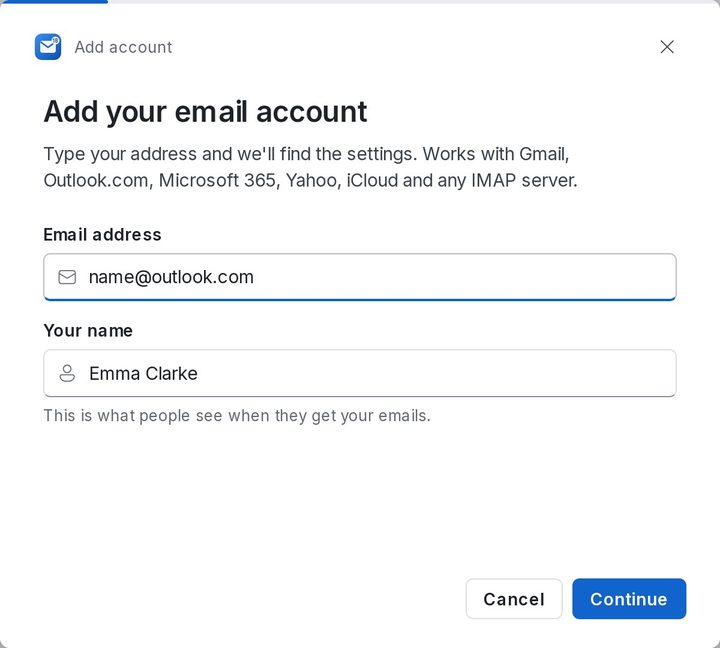
- Click Add account. The Add your email account window opens.
- Type your Email address and Your name (what people see when they get your emails) and click Continue.
- 1B Mail looks up the settings: known providers, DNS records and the Thunderbird database. For Google and Microsoft it shows a sign-in button; for the rest, type your password.
- When it says Done! Your account is added, choose a name and a colour for the account and click Go to inbox, or Add another account.
Gmail, Outlook.com and Microsoft 365
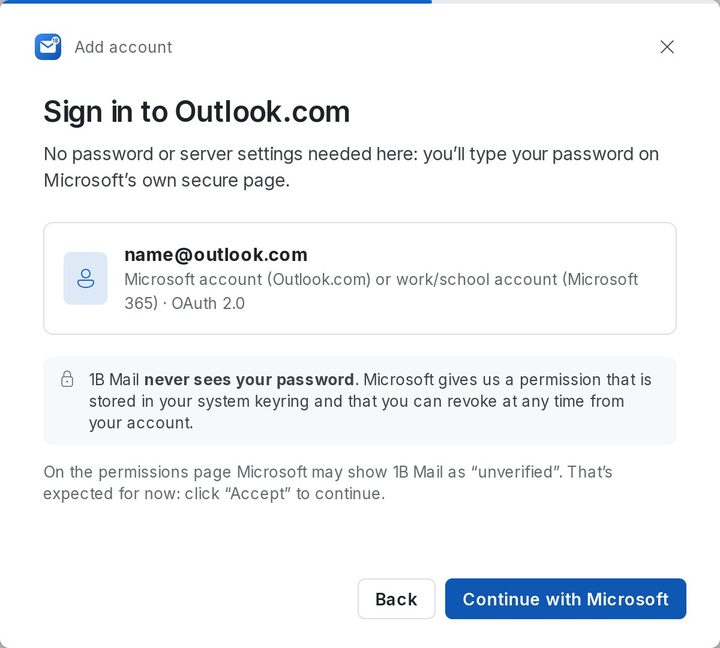
Google and Microsoft don't let email apps use your normal password, so 1B Mail opens their own sign-in page in your browser. 1B Mail never sees your password: it gets a permission that you can revoke at any time from your account.
Gmail: click Sign in with Google, choose your account and, if Google shows checkboxes, tick the one for Gmail. Then come back to 1B Mail: it notices by itself.
Outlook.com, Hotmail and Microsoft 365: click Continue with Microsoft and type your password on Microsoft's page. If Microsoft shows 1B Mail as “unverified”, click “Accept” to continue.
Work account that asks for your organization's approval? See “Your organization needs to approve 1B Mail” in chapter 8.
Add an account on Android
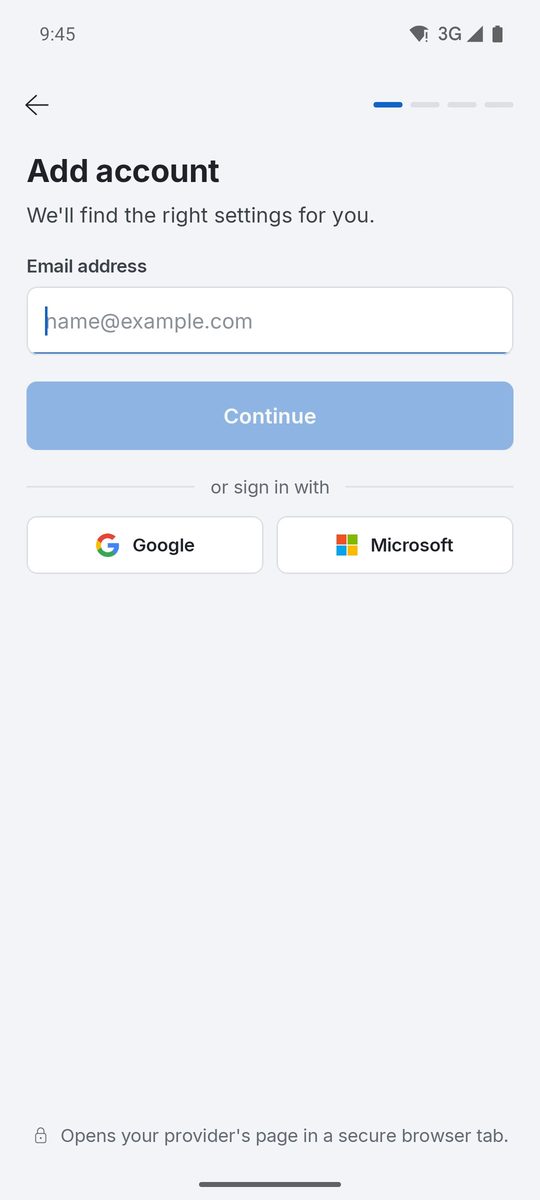
On the phone, tap Add an account on the first screen, or go to Settings › Add account later. Type your Email address: 1B Mail finds the servers and asks for your Password, or offers Continue with Google or Continue with Microsoft, which open the provider's page in a secure browser tab.
Passwords stay on the phone, in the Android Keystore. When the account is ready, pick an Account name and a Color and tap Go to inbox.
Yahoo, iCloud, AOL, GMX, Zoho, Fastmail and your own domain
Any provider with IMAP and SMTP works. Yahoo, iCloud and AOL need an app password instead of your normal one: 1B Mail explains how and offers Open the Yahoo page (or the iCloud one) to create it. GMX, Zoho, Fastmail and most hosting providers accept your normal password once IMAP is turned on in their settings.
If 1B Mail can't find the settings, fill in Server settings for Incoming mail (IMAP) and Outgoing mail (SMTP): server, port, security and username. Your provider's help pages list them.
Proton Mail works on the computer through Proton Mail Bridge, Proton's app that runs on your computer: open Bridge, then add the address and use the Bridge password. On a phone, Proton only allows its own app.
Bring your accounts from Thunderbird or Outlook
On the computer, Import from Thunderbird (in Settings › Accounts) finds your Thunderbird profile and brings its accounts, with the saved passwords if you tick Also import the saved passwords (they go into 1B Mail's encrypted vault; nothing leaves the computer). On Windows, Import from Outlook reads the accounts of classic Outlook and the addresses of the new Outlook; you only type the passwords.
For 1B Mail 0.3.14 on Windows and Linux and 0.2.9 on Android.