Chapter 5 · 1B Mail guide
Phone and computer: send accounts with a QR code
Set up your accounts once on the computer and send them to the phone in a few seconds. No retyping servers, and no cloud in between.
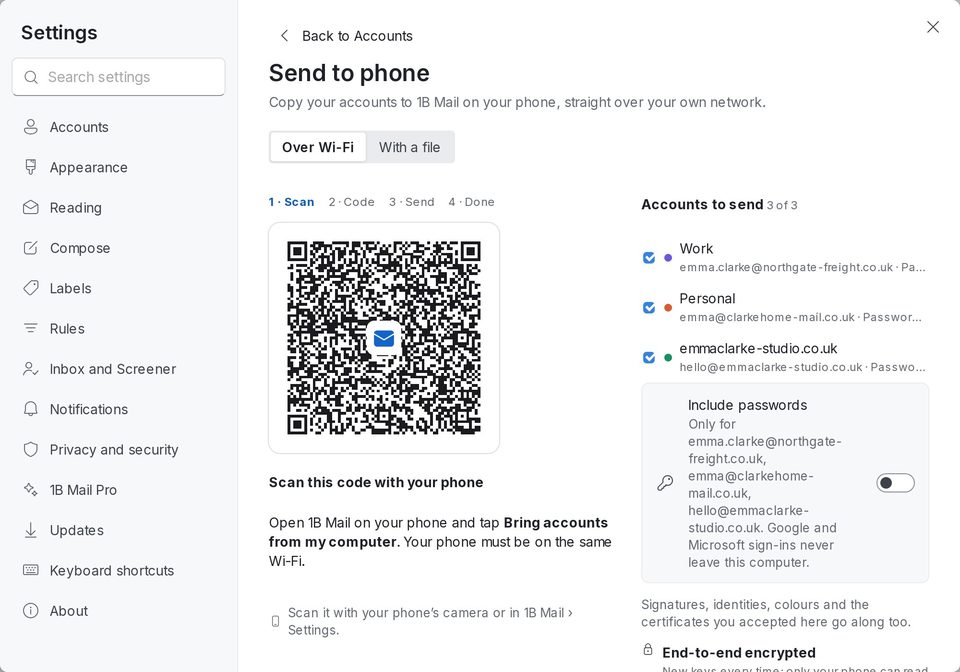
Send your accounts to the phone
Both devices must be on the same Wi-Fi. Everything travels end-to-end encrypted over your local network; nothing goes through the internet or 1Byte.
- On the computer, open Settings › Accounts and click Send to phone. Keep Over Wi-Fi selected.
- Choose the Accounts to send. Turn on Include passwords if you want to send them too (Google and Microsoft sign-ins never leave the computer).
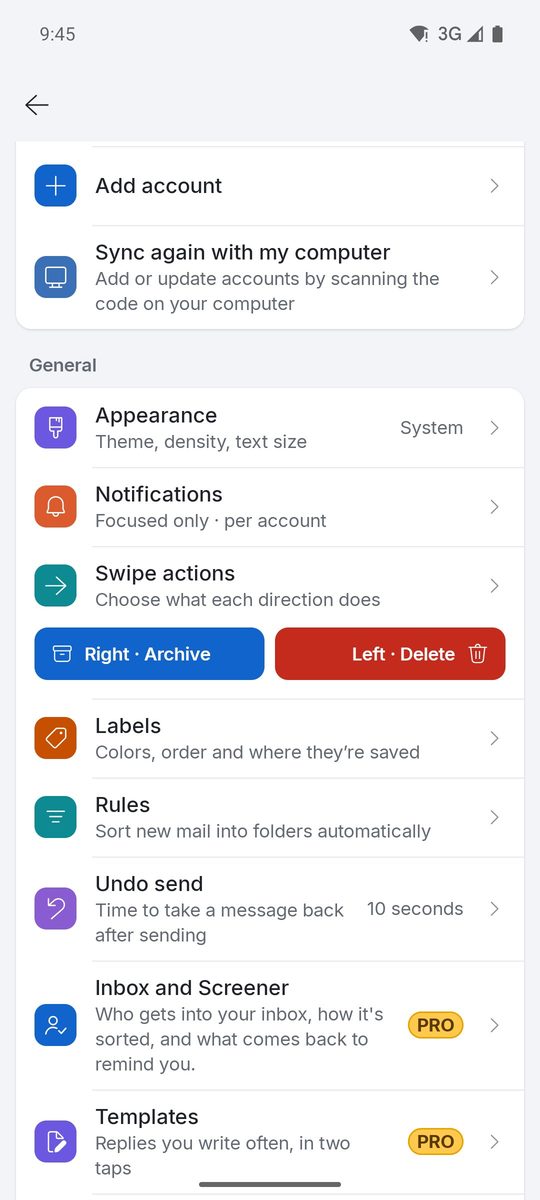
- On the phone, scan the code with the camera, or open 1B Mail and tap Bring accounts from my computer (with accounts already on the phone, Settings › Sync again with my computer). Tap Connect.
- Check that both screens show the same 6-digit code and accept on the computer.
- On the phone, choose which accounts to add or update. Each one is checked with its server before it's saved.
Sync again later
Changed a password or added an account on the computer? Run the same steps: on the phone, Settings › Sync again with my computer. New accounts are added and the ones already there are updated (new password, servers, signatures or aliases).
No shared Wi-Fi? Use a file
In Send to phone, choose With a file to save your accounts to a .1bmail file protected with a password. Open it on the phone from Files, Drive or a USB cable (Use an export file) and type the Password for the file. Delete the file once your phone has the accounts.
It also works the other way: Get from phone on the computer brings the accounts you have on the phone.
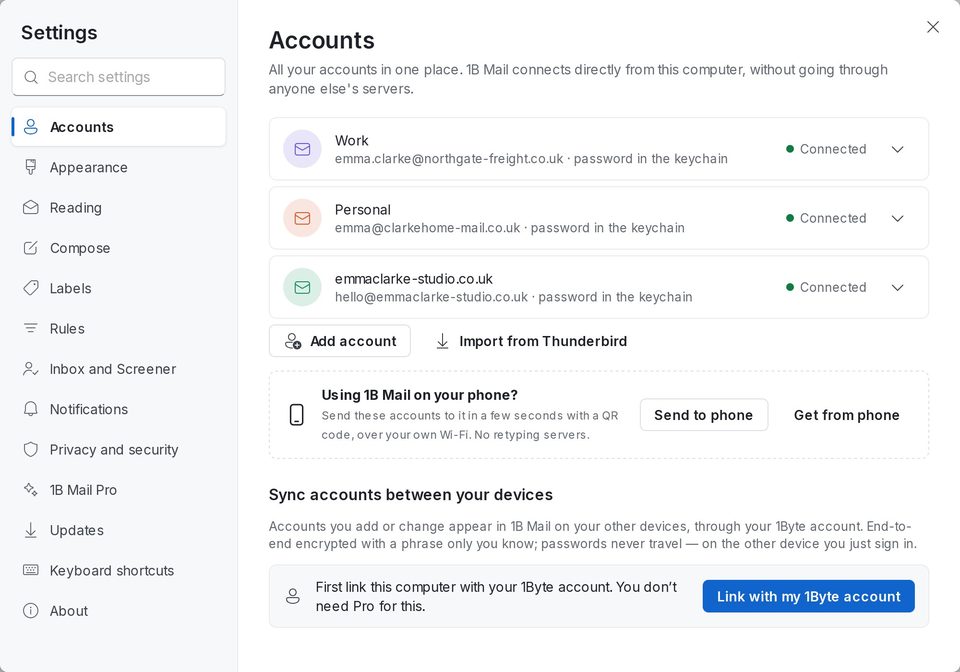
Sync accounts between your devices
To keep accounts in sync without scanning every time, use Sync accounts between your devices (computer: Settings › Accounts; Android: Settings). Click Link with my 1Byte account, then choose a Sync phrase and type the same one on your other devices.
Accounts you add or change then appear on your other devices, end-to-end encrypted with a phrase only you know. Passwords never travel: on the other device you just sign in. 1Byte never sees the phrase and can't recover it. You don't need Pro for this.
For 1B Mail 0.3.14 on Windows and Linux and 0.2.9 on Android.