Chapter 7 · 1B Mail guide
Settings and Pro: appearance, notifications and 1B Mail Pro
Open Settings with the gear at the top right on the computer, or from the drawer on Android. Changes apply right away.
Appearance
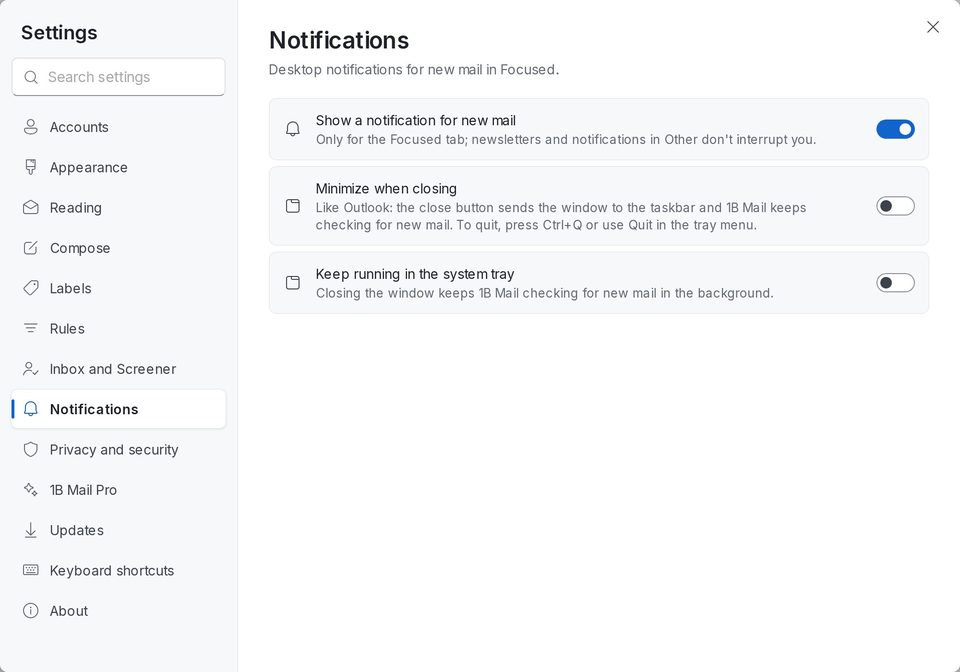
In Settings › Appearance, choose the Theme (light, dark or your system's), the Density of the list, where the Reading pane goes and the Text size (Ctrl + plus or minus on the computer). Messages in dark mode decides how emails with their own colours look when the app is dark; View on a light page shows one message as it was designed.
On Android the same page has the theme, density and text size, which follows the font size of Android.
Notifications
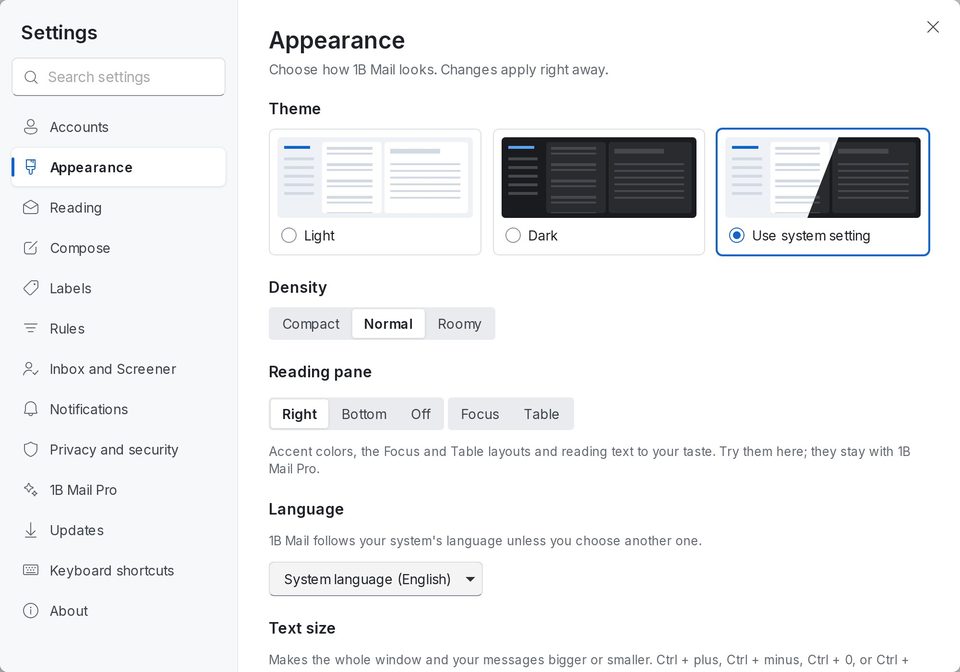
On the computer, Show a notification for new mail only notifies for Focused (or Important) mail; click the notification to open the message. Keep running in the system tray keeps checking for mail with the window closed, and Minimize when closing behaves like Outlook.
On Android, Settings › Notifications has one notification per account, with Archive and Reply, and the first button you prefer. Sound and vibration are set per account in Android's settings.
Sync and battery on Android
Instant mail keeps a connection open to each account so new mail arrives within seconds, like on the computer; Android shows a permanent notification while it's on. If you turn it off, choose how often to Check for new mail. If mail stops arriving, open Battery optimization and let 1B Mail run in the background.
Language
1B Mail follows your system's language unless you choose another one in Settings › Appearance › Language (on Android, Settings › Language). It's available in 21 languages.
Keyboard shortcuts
On the computer, Settings › Keyboard shortcuts lists them all. They're the same as in Outlook: New mail Ctrl+N, Search Ctrl+E, Send Ctrl+Enter, reply Ctrl+R, archive with Backspace and F9 to check for new mail.
What 1B Mail Pro adds
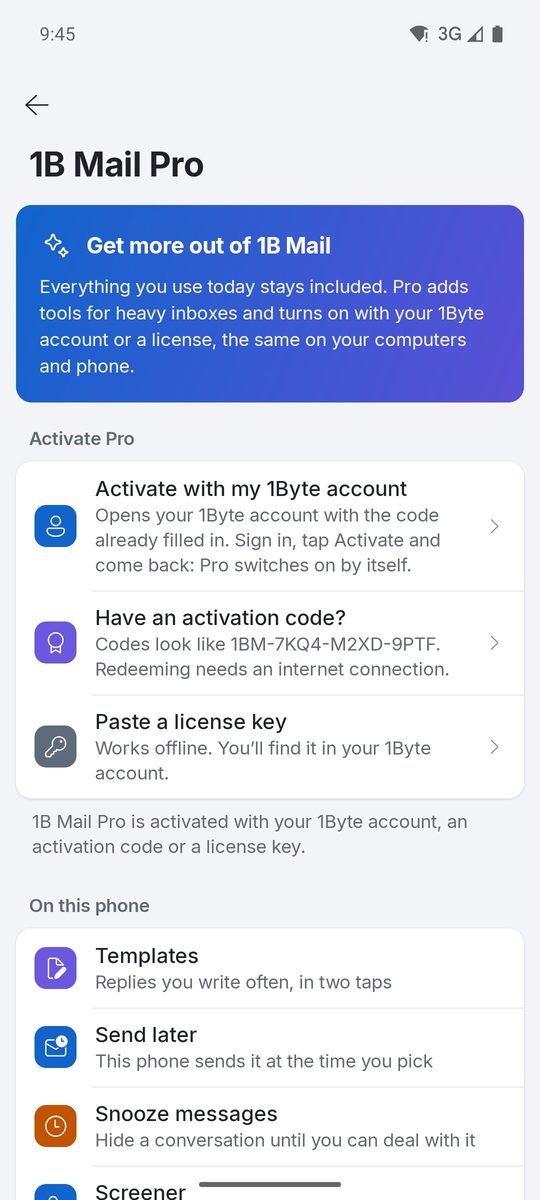
Everything you use today stays included, with all your accounts and no limits. Pro adds tools for heavy inboxes: Templates, Send later, Snooze, the Screener, the inbox by type, Reply later and follow-up reminders, advanced rules, Subscriptions (leave several newsletters at once) and extra themes.
To activate it, open Settings › 1B Mail Pro and choose Activate with my 1Byte account, Redeem an activation code, or paste a license key (works offline). The same license works on your computers and your phone.
For 1B Mail 0.3.14 on Windows and Linux and 0.2.9 on Android.