Chapter 4 · 1B Mail guide
Rules and folders: labels, folders and rules
Labels tag a message without moving it; folders move it on the server; rules do either for you as new mail arrives.
Labels
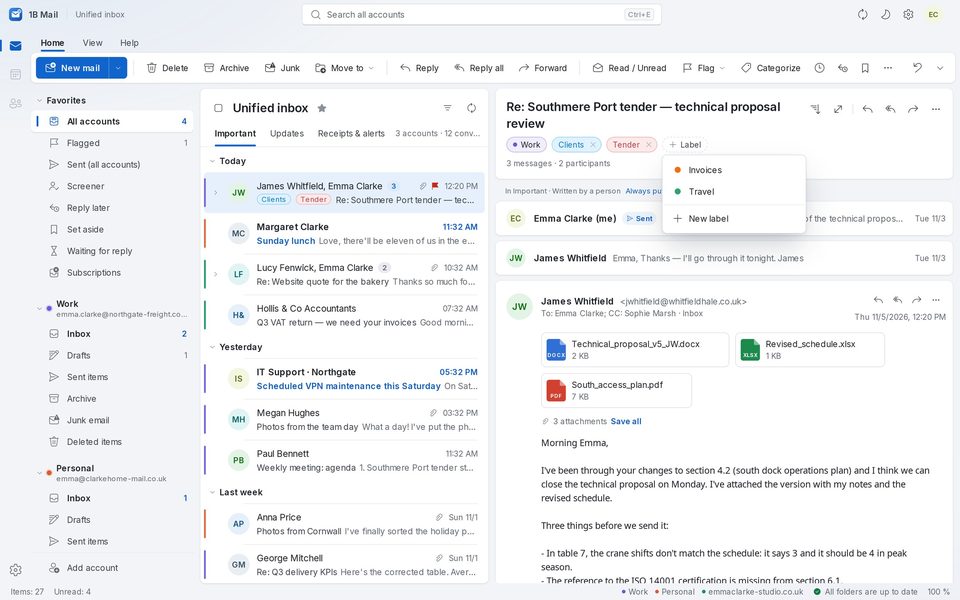
Give a message as many labels as you like without moving it out of its folder. They're the same in all your accounts: “Travel” in Gmail and “Travel” in your other accounts are one label. On the computer, use Categorize in the ribbon or Label on a conversation, and New label to create one with its colour. On Android, touch and hold a message and tap the label button.
Order, colours and hidden labels are in Settings › Labels (Your order or Alphabetical (A–Z)). Gmail keeps its own labels on the server; for Outlook and Hotmail, which don't store labels over IMAP, they sync between your devices with your 1Byte Account, end-to-end encrypted.
Folders and Favorites
Folders live on your mail server, so webmail and other apps see them too. On the computer, right-click a folder for New folder, Rename…, Delete folder…, Mark all read or Add to Favorites. To move mail, use Move to or drag it onto a folder.
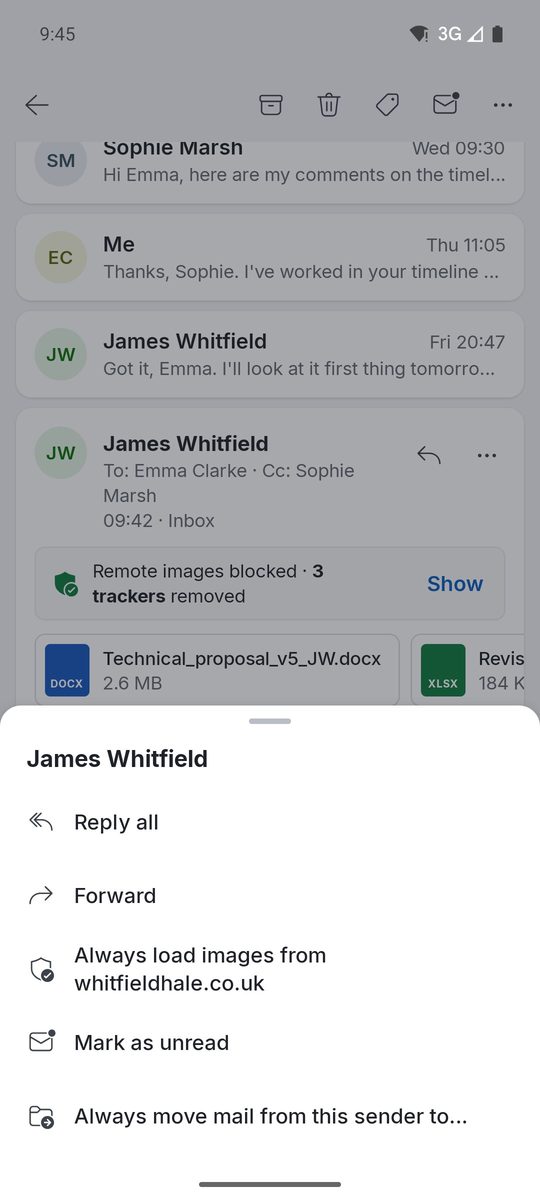
Always move mail from a sender
On Android, open a message, tap ··· and choose Always move mail from this sender to…, then pick the folder. If there are older messages from that sender in your Inbox, 1B Mail offers Move now. These simple rules (one condition, one action) are included in every edition.
On the computer, Block sender sends everything from an address to Junk, Ignore conversation sends new replies to Deleted, and Move to Other remembers the sender: these Quick rules work in every edition.
Advanced rules
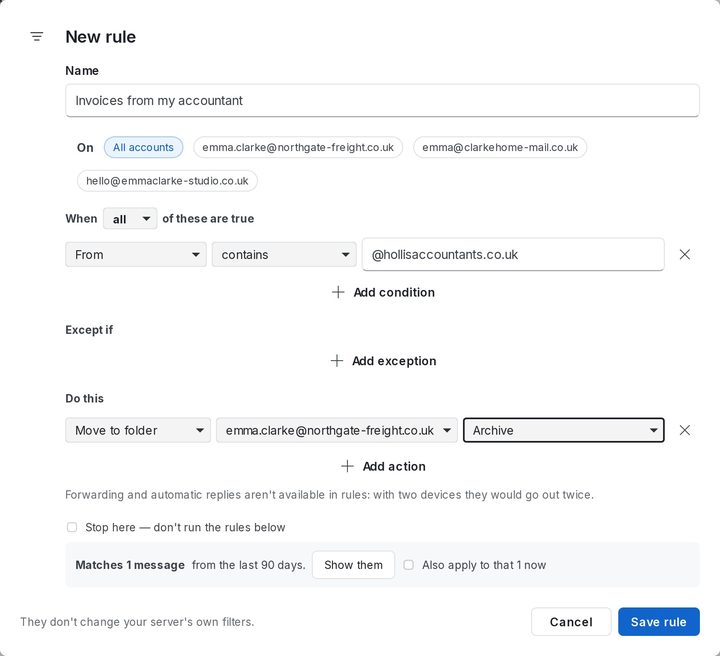
On the computer, open Settings › Rules and click New rule (or right-click a message and choose Create rule…). Give it a name, choose the accounts, add conditions (Add condition, any or all of them), exceptions (Add exception) and actions (Add action): move, label, flag, mark as read and more. Before saving, 1B Mail shows how many messages from the last 90 days match. Click Save rule.
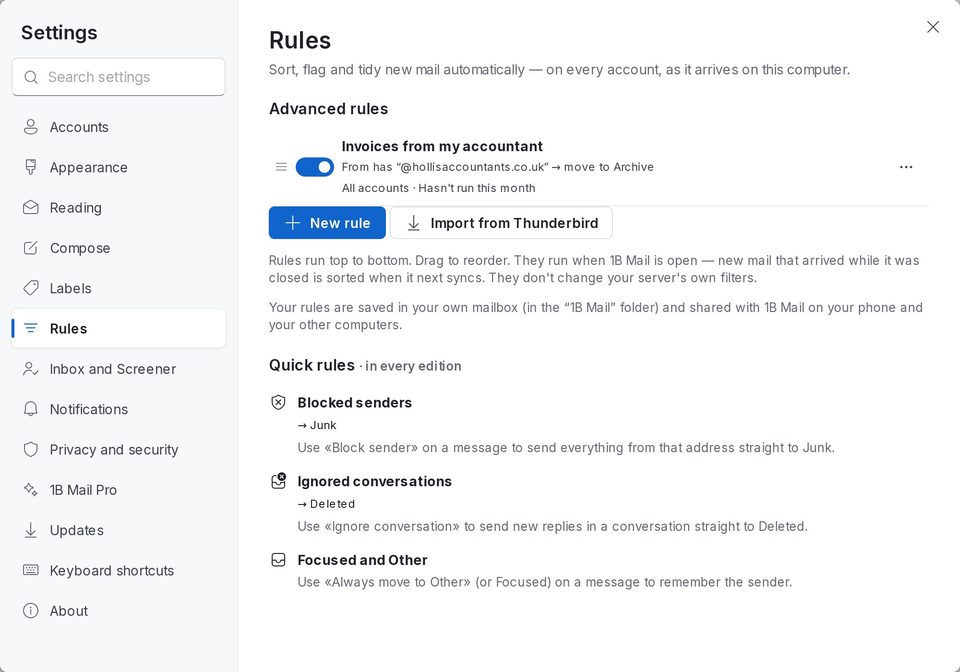
Rules run top to bottom; drag them to change the order. They run on mail as it arrives on your device and don't change your server's own filters. Forwarding and automatic replies aren't available in rules: with two devices they would go out twice.
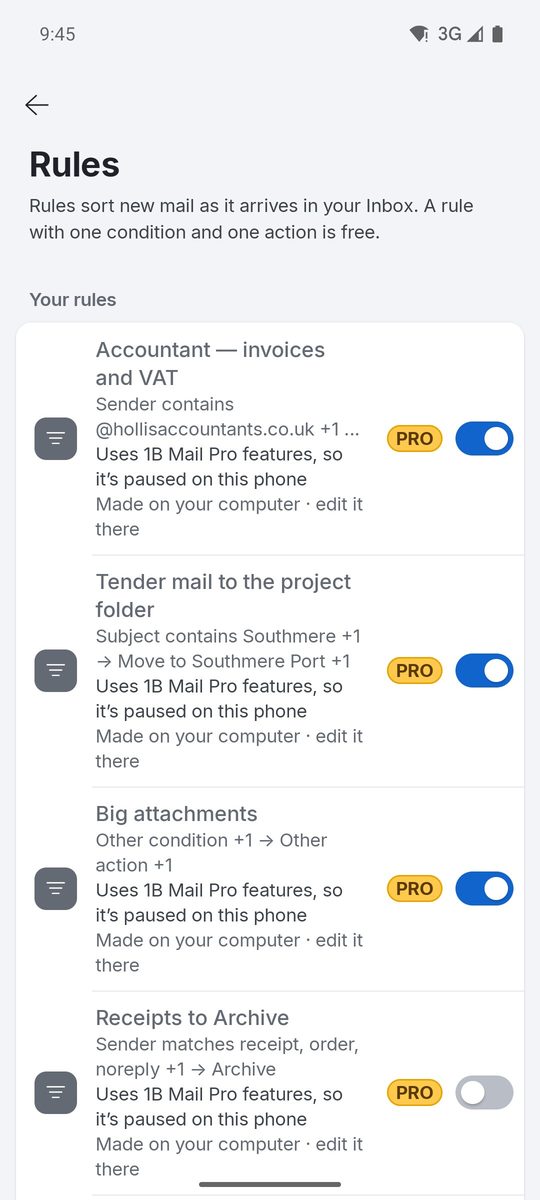
On the computer, rules are part of 1B Mail Pro. On Android, a rule with one condition and one action is included; several conditions, exceptions and more actions come with Pro.
Rules shared between the computer and the phone
Your rules are saved in your own mailbox, in a hidden “1B Mail” folder, and shared with 1B Mail on your phone and your other computers. Nothing goes through 1Byte. A rule that uses options only the computer can edit shows Made on your computer · edit it there on the phone: you can pause or delete it there, but not change it.
For 1B Mail 0.3.14 on Windows and Linux and 0.2.9 on Android.