Chapter 3 · 1B Dock guide
Look and size: theme, magnification and position
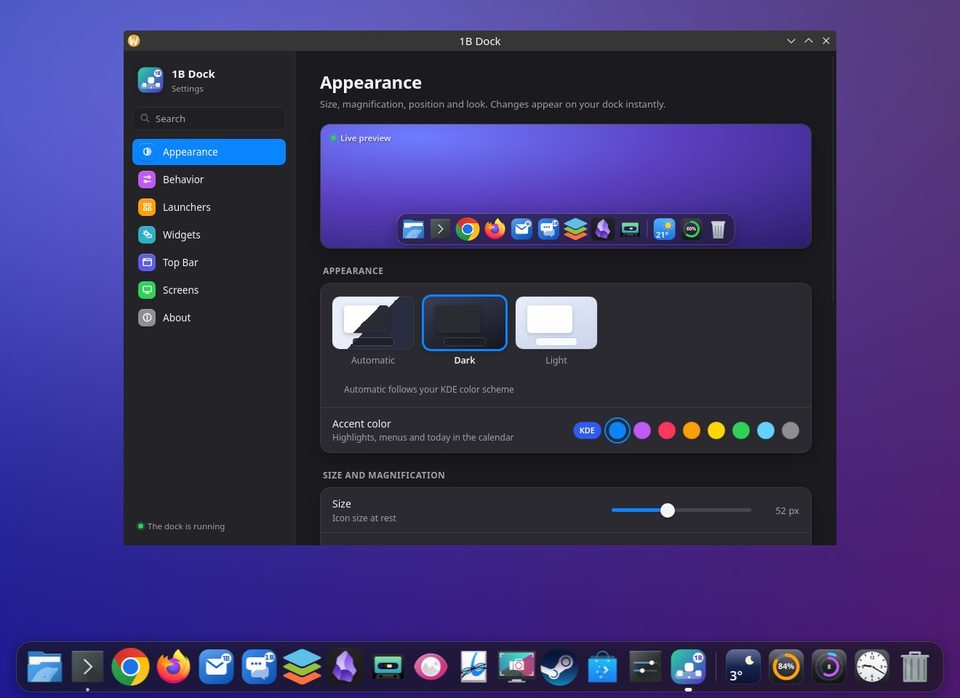
Everything about the look is in Appearance, with a live preview at the top. Try things out: nothing is permanent.
Light or dark
Appearance can be Automatic, Dark or Light. Automatic follows your KDE color scheme, or the Windows app mode. Accent color tints highlights, menus and today in the calendar.
Size and magnification
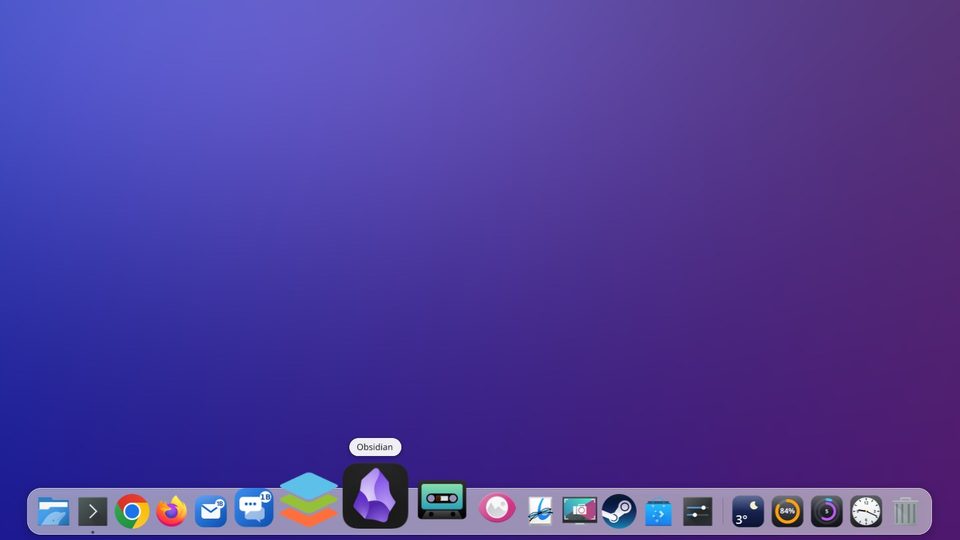
Size is the size of the icons at rest. With Magnification on, icons grow as the pointer passes over them: Zoom says how much, and Reach how many neighbouring icons grow too.
If the dock gets too long for the screen, the icons shrink to fit.
Position and background
Under Position on screen, choose Left, Bottom or Right. Opacity sets how solid the background is, Blur behind the dock gives it frosted glass on KDE, and Distance from the edge at 0 sticks it to the edge.
In Behavior, Animations and Animation speed control the motion; turn Animations off for a calmer dock.
For 1B Dock 0.4 on KDE Plasma 6 (Wayland) and Windows 10 and 11.