Chapter 8 · 1B Dock guide
Calendar and Control Centre in the top bar
Click the clock for the calendar, and the icon with two switches next to it for the Control Centre.
The calendar
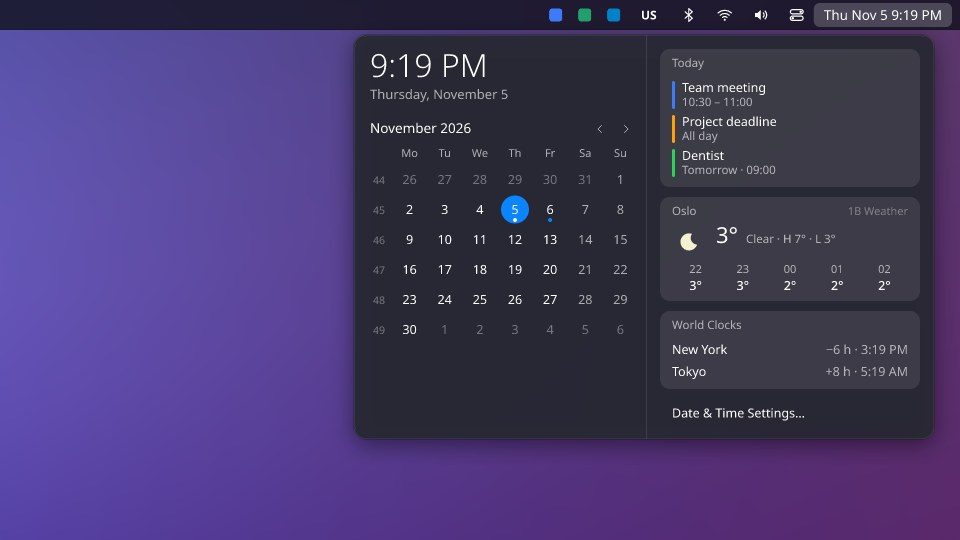
It shows the time and date, the month with week numbers and arrows to move, Today and Tomorrow from your calendars, the weather hour by hour from the weather widget's city, and your World Clocks. Date & Time Settings… opens your system's.
Add your calendars
They are read directly from this computer: nothing goes through 1Byte.
- Get the private (.ics) link of your calendar: the steps for Google Calendar, Outlook and iCloud are below.
- Paste it in the 1B Dock settings, in Top Bar › Calendar links (.ics). One link per line.
- Today's and tomorrow's events appear in the calendar within a few minutes.
Google Calendar
With a work or school account, your administrator may have turned this option off.
- On a computer, open calendar.google.com and click the gear at the top right › Settings.
- In the left column, under Settings for my calendars, click your calendar (its name).
- Scroll almost to the end, to Integrate calendar.
- In Secret address in iCal format, click the eye to show the address and the icon next to it to copy it. It ends in basic.ics.
- Paste it in the 1B Dock settings, in Top Bar › Calendar links (.ics). One link per line.
- For holidays or other calendars, repeat with each one: one link per line. They are under Settings for other calendars; holiday calendars only have a Public address in iCal format, and that one is fine.
It’s secret: anyone who has it can see your calendar. If it leaks, click Reset on that same screen.
Outlook.com and Microsoft 365
With a work or school account, your administrator may have turned this option off.
- In Outlook on the web (outlook.com or Microsoft 365), open the calendar and click Settings (the gear at the top right) › Shared calendars.
- Under Publish a calendar, choose the calendar and Can view all details, then click Publish.
- Copy the ICS link (it ends in .ics), not the HTML link.
- Paste it in the 1B Dock settings, in Top Bar › Calendar links (.ics). One link per line.
iCloud (iPhone, iPad and Mac)
- On iPhone or iPad: in Calendar, tap Calendars, then the Info button (i) next to the calendar.
- Turn on Public Calendar and tap Share Link to copy the link.
- On a Mac: in Calendar, click the share button next to the calendar and tick Public Calendar. At icloud.com: share the calendar, make it public and select Copy.
- Paste it in the 1B Dock settings, in Top Bar › Calendar links (.ics). One link per line. It starts with webcal://; 1B Dock accepts it.
This link is PUBLIC: anyone who has it can see the calendar. To stop sharing it, turn off Public Calendar.
World clocks
In World clocks, type up to four time zones separated by commas, for example Europe/Tallinn, America/New_York. Each shows its time and the difference with yours.
Control Centre
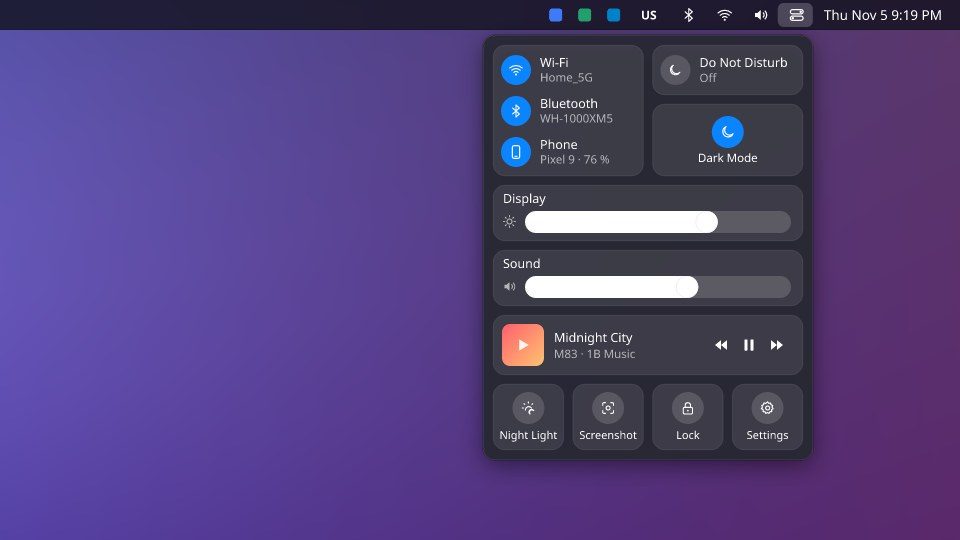
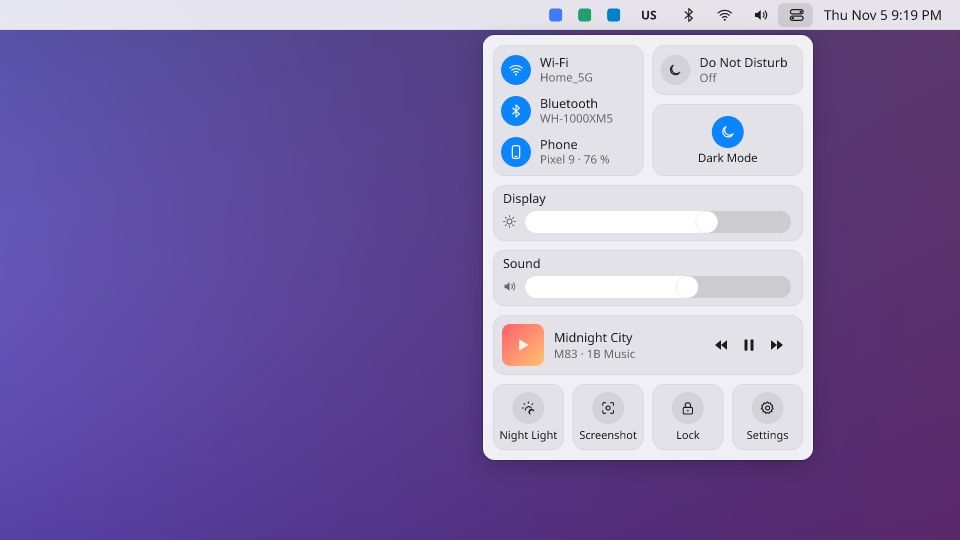
Wi-Fi, Bluetooth and your Phone with KDE Connect; Do Not Disturb and Dark Mode; a Display slider for each screen; Sound; what's playing, with previous, pause and next; and quick buttons for Night Light, Screenshot, Lock and Settings.
Dark Mode only appears when your system has a matching pair of light and dark color schemes.
For 1B Dock 0.4 on KDE Plasma 6 (Wayland) and Windows 10 and 11.