Chapter 2 · 1B Dock guide
Your apps: add, remove and reorder
The apps on the left of the separator are the ones you pinned. Apps you open that aren't pinned appear next to them while they're open, with a dot underneath.
Add an app
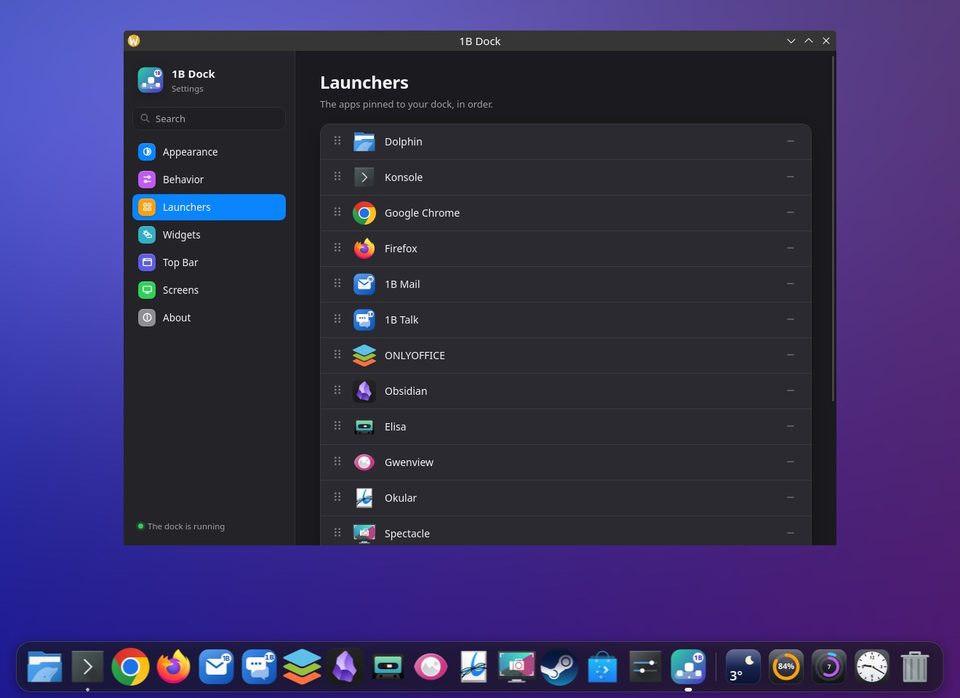
- Open the settings and go to Launchers.
- Click Add apps…, find the app with Search apps and choose it.
- Click Done. The app appears at the end of your pinned apps.
Quicker: while an app is open, right-click its icon in the dock and choose Keep in Dock.
Reorder and remove
Drag an icon to the place you want, in the dock itself or in Launchers. To remove an app, drag its icon up and out of the dock, or right-click it and choose Remove from Dock.
Removing an icon never uninstalls the app: it only leaves the dock.
The right-click menu
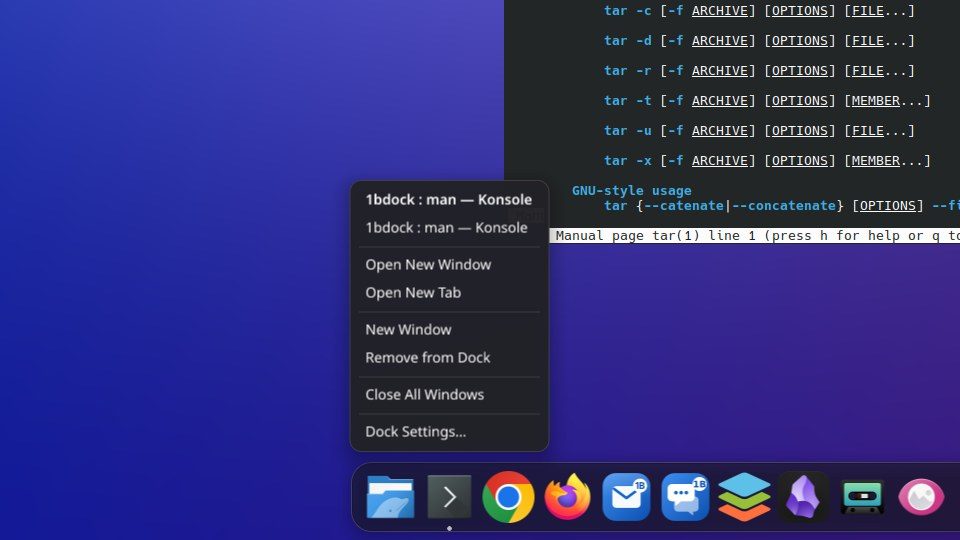
Right-click an icon to see its open windows, the app's own actions (for example a new window or a new tab), New Window, Keep in Dock or Remove from Dock, Close All Windows and Dock Settings….
Click an icon to open the app; if it's already open, the click brings its window to the front. The icon bounces until the window appears.
The Trash
The Trash sits at the end of the dock and shows when it has files. Click it to open it, or right-click and choose Empty Trash: it asks before deleting anything. You can hide it with Show the Trash in Behavior.
For 1B Dock 0.4 on KDE Plasma 6 (Wayland) and Windows 10 and 11.