Chapter 5 · 1B Dock guide
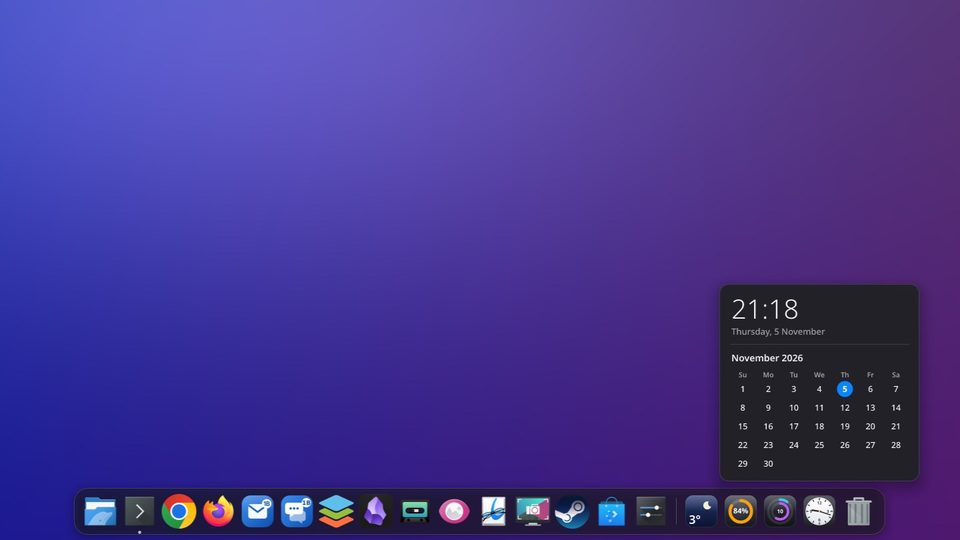
Widgets: weather, disks, CPU and clock
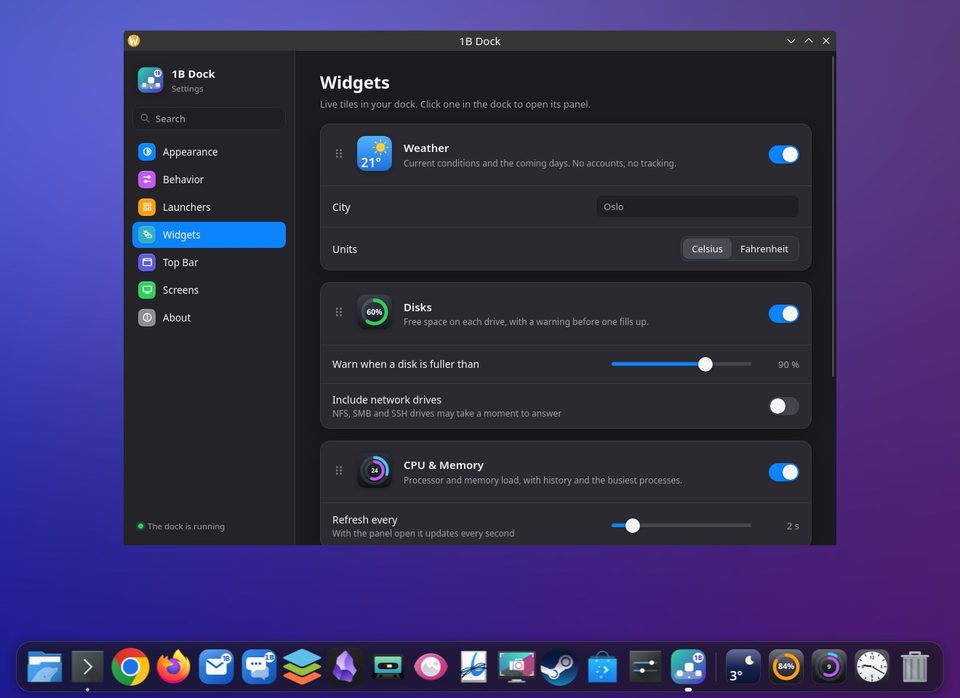
Widgets are live tiles after the separator. Click one to open its panel; click outside or press Esc to close it.
Add or remove widgets
- Open the settings and go to Widgets, or right-click the dock and choose Widgets….
- Turn on the ones you want: Weather, Disks, CPU & Memory and Clock.
- Drag them in the dock to change their order, like any icon.
Weather
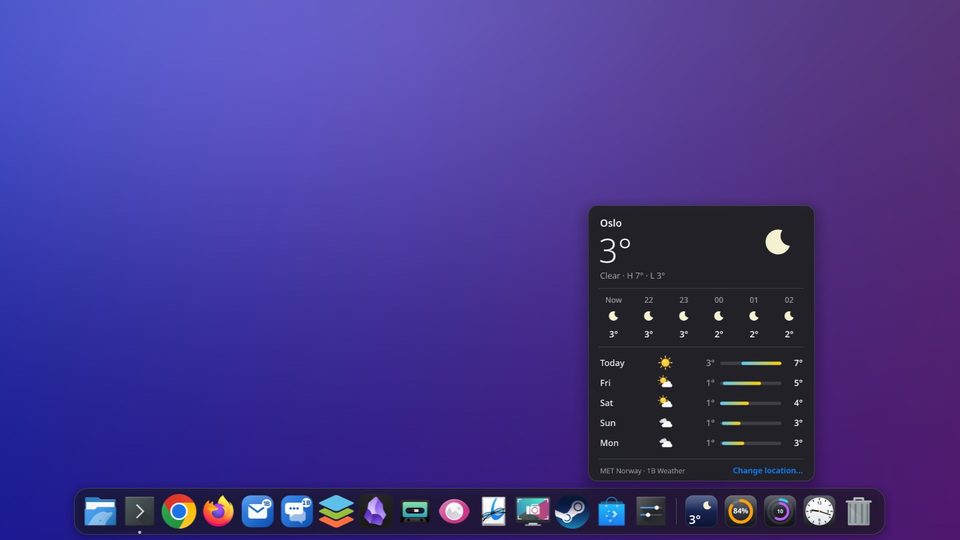
Current conditions and the coming days. No accounts, no tracking. Choose your City with Search for a city… and the Units: Celsius or Fahrenheit. The panel shows now, the next hours and five days.
Disks and CPU
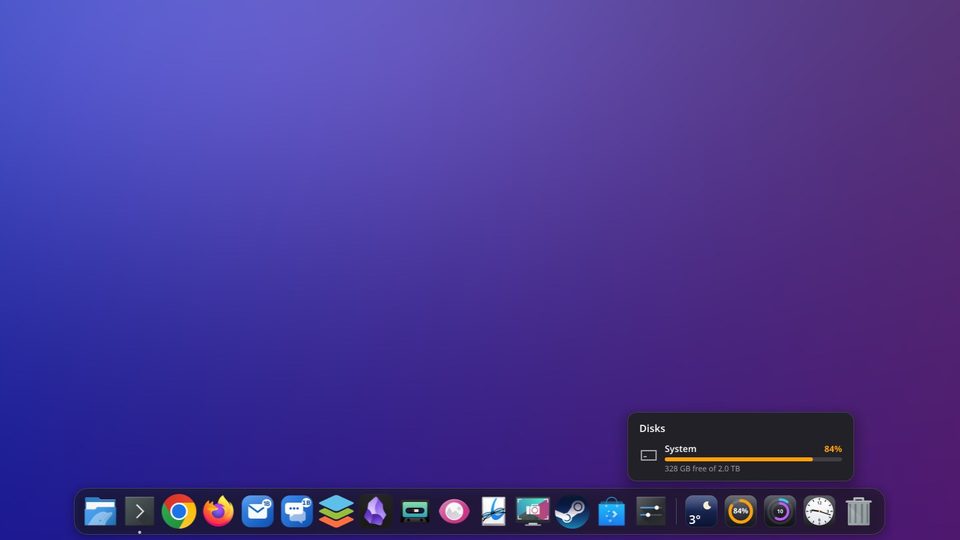
Disks: Free space on each drive, with a warning before one fills up. Set the warning in Warn when a disk is fuller than, and add Include network drives if you use them.
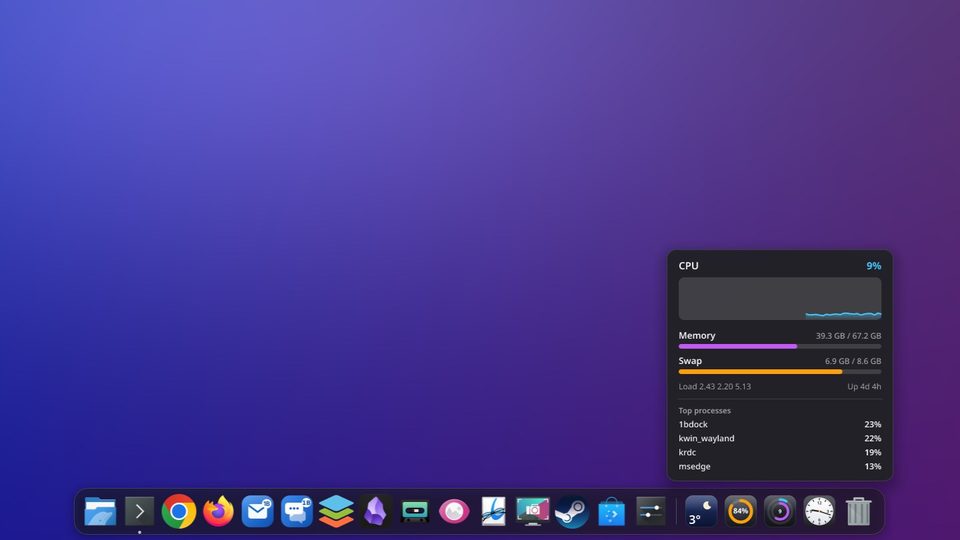
CPU & Memory: Processor and memory load, with history and the busiest processes.
Clock
Analog or Digital, with Show seconds and 24-hour clock. Its panel shows this month's calendar.
For 1B Dock 0.4 on KDE Plasma 6 (Wayland) and Windows 10 and 11.