Chapter 7 · 1B Dock guide
The top bar: turn it on, app menus and status
The top bar is a thin translucent bar, like on macOS: on the left, the 1B menu, the active app and its menu; on the right, the app tray, keyboard, battery, Bluetooth, network, sound, Control Centre and the clock.
Turn it on or off
On Windows it comes switched on, also when you update from 0.3. On KDE it's off until you turn it on.
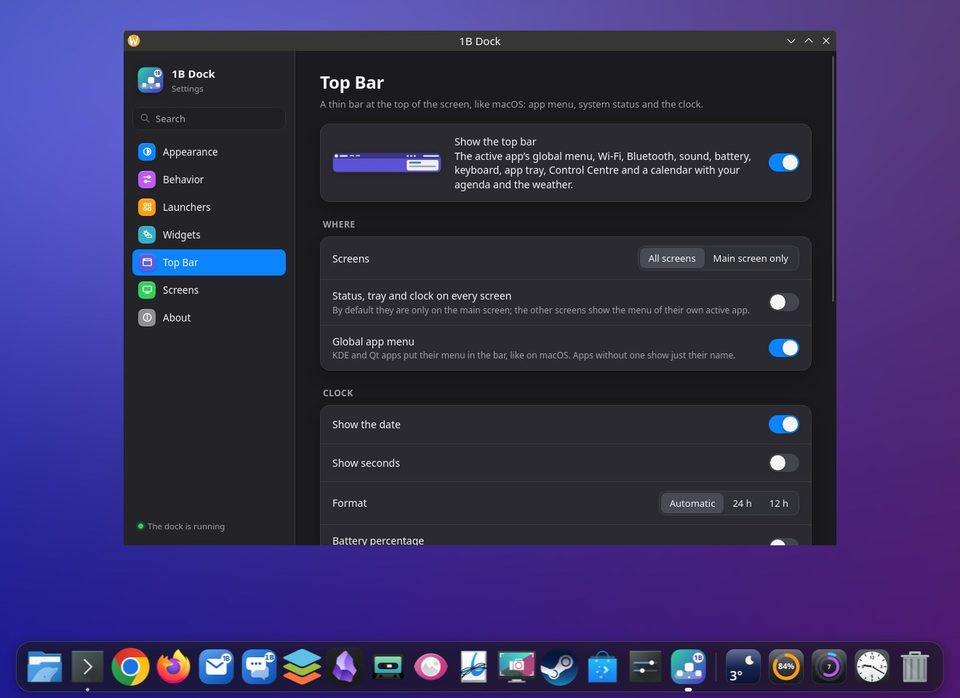
- Open the settings and go to Top Bar.
- Turn on Show the top bar. It appears at once, and maximized windows start below it.
- To remove it, turn the same switch off: your desktop is left as it was.
On KDE, if you already have a panel at the top you'll see both. Hide or remove that panel in Plasma's Edit Mode (right-click the desktop › Enter Edit Mode). Keep it if you use Plasma's notifications from its tray.
The menu of the app you're using
With Global app menu on, KDE and Qt apps put their menu in the bar, like on macOS. Apps without one show just their name. Click a menu, then move the pointer along the bar to open the next one; submenus open as you pass over them. Esc, the arrow keys and Enter work too.
Apps that were already open show their menu after you open them again. Click the app's name for Minimize, Maximize, Close Window and quit.
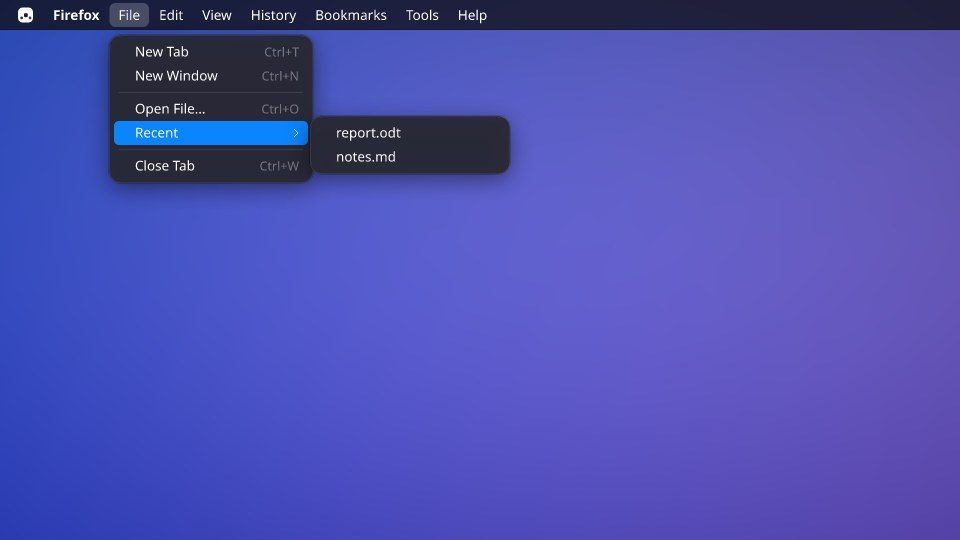
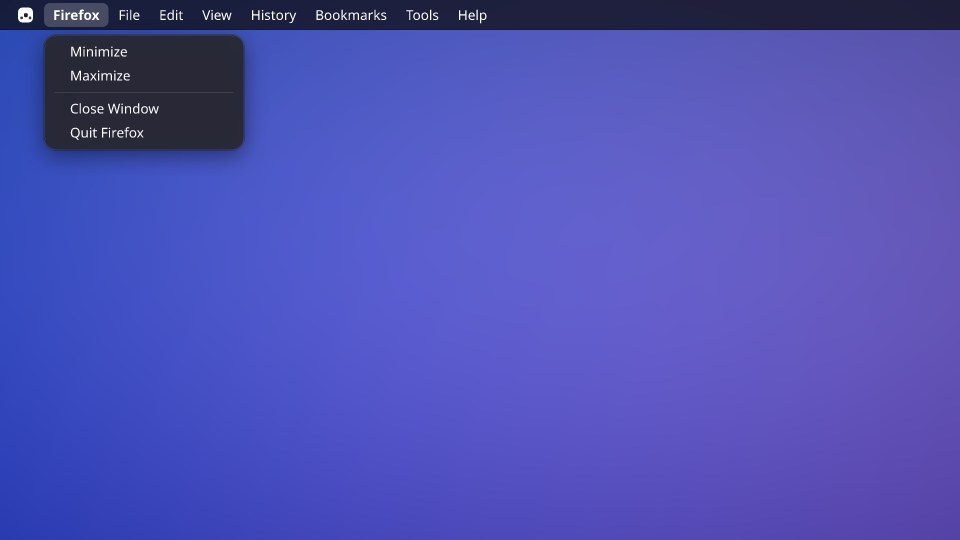
The 1B menu
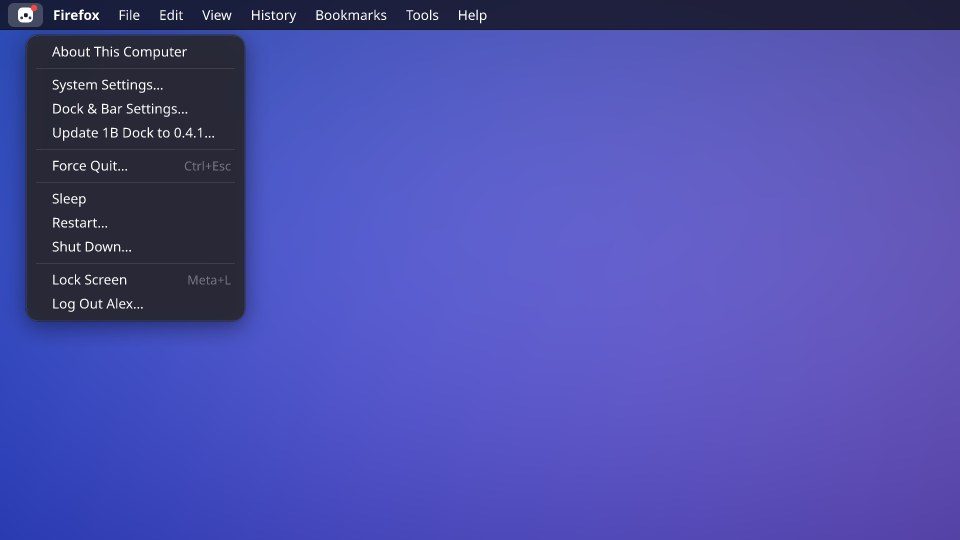
The logo at the top left opens About This Computer, System Settings…, Dock & Bar Settings…, Check for Updates…, Force Quit…, Sleep, Restart…, Shut Down…, Lock Screen and log out. A red dot means there's a new version of 1B Dock.
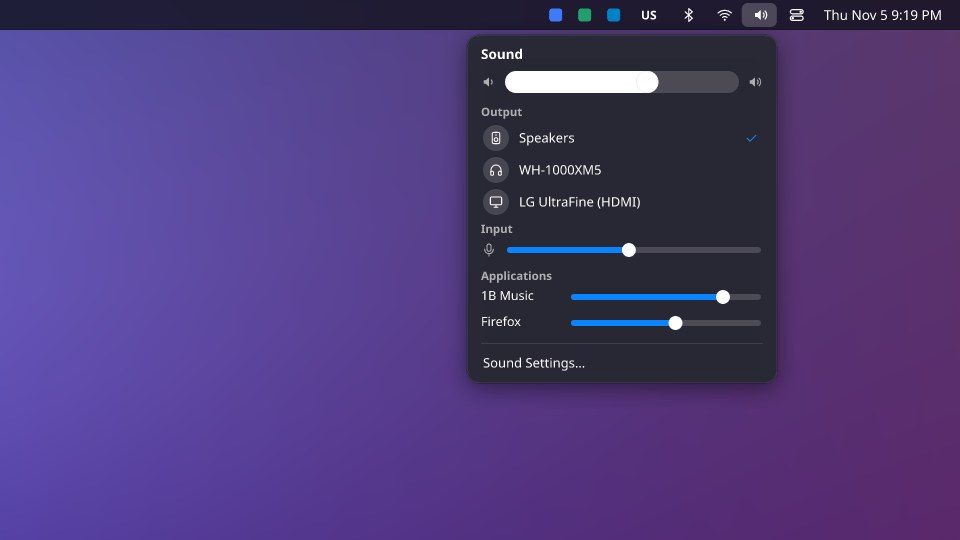
Wi-Fi, Bluetooth, sound and keyboard
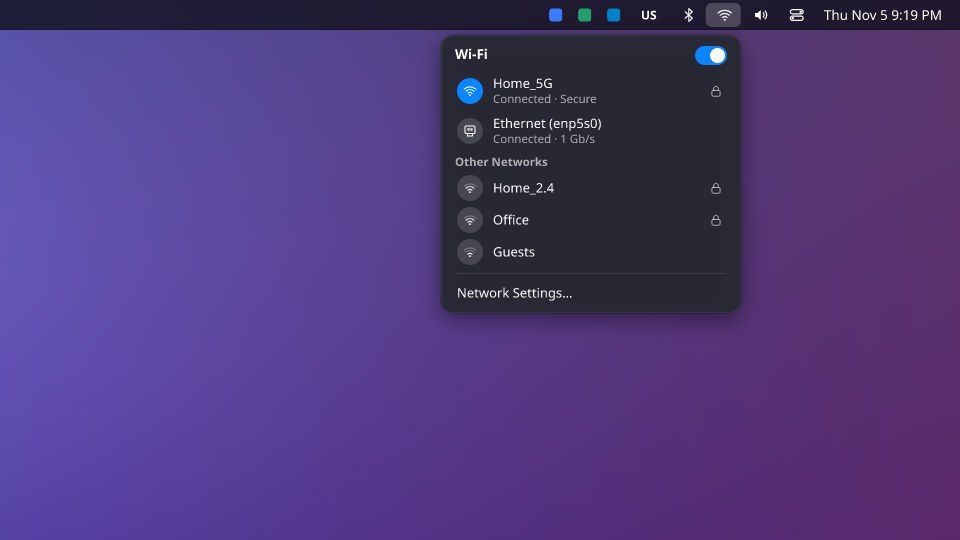
Each icon on the right opens its own menu. Wi-Fi: the switch, your network, Other Networks and Network Settings…. Bluetooth: your Devices, with their battery, to connect or disconnect. Sound: a big slider, Output, Input and a slider for each app under Applications. Keyboard appears when you have more than one layout.
On Windows, what Windows doesn't let other programs change opens its own Settings page.
Screens, clock and look
Screens: All screens or Main screen only. Status, tray and clock on every screen: By default they are only on the main screen; the other screens show the menu of their own active app.
Clock: Show the date, Show seconds and the Format. Battery percentage (Only on computers with a battery.). Glass transparency: Lower = more see-through glass (the blur is done by the desktop).
For 1B Dock 0.4 on KDE Plasma 6 (Wayland) and Windows 10 and 11.