Chapter 6 · 1B Dock guide
Desktop widgets: add, move and set them up
Desktop widgets live on the KDE Plasma desktop, beneath every window, on a grid. They come with 1B Dock 0.5 and later, for KDE Plasma 6 on Wayland (not on Windows yet). Some are included with 1B Dock; the rest, the larger sizes and the Tinted style come with 1B Dock Pro, which is coming soon.
Turn them on and add widgets
- Open the settings, go to Desktop Widgets and turn on Show widgets on the desktop.
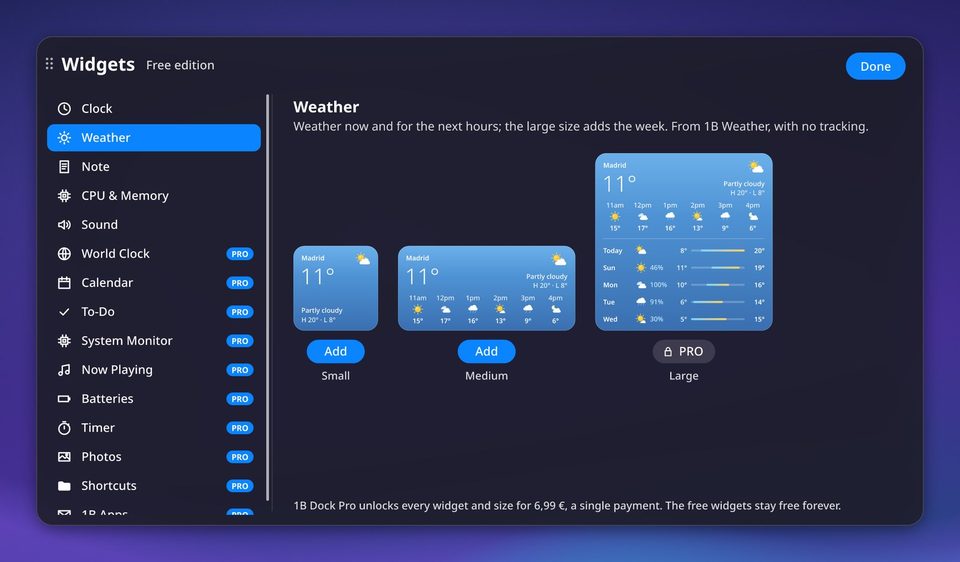
- Press Add Widgets…: the gallery opens on the desktop. You can also open it from the widgets icon in the top bar, with Add Widgets… in the menu of any dock icon, or by right-clicking a widget.
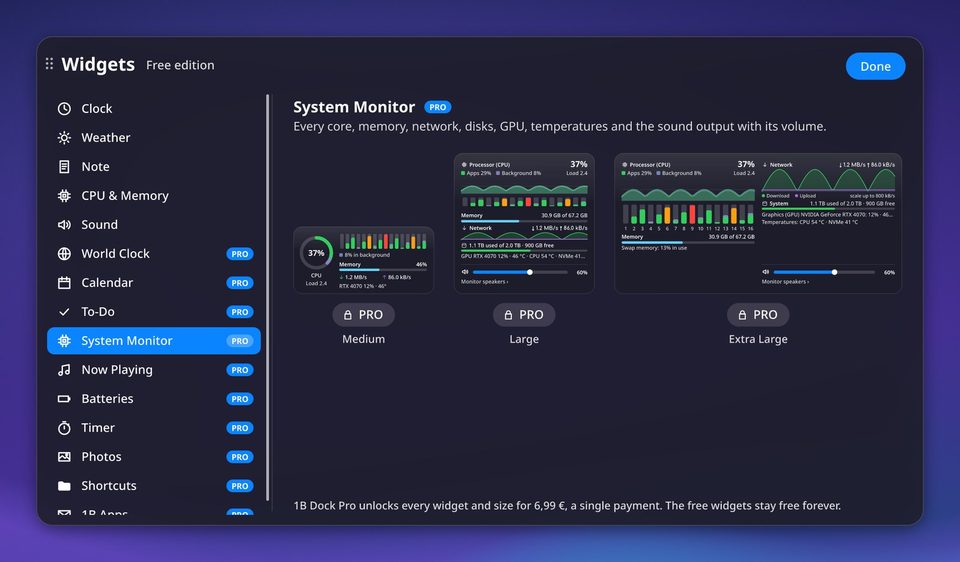
- Choose a widget in the list, look at the live preview of each size and press Add under the one you want (or double-click the preview). Close the gallery with Done.
To open the gallery with the keyboard, press Choose Shortcut…, search for “Desktop Widgets” and give it the keys you like (Meta+W is already Plasma's Overview).
Move, resize and remove
Drag a widget with the mouse: it lifts off the desktop and, when you let go, snaps into the nearest free place on the grid. Drag it onto another screen to move it there; each widget remembers its screen, even if you unplug it for a while.
Right-click a widget for its menu: its own options, its sizes (Small, Medium, Large or Extra Large, depending on the widget), Move to Screen when you have more than one, Edit Widgets, Add Widgets…, Widget Settings… and Remove Widget.
Edit Widgets shows the grid and a “−” on every widget to remove it with one click; finish with Done Editing. Notes are the exception to fixed sizes: drag their corner or edges to make them exactly as big as you want.
Style and behaviour
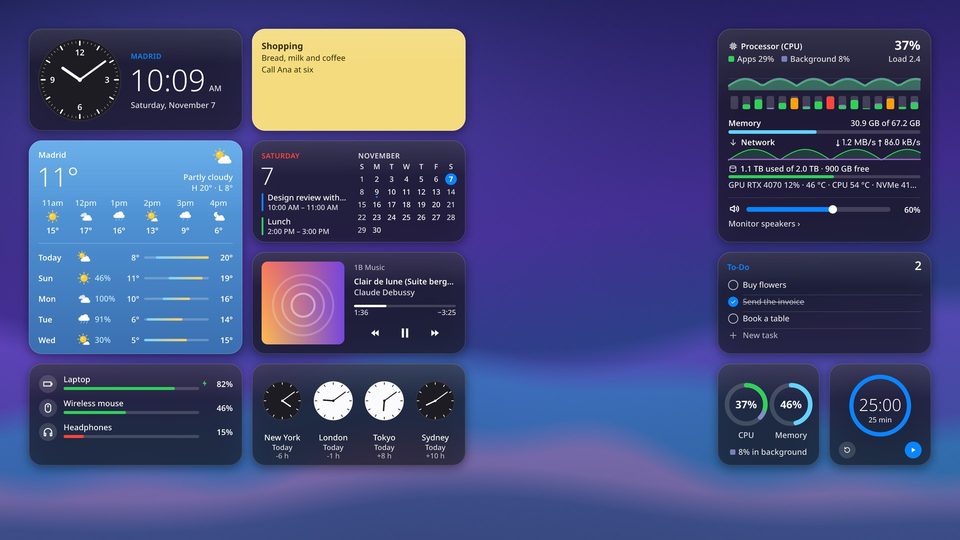
In Desktop Widgets › Look, choose the Style: Glass (translucent, like the top bar), Solid or Tinted (with your accent colour).
With Keep them on “Show desktop”, Meta+D hides the windows and the widgets stay, like the dock. With Pause when a window covers them, widgets under a maximised or full-screen window stop drawing and use no processor at all.
The Tinted style comes with 1B Dock Pro.
Clock, world clock, calendar and weather
Clock: in the small size choose Analog or Digital; in both sizes you can turn on Show Seconds. The medium size adds the time in large digits and the date.
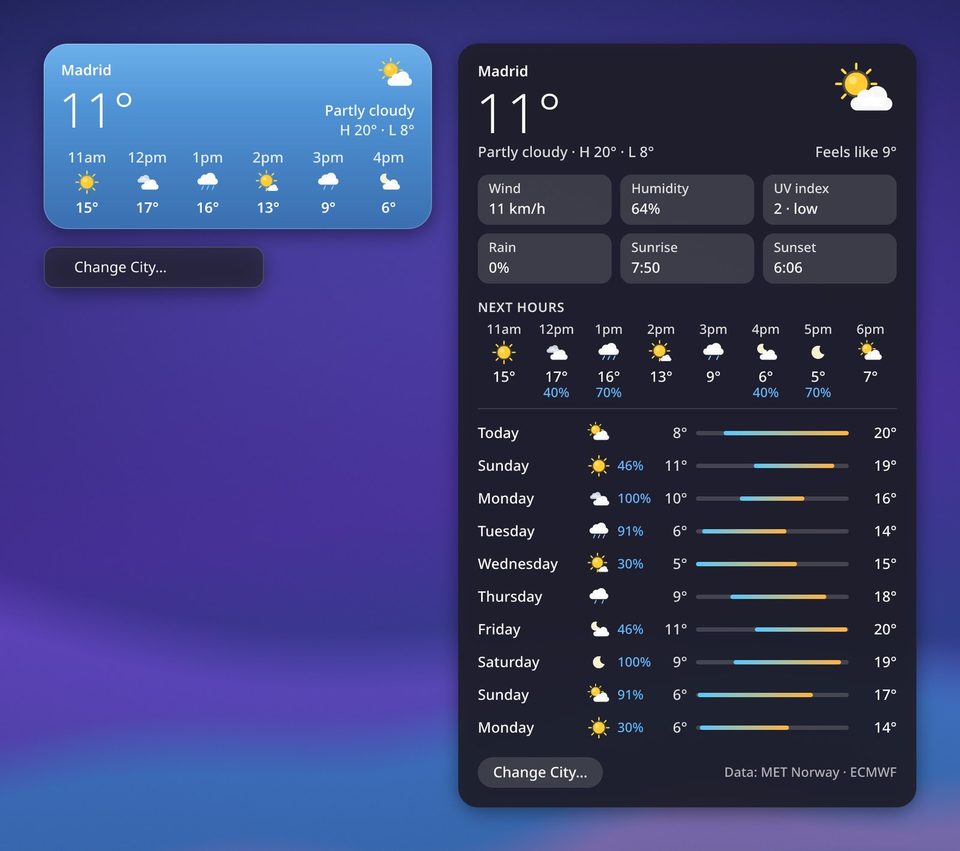
Weather: click it to open its detail panel with the feeling temperature, wind, humidity, UV index, rain, sunrise and sunset, the next hours and up to ten days. Change City… is in that panel and in the widget's menu. The data comes from 1B Weather's server, with no tracking.
World Clock shows the cities you choose with Choose Cities…, with a day or night dial and the time difference. Calendar shows the month with your busy days marked and the coming events of the calendars you add with Calendars… (the same iCal calendars as the top bar).
The large weather, the world clock and the calendar come with 1B Dock Pro.
Notes and to-do lists
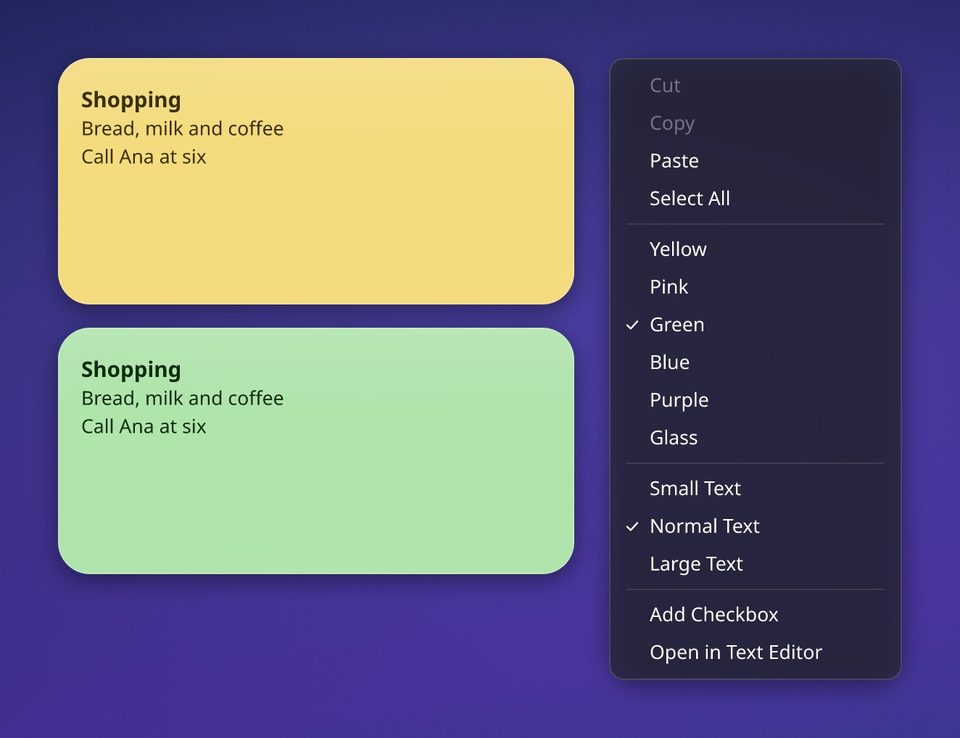
Click a Note and type. Write “- [ ]” at the start of a line for a checkbox you can tick, or use Add Checkbox; lists continue on their own when you press Enter. When you're typing, a small bar fades in with B, I, U and S (or Ctrl+B, Ctrl+I and Ctrl+U), plus “+” to add another note next to it and the bin to delete it (Undo brings it back for a few seconds).
Copy and paste work as in any editor: Ctrl+C, Ctrl+X, Ctrl+V, Ctrl+A and Ctrl+Z, also Shift+Insert and Ctrl+Insert, and the middle button pastes the selected text. Formatted text pasted from a web page keeps bold and italics. Long notes scroll with the mouse wheel or the thin scroll bar.
The menu of a note has the colours (Yellow, Pink, Green, Blue, Purple or Glass), the text size and Open in Text Editor. Every note is a normal Markdown file in ~/.local/share/1bdock/notes, or in the Notes folder you choose in the settings.
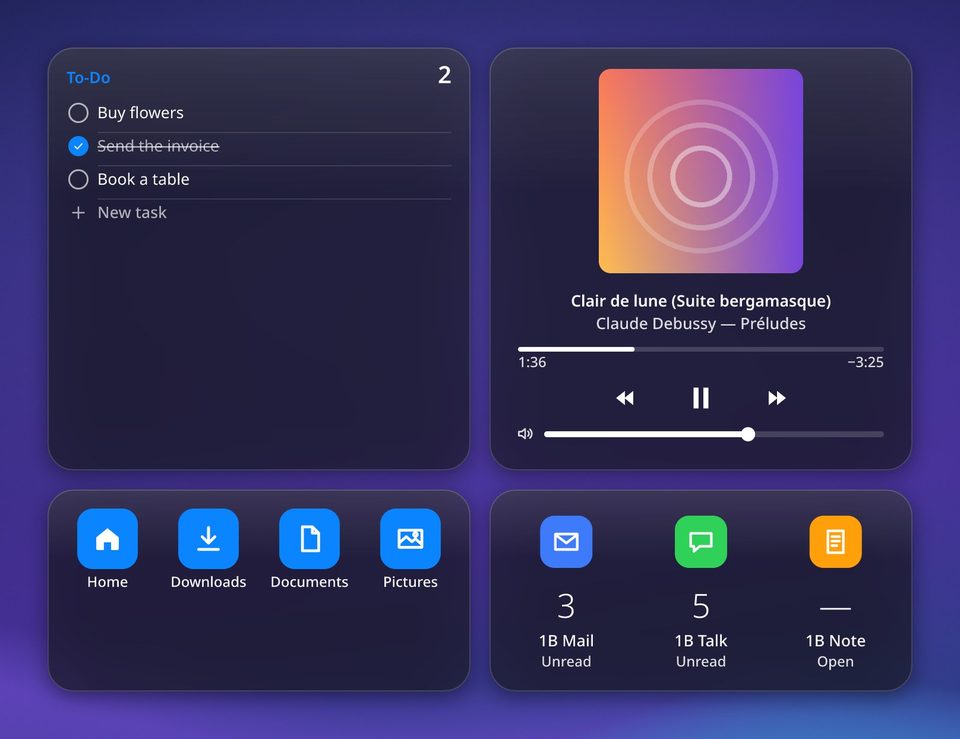
To-Do is a list you tick off on the desktop: click New task to add one, tick it when it's done and use Clear Completed in its menu. It's also a Markdown file next to your notes.
Two notes are included in small and medium. More notes, the large size and the to-do list come with 1B Dock Pro.
CPU, memory, graphics card and the system monitor
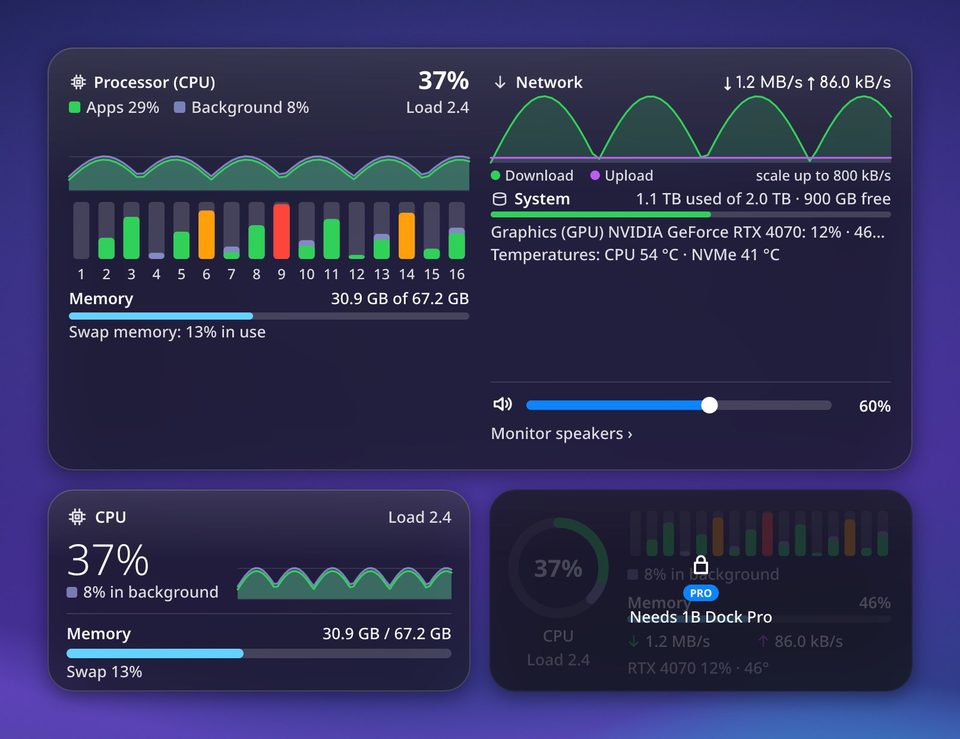
CPU & Memory shows two rings: how busy the processor is and how much memory is in use. The medium size adds a short history and the swap memory.
Background is work that the system or a program has marked as low priority, such as indexing files, a backup or a long compilation. It gives way as soon as your apps need the processor, so a high figure there is not a problem: the widget shows it apart, in a muted colour, and the small size says how much is in the background instead of turning red.
System Monitor adds every core, memory, network, disks, graphics card and temperatures, written so anyone can read them; hover over a part to see the detail. At the bottom it shows the sound output with its volume: click the name of the output to switch to another.
Graphics shows the graphics card: the small size has its usage and temperature, the medium one adds the usage history and the Video memory, and the large one adds power, clock and the programs using it with their video memory. If you have more than one graphics card, choose which one in its menu. The system monitor also has a section for the graphics card. If the card is asleep to save power or its driver doesn't report usage, the widget says so instead of showing zeros.
The system monitor and the Graphics widget come with 1B Dock Pro.
Sound, music and the other widgets
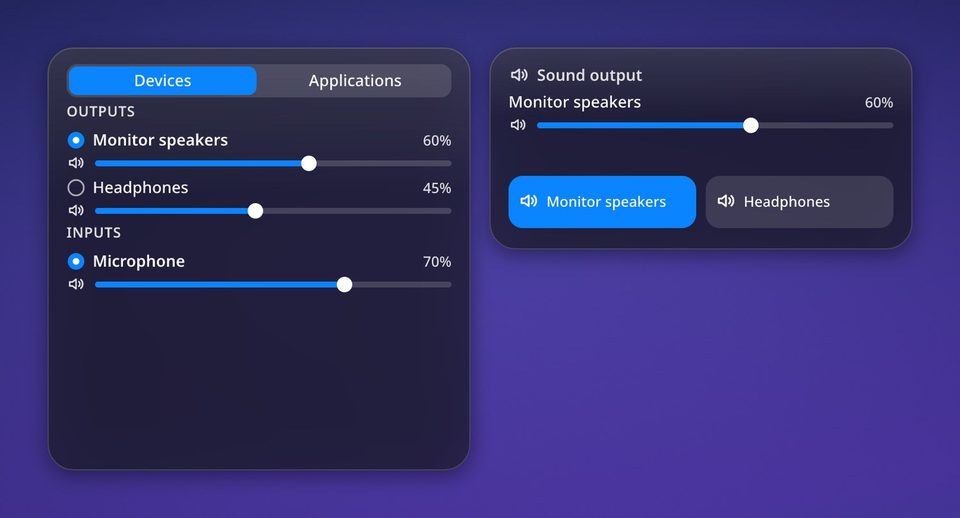
Sound: the small size has the volume and mute. The medium size changes the output with one click; the large one has the Devices and Applications tabs, with outputs, inputs and the volume of each app. Allow above 100% is in its menu.
Now Playing shows the cover, the progress and the controls of the app that's playing music, if it supports the system's media controls. Batteries shows the charge of your laptop, mouse, keyboard, phone and Bluetooth headphones. Timer counts down with presets of 1, 5, 15, 25 and 45 minutes, warns you with a notification and keeps going after a restart.
Photos shows a slideshow of a folder (Photo Folder… and Next Photo in its menu; how often it changes is in the settings). Shortcuts opens your folders and the dock's apps. 1B Apps shows the unread mail of 1B Mail and the messages of 1B Talk, and opens 1B Note.
The small sound widget is included; switching outputs, devices and apps, and the rest of the widgets in this section come with 1B Dock Pro.
1B Dock Pro and your licence
Clock, weather, two notes, 1B Note pinned notes and CPU & Memory, in small and medium, and the small sound widget come with 1B Dock and stay that way. 1B Dock Pro adds every other widget, the large and extra large sizes, more notes and the Tinted style, for €6.99 in a single payment. The store isn't open yet, so it can't be bought today.
When you have a licence, open the settings › Desktop Widgets › 1B Dock Pro, paste it in License and press Activate. It's checked on your computer, with no internet connection, and saved in ~/.config/1bdock/license.txt.
Without Pro, nothing you've added is ever deleted: Pro widgets are shown dimmed with 1B Dock Pro · Coming soon while the store isn't open, and they come back as soon as a licence is active. The dock and the top bar work the same with or without Pro.
For 1B Dock 0.4 on KDE Plasma 6 (Wayland) and Windows 10 and 11.