Chapter 1 · 1B Dock guide
Getting started: install 1B Dock on KDE Plasma and Windows
1B Dock is a dock for your apps and a thin bar at the top of the screen. It works on KDE Plasma 6 in a Wayland session and on Windows 10 and 11, and needs no account.
Install it on KDE Plasma (Linux)
- Download the RPM package from the 1B Dock page on 1bytesystems.com. It's for Fedora and derivatives with KDE Plasma 6 in a Wayland session.
- Open it with Discover or install it from a terminal with dnf. The system asks for your password.
- Open 1B Dock from your app menu. The first time, it copies the apps from your bottom panel, so you start with the ones you already use.
- To start it with your session, add it in System Settings › Autostart.
Your Plasma panels stay where they are. When you're happy with the dock, hide or remove the bottom panel in Plasma's Edit Mode.
Install it on Windows
- Download the installer (.exe) from the same page. It installs for your user only, with no administrator rights.
- The installer isn't signed yet, so SmartScreen may warn you the first time: choose More info › Run anyway.
- 1B Dock brings in the apps pinned to your taskbar and asks before hiding the taskbar. The top bar comes switched on.
- If 1B Dock is already installed, the installer says so and offers Update: your dock, settings and apps are kept.
Open the settings
Right-click any icon in the dock and choose Dock Settings…, or open 1B Dock Settings from your app menu. With the top bar on, the 1B menu at the top left also has Dock & Bar Settings….
The window has Appearance, Behavior, Launchers, Widgets, Top Bar, Screens and About. Every change appears on your dock at once, and Search finds any setting by name.
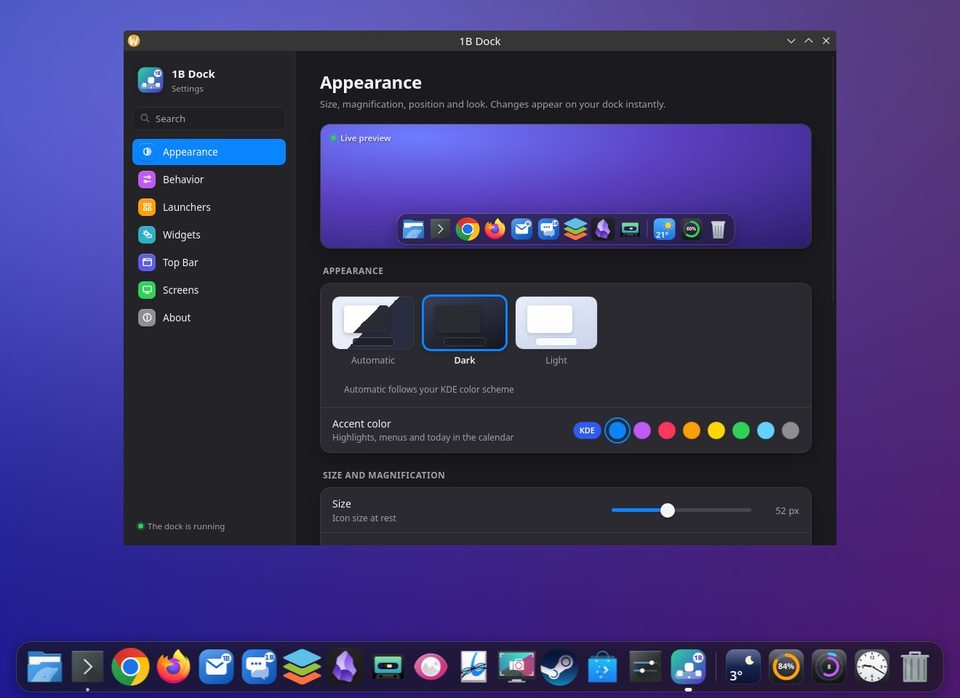
For 1B Dock 0.4 on KDE Plasma 6 (Wayland) and Windows 10 and 11.