Chapter 4 · 1B Dock guide
Hiding and windows: auto-hide, previews and taskbar
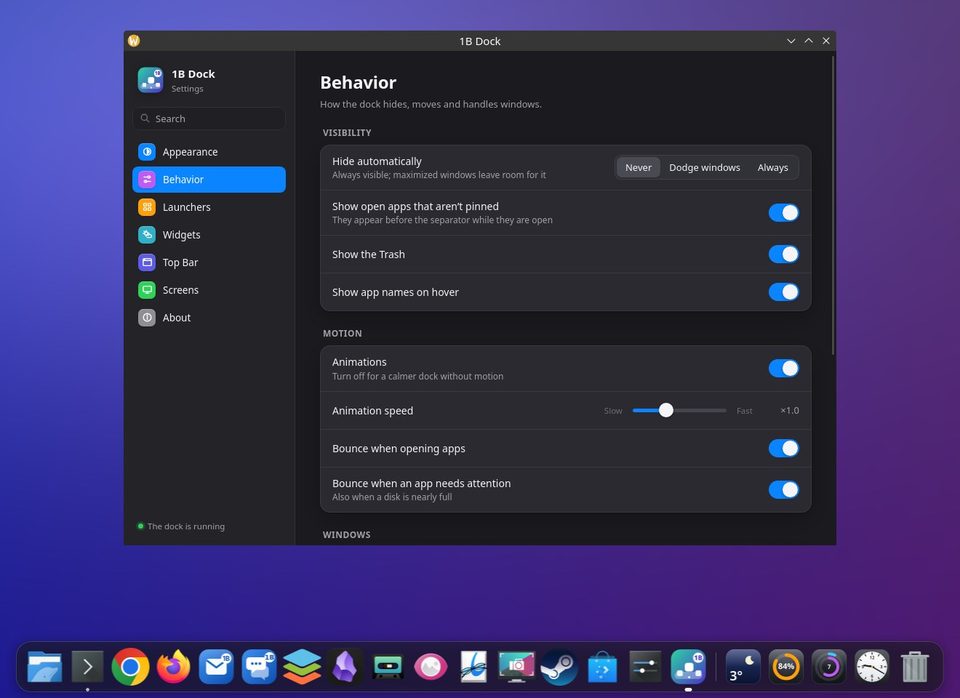
In Behavior you decide when the dock shows itself and how it handles your windows.
Visible or hidden
Hide automatically has three options. Never: Always visible; maximized windows leave room for it. Dodge windows: Hides only when a window covers it. Always: Hides when the pointer leaves; touch the screen edge to show it.
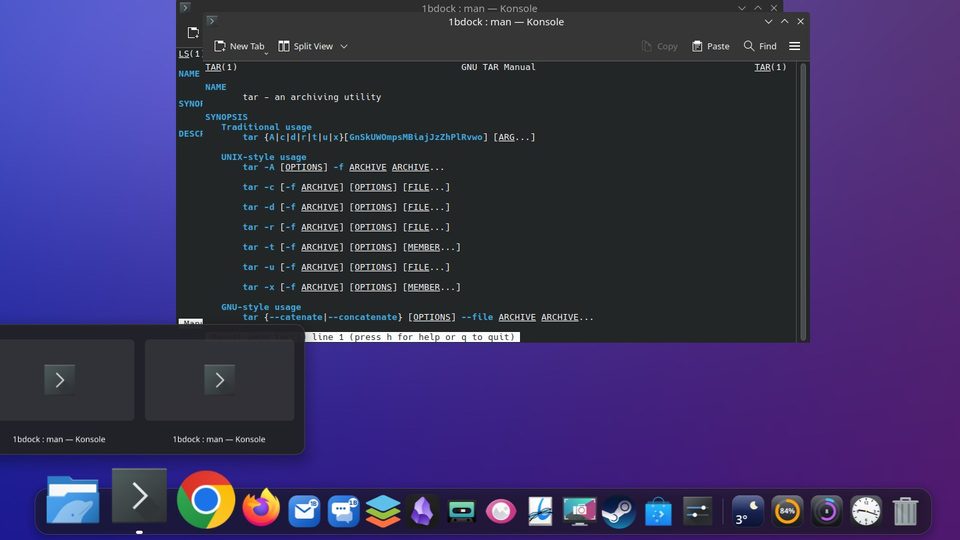
Window previews
With Window previews on, resting on an app with open windows shows live thumbnails. Click one to bring it to the front, or close it with its ×. Preview size and Delay before showing adjust them.
Minimize into the dock (KDE)
On KDE, windows shrink into their icon. Minimize effect offers Genie or Scale; it's a KWin setting, so it applies to every window.
The Windows taskbar
On Windows, Hide the Windows taskbar lets the dock take its place. The Windows key and Start still work, and the taskbar comes back when the dock quits, closes unexpectedly or is uninstalled. From the dock, right-click and choose Show the Windows Taskbar or Hide the Windows Taskbar.
Reserve the dock’s space makes maximized windows stop above the dock instead of going under it.
Which screen
In Screens, choose the screen for the dock. Primary screen follows the primary display set in KDE's Display Configuration.
For 1B Dock 0.4 on KDE Plasma 6 (Wayland) and Windows 10 and 11.