Chapter 3 · 1B Talk guide
Writing: mentions, threads and reactions
Type in the box at the bottom and press Enter to send (Shift+Enter for a new line). Hover over a message to see its buttons.
Mentions and formatting
Type @ and the first letters of a name to mention someone: they get a notification even if the channel is muted. @channel notifies everyone in the channel.
Put double asterisks around a word for bold, underscores for italics and backticks for code. Links, email addresses and phone numbers become clickable by themselves.
Reply and threads
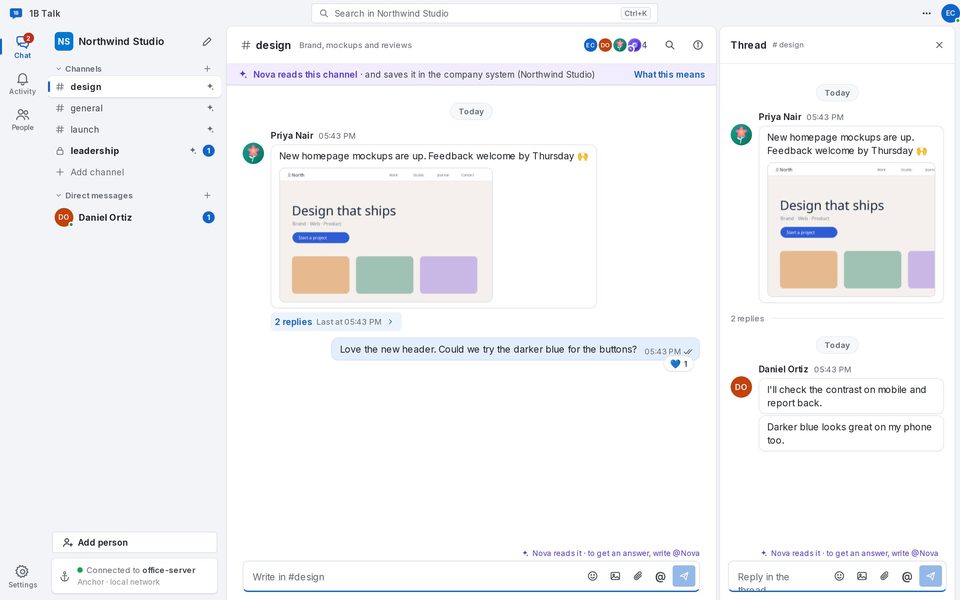
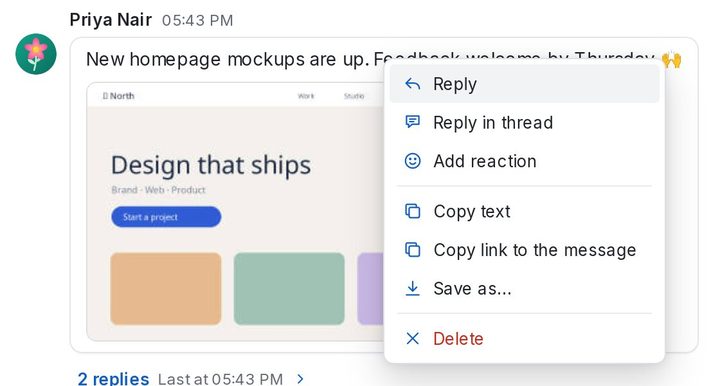
Reply quotes a message in the main conversation. Reply in thread opens a side panel so a discussion doesn't fill the channel: under the original message you'll see how many replies it has.
- Hover over the message and click Reply in thread.
- Write in Reply in the thread and press Enter.
- Close the panel when you're done; the thread stays under the message, with its last reply time.
Reactions, editing and status
Add reaction puts an emoji under a message. Your own messages can be edited (Edit) or deleted (Delete); everyone sees «edited» or Message deleted. Right-click a message to copy its text, a selection or a link to it.
Under your messages, a small sign tells you how far they got: On this computer · will be sent when the anchor is reachable, on the anchor, delivered and, if your company uses it, read.
For 1B Talk 0.3.10 on Windows and Linux.