Chapter 6 · 1B Talk guide
People, invitations and several companies
Only people with an invitation can come in. Admins invite; anyone can add their own other computer.
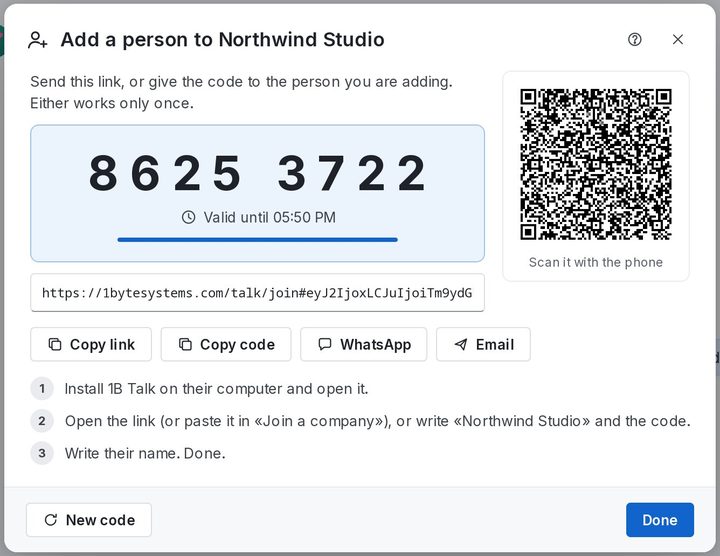
Invite a colleague
The code and the link work only once and expire. Nobody can join without them. Pending codes are listed in Settings › Companies and anchors, where you can Cancel code.
- Click Add person at the bottom of the channel list (or in People).
- Write the Name of the person, choose the Role (Member or Admin) and how long it is Valid for.
- Click Create invitation. Send the Invitation link by WhatsApp or email with the buttons, let them scan the QR, or give them the code.
- They install 1B Talk, open the link (or type the code) and they're in.
Add another computer of yours
In Settings › General, Add another device of mine › Add… shows a QR and a link. Open it on your other computer and it comes in as you, with your conversations. Keep this computer on for a moment so the conversations reach the new one.
People, devices and removing someone
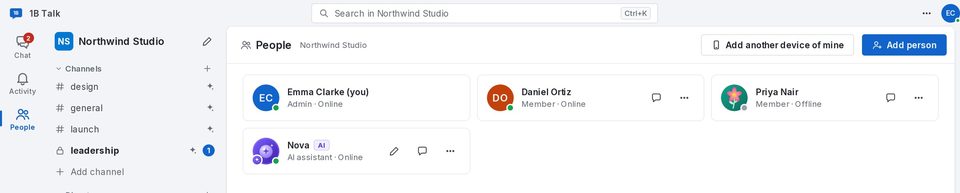
People lists everyone in the company with their role and whether they're online. An admin can Remove from the company: that person stops receiving messages on all their devices at once and what they wrote stays. If someone joined twice by mistake, Duplicate? Fix merges them.
Settings › Companies and anchors shows the Devices in the company; Remove device disconnects a lost or old computer.
Several companies
With Join another company you can be in several companies from the same program; their icons appear at the top of the bar on the left. Each company stays completely apart: its own anchor, its own people and its own AI. Nobody in one company sees anything of the other.
Leave next to a company in Settings › Companies and anchors removes it from this computer only; the company and its messages stay as they are.
For 1B Talk 0.3.10 on Windows and Linux.