Chapter 6 · 1B Desk guide
The Android viewer: control your PC from your phone
1B Desk for Android shows and controls your Windows and Linux computers from a phone or tablet, on the same network.
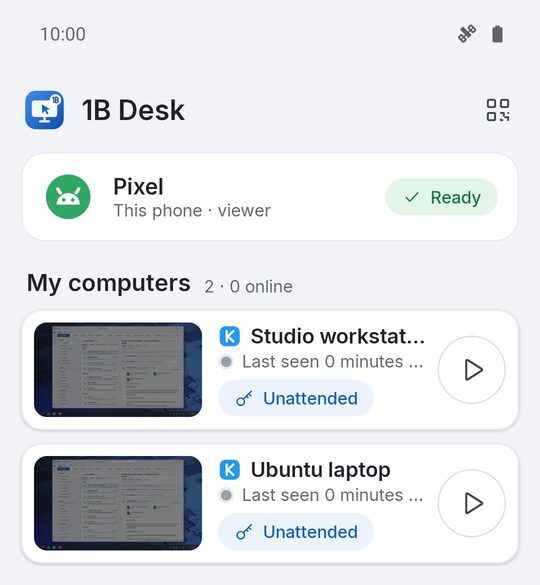
Pair your phone
- On the computer, open 1B Desk and click Show QR code on the Devices page.
- On the phone, open 1B Desk and tap Pair a computer. Point the camera at the QR code, or type the 8-digit code, or pick the computer under Nearby.
- Compare the symbols on both screens and allow the phone on the computer, as in chapter 2. The computer appears in My computers.
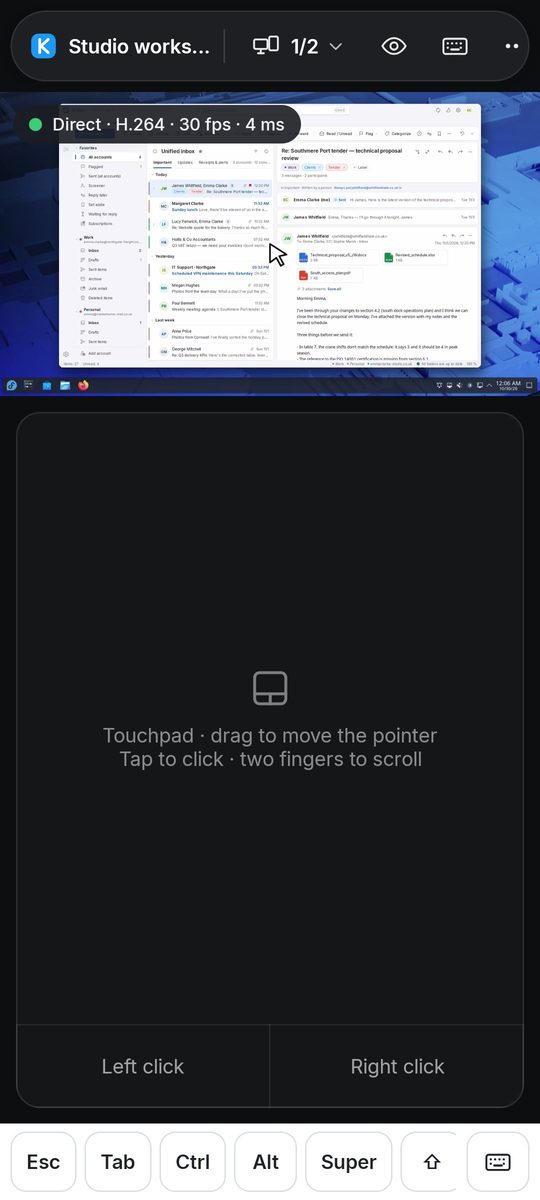
Touchpad or direct touch
Touchpad: drag to move the pointer, tap to click, two fingers to scroll, two-finger tap for right click.
Direct touch: tap exactly where you want to click, hold for right click, pinch to zoom.
The keyboard button types on the computer; the Extra keys row adds Esc, Tab, Ctrl, Alt, Win, arrows and F-keys.
Settings on the phone
Unlock with fingerprint to connect protects your computers if you lose the phone, and Low bandwidth on mobile data saves data away from Wi-Fi. Help has a summary of the gestures.
For 1B Desk 0.2 on Windows and Linux, and the Android viewer.