Chapter 2 · 1B Desk guide
Pairing: connect two computers safely
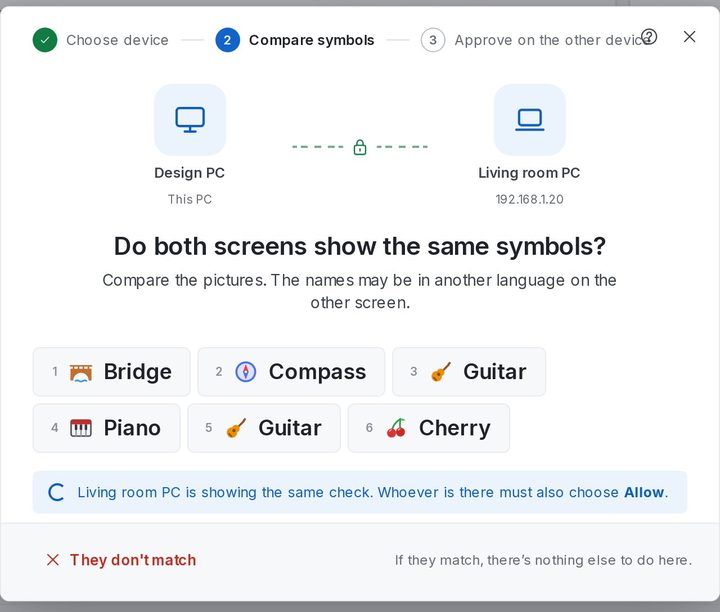
Before you can connect, the two devices have to meet once. Both screens show the same six symbols: if they match, nobody is in the middle. You only do this once per device.
Pair a computer from Nearby
Both computers must be on the same network and have 1B Desk open.
- On your PC, find the other computer under Nearby on this network and click Pair.
- Your screen asks Do both screens show the same symbols? and shows six pictures with their names.
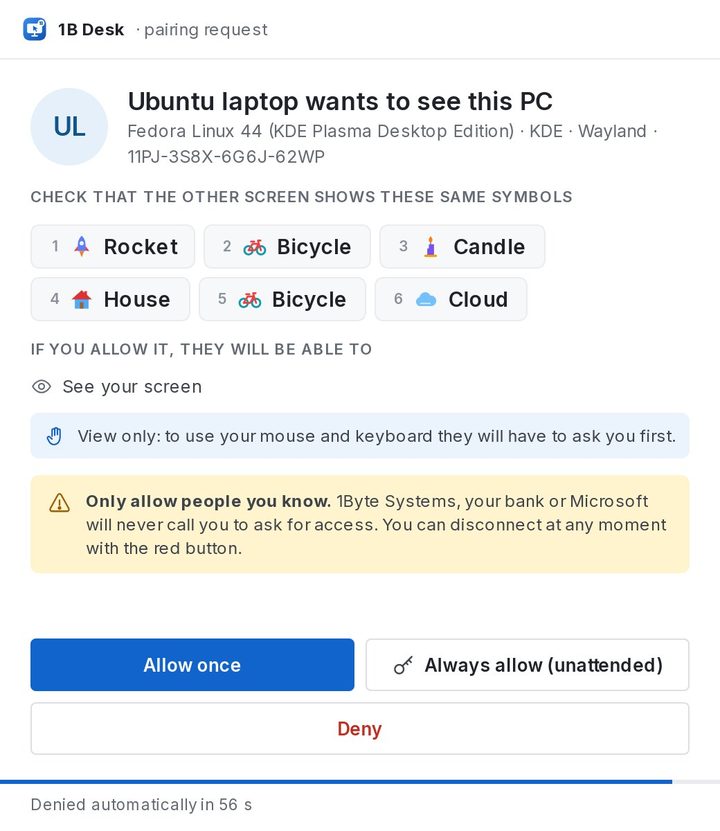
- On the other PC a window appears with the same symbols. Whoever is there compares them and chooses Allow once or Always allow (unattended). If nobody answers, it says Denied automatically in 60 s.
- If even one symbol is different, click They don't match on your PC and start again. When the other PC allows it, the device moves to My devices.
Pair with the 8-digit code
If the other computer doesn't appear under Nearby, type the Pairing code shown on its Devices page into Connect to another device and click Connect. 1B Desk finds the computer with that code on your network, and you compare the symbols as above.
Still nothing? Click Use an IP address: the window Connect with code and address asks for the code and the address shown at the bottom of the other computer's window.
The code changes after every pairing and after five wrong tries, so an old code you wrote down won't work.
Allow once or always?
Allow once pairs the device, but someone at the other PC has to accept every connection: the device shows Asks first.
Always allow (unattended) lets that device connect later without anyone at the other PC, for example to reach your own computer in another room. It shows Unattended. You can change it at any time in Security & access (chapter 5).
Pair your phone
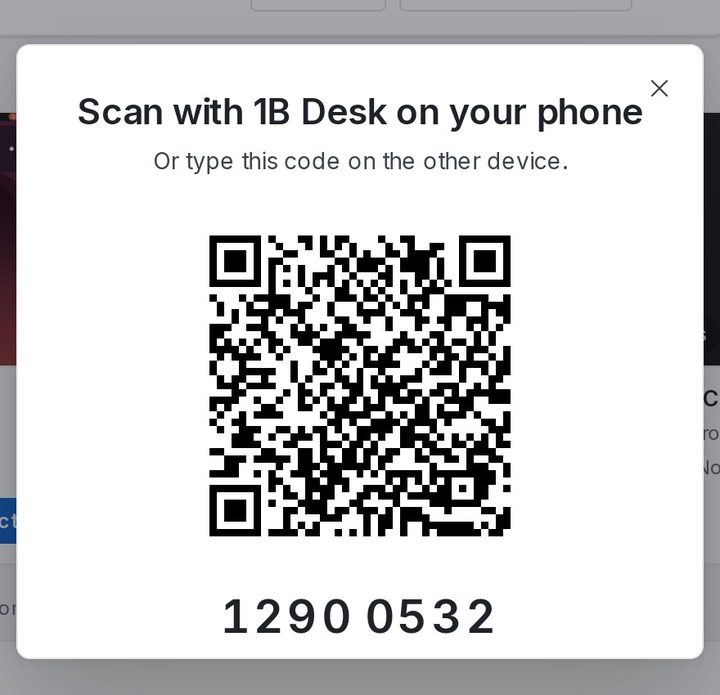
On the computer, click Show QR code and scan it with 1B Desk on your Android phone or tablet. Chapter 6 explains the rest.
For 1B Desk 0.2 on Windows and Linux, and the Android viewer.