Chapter 1 · 1B Desk guide
Getting started: install 1B Desk on Windows and Linux
Install 1B Desk on every computer you want to use: the one you sit at and the one you want to control. There are no accounts to create.
Install 1B Desk
- Download 1B Desk from its page on 1bytesystems.com: the installer for Windows 10 and 11, or the RPM (Fedora, openSUSE), DEB (Debian, Ubuntu, Linux Mint) or AppImage package for Linux.
- On Windows, run the installer. It also installs the 1B Desk background service (Background service in Settings) and a firewall rule only for 1B Desk.
- On Linux, open the package with your software center, or install it from a terminal. The AppImage works without installing, but the other PC can only reach it while the window is open.
- Open 1B Desk. It starts on the Devices page and is ready for connections on your network.
Install it on both computers. 1B Desk updates itself afterwards: chapter 7 explains how.
The Devices page
The This device card shows this PC: its name, its Pairing code (8 digits that change after every pairing and every 10 minutes), its Device ID and the buttons Show QR code and New code. You'll use the code to pair, from another computer or from your phone.
Connect to another device is where you type the code of another computer. Below, My devices lists the computers you have paired, with a live thumbnail of their screen, and Nearby on this network shows the ones running 1B Desk on your network that you haven't paired yet.
The bar at the bottom says whether this PC is ready for connections and shows its address on your network.
Permissions on Linux and Windows
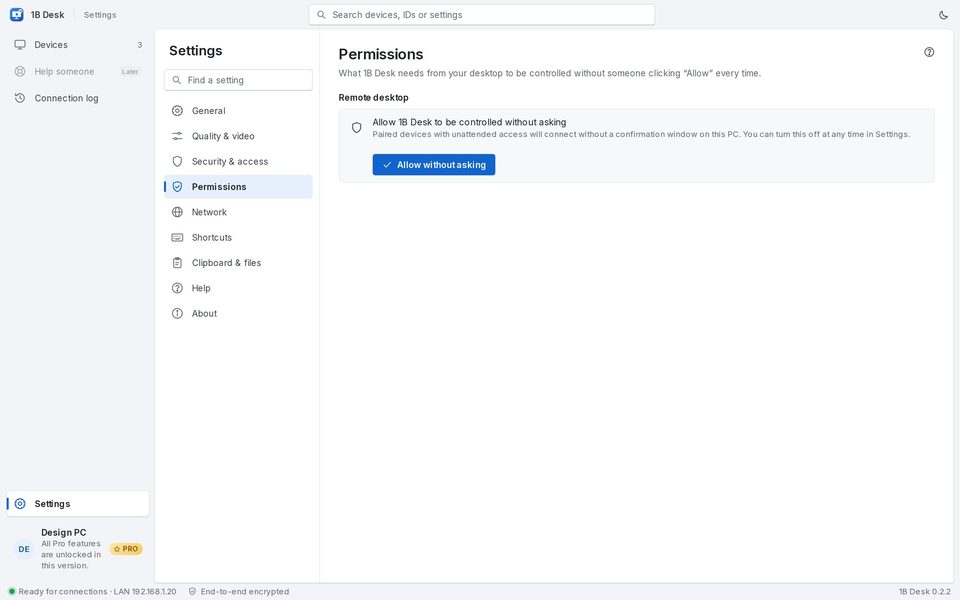
To be controlled, 1B Desk needs to capture the screen and move the mouse. Open Settings › Permissions to see what your system has allowed.
KDE Plasma: click Allow without asking once. From then on, paired devices with unattended access connect without anyone clicking on this PC.
GNOME: the first time someone connects, the desktop asks once for the Screen sharing permission; 1B Desk remembers the answer.
Windows: the background service lets you answer administrator (UAC) prompts, unlock the PC and press Ctrl+Alt+Del. If it's missing, reinstall 1B Desk.
For 1B Desk 0.2 on Windows and Linux, and the Android viewer.