Chapter 3 · 1B Desk guide
Connect and control another computer
Once a computer is paired, connecting is one click. The session window shows the other PC with a toolbar at the top for everything else.
Connect to a paired computer
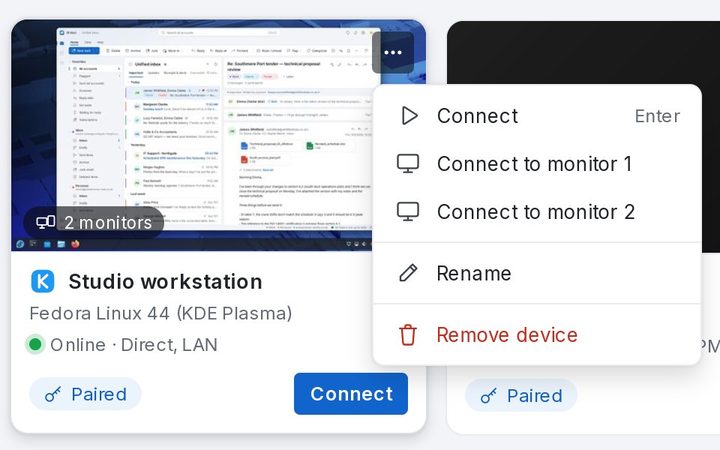
- On the Devices page, click Connect on the computer's card, or double-click its thumbnail.
- With several monitors, open the ⋯ menu of the card and choose Connect to monitor 2 to start on that one. In the same menu you'll find Rename and Remove device.
- A session window opens. On your network it usually takes less than a second.
The session window
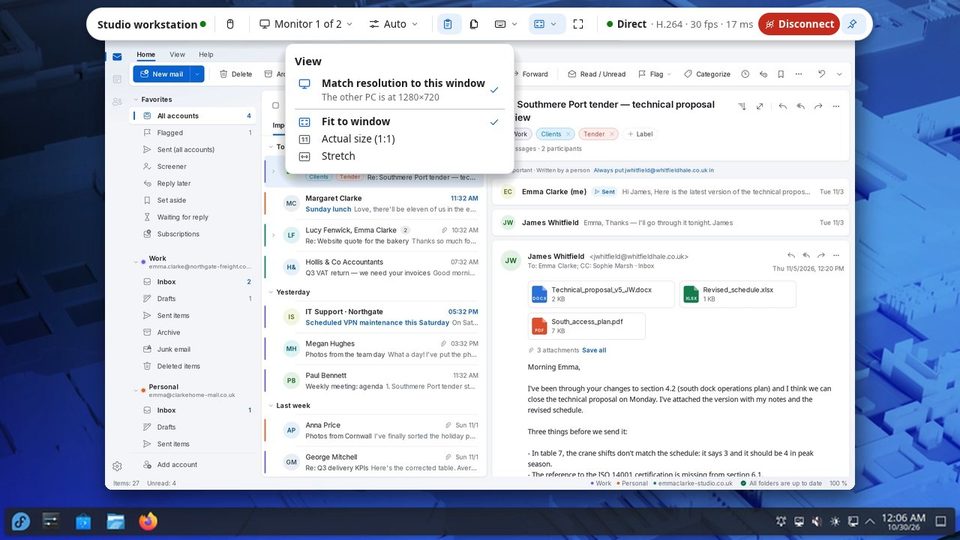
The toolbar at the top shows who you're connected to, your permission, the monitor, the quality, the clipboard, files, keyboard, view and full screen, and on the right the route (Direct on your network), the frame rate and the delay. Disconnect ends the session.
The toolbar hides while you work; move the pointer to the top to bring it back, or pin it with Keep the bar visible.
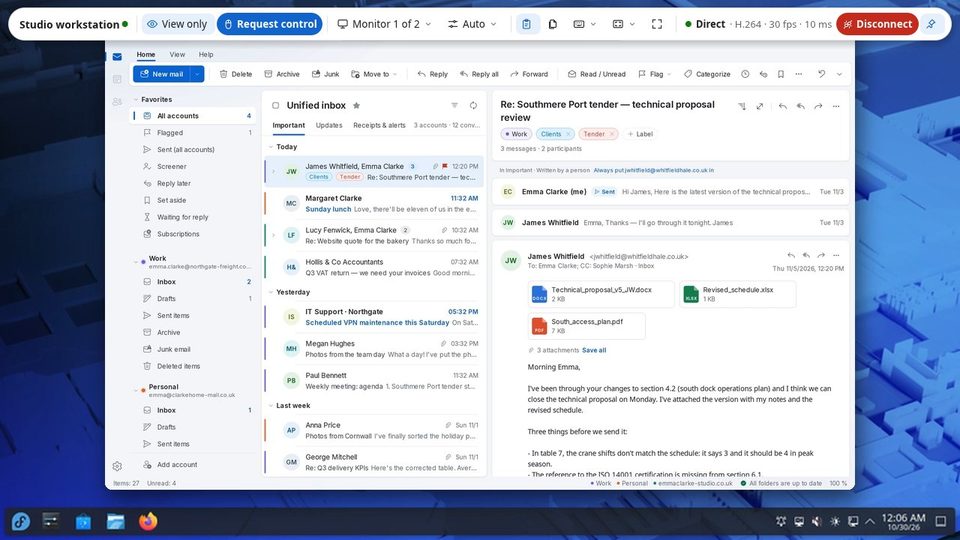
Pick the monitor
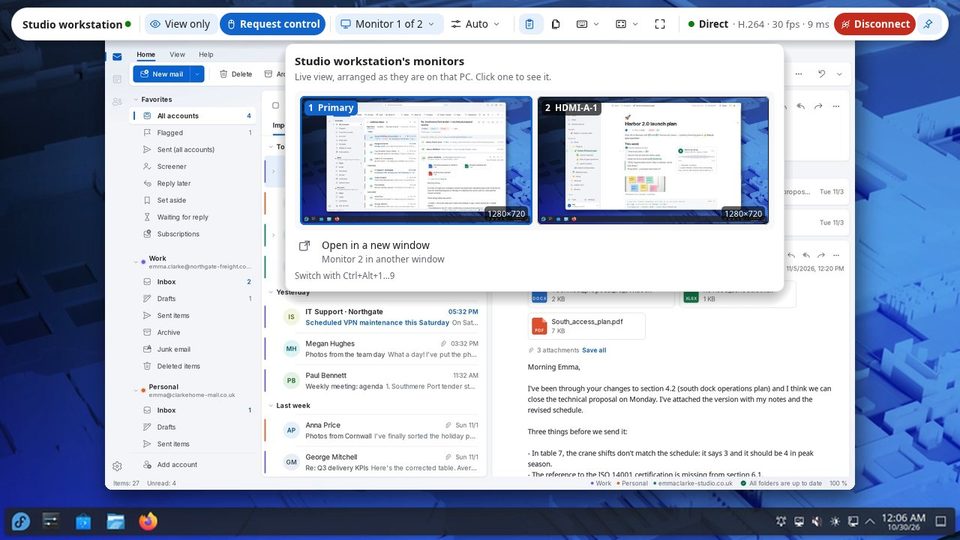
1B Desk shows one monitor at a time, each as its own sharp video. Click the monitor button on the toolbar to see a live map of the other PC's monitors, arranged as they are there, and click one to switch. Open in a new window shows another monitor in a second window.
With the keyboard: Switch with Ctrl+Alt+1…9.
Quality
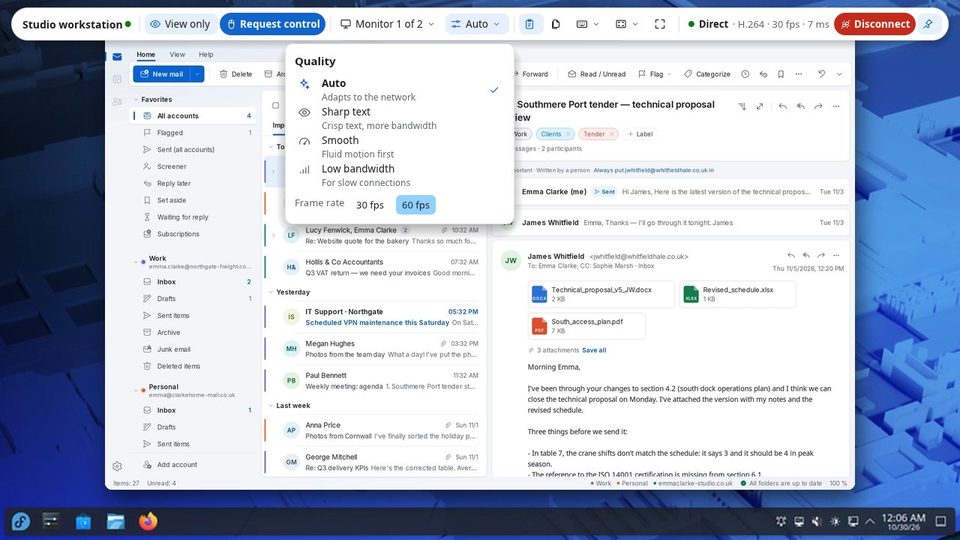
Auto adapts to your network. Choose Sharp text for documents and code, Smooth for video and motion, or Low bandwidth for weak Wi-Fi. Frame rate limits the frames per second. The default for new sessions is in Settings › Quality & video.
View only or control
Devices you pair start with View only: you see the screen but your mouse and keyboard don't reach the other PC. Click Request control: the person there chooses Allow this time, Always or No. While you wait, the toolbar says Waiting for someone at the other PC to accept….
The eye button does the opposite: it stops your mouse and keyboard on purpose, so you can watch without touching anything by mistake.
Keyboard and special keys
While the session window has focus, your keys go to the other PC. The Keyboard menu has the keys your own computer would catch: Send Ctrl+Alt+Del, the Windows or Super key, Lock the other PC and Release all keys if one seems stuck.
Full screen: Ctrl+Alt+Enter, at any time.
View and resolution
The View menu chooses how the picture fits your window: Fit to window, Actual size (1:1) or Stretch.
Match resolution to this window (on by default) changes the other PC's resolution to the size of your window, and puts it back when you disconnect or the connection drops. It needs control of the other PC.
For 1B Desk 0.2 on Windows and Linux, and the Android viewer.