Chapter 4 · User guide · 1B Note
Databases
A database is a list of pages with properties: status, owner, date, priority… The same rows can be seen as a table, a board, a calendar or a timeline.
Create a database
- Type / and choose Database – Inline (inside the page) or Database – Full page (a page of its own).
- Each row is a page: click its name to open it and write inside, like any other page.
- Add columns with Add a property: Text, Number, Select, Multi-select, Date, Person, Checkbox, URL and more, up to 19 types.
- Press New to add a row. Its arrow offers templates of rows with properties and content already filled in.
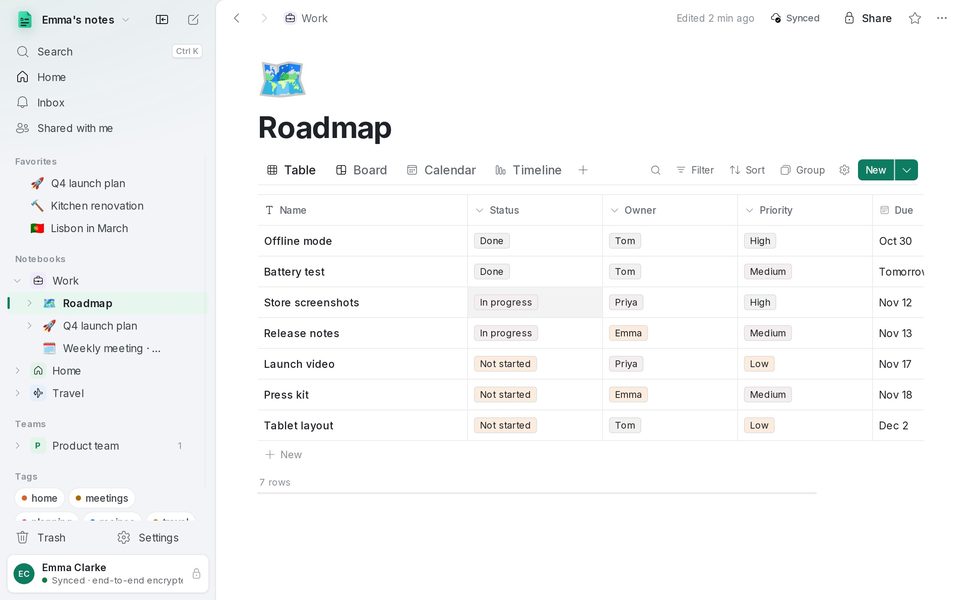
Board, calendar and other views
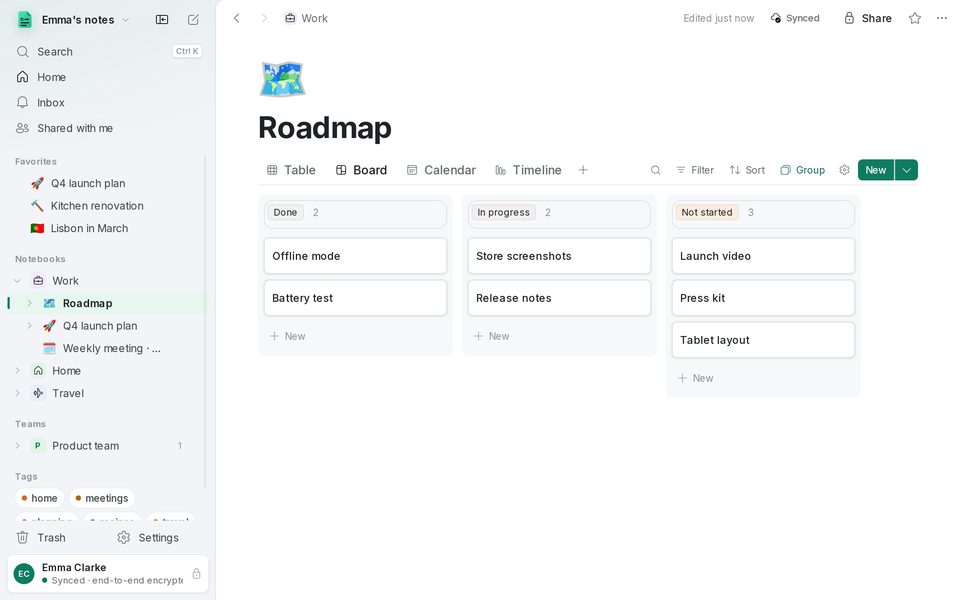
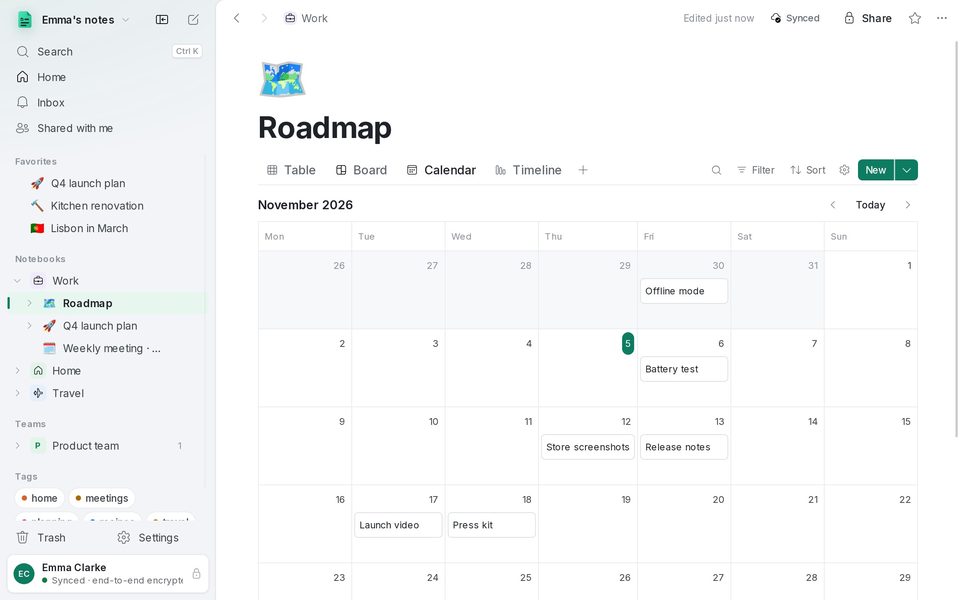
The tabs above the database are views of the same rows. Press + (Add a view) to add a Board (one column per option of a select property: drag cards between columns), a Calendar or a Timeline (each row on its date), a List or a Gallery.
Each view keeps its own Filter, Sort, Group and visible properties, so you can have “This week” next to “Everything”.
Formulas, relations and rollups
A Formula property calculates from the others, as in Notion: prop("Price") * 1.2, if, dateAdd, format… If something is wrong, it tells you what and where.
A Relation links rows of two databases (in both directions), and a Rollup sums, counts or averages the related rows.
From and to a spreadsheet
Import CSV… turns a CSV file into a database and guesses the type of each column. A Notion export brings its databases with their relations.
Written for 1B Note 0.9 on Windows and Linux, with notes for 1B Note on Android. Real screenshots with example data.