Chapter 2 · User guide · 1B Note
Pages and blocks
Every page is made of blocks: paragraphs, headings, lists, to-dos, callouts, tables and much more. Here's how to write fast and keep pages tidy.
Create a page
Press Ctrl+N or the pencil at the top of the sidebar for a New page. To put it inside another page, hover over that page in the sidebar and press +, or use Add a page inside from its menu. Pages can be nested as deep as you like.
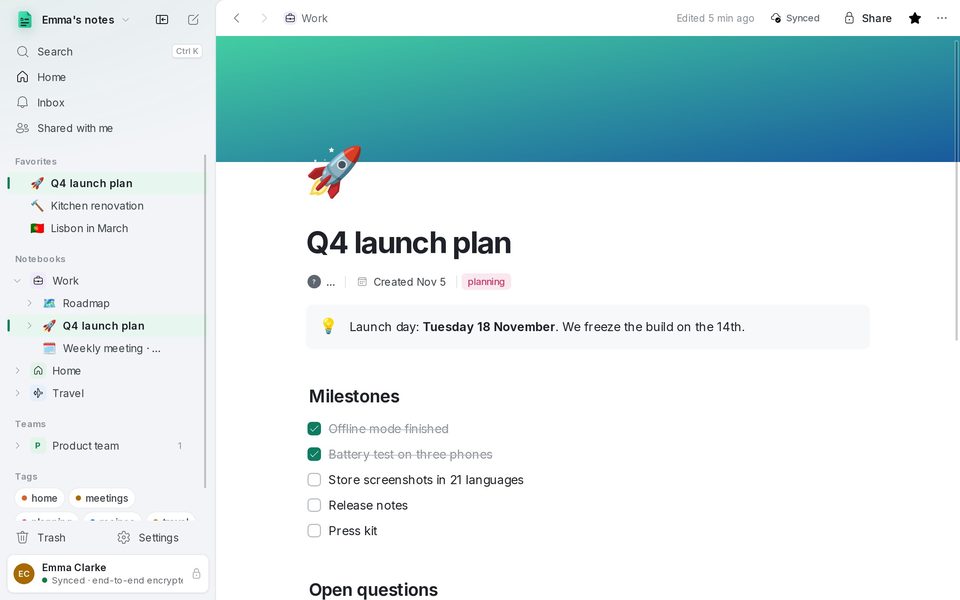
Above the title you can Add icon (an emoji, searchable in your language) and Add cover (a gradient, a colour or your own image).
The / menu
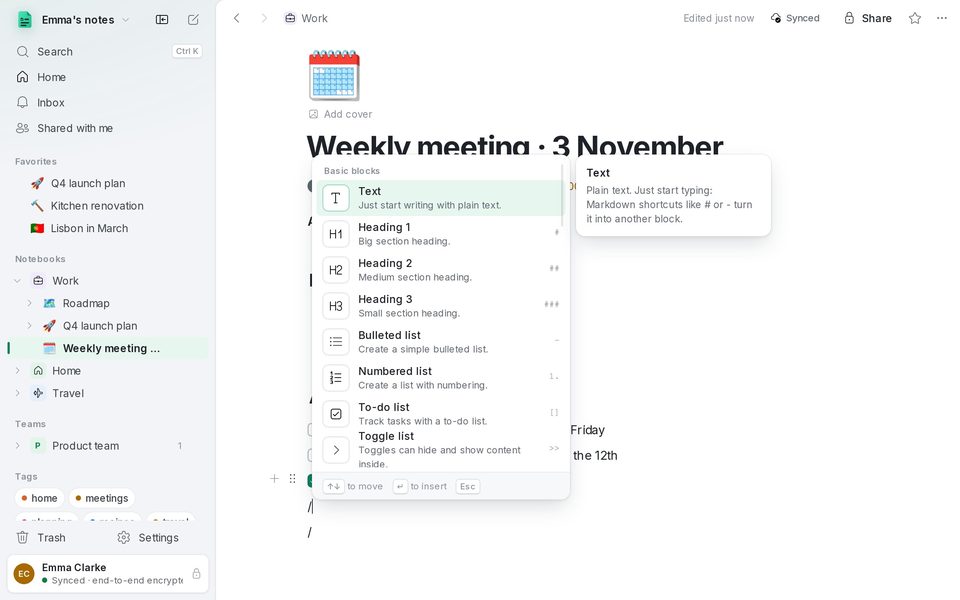
Type / at the start of an empty line to open the block menu. It's grouped into Basic blocks, Media, pages, databases and more, and shows a preview of each block before you insert it. Keep typing to filter: “/todo”, “/table”, “/code”.
Markdown shortcuts
If you know Markdown you don't need the menu: type these at the start of a line, followed by a space.
- # , ## or ### for Heading 1, Heading 2 or Heading 3.
- - for a Bulleted list, 1. for a Numbered list and [] for a To-do list (Ctrl+Enter ticks it off).
- > for a Quote, >> for a Toggle list and !> for a Callout.
- $$ for a Block equation and --- for a Divider.
Bold, italic and the rest work as everywhere: Ctrl+B, Ctrl+I, Ctrl+U, Ctrl+E for code and Ctrl+K for a link. Select text to see the format bar.
Move and change blocks
Hover over a block to see its handle on the left. Drag it to move the block, or click it for the menu: Turn into, Color, Duplicate, Move up, Move down and Delete.
With the keyboard: Ctrl+D duplicates the block and Ctrl+Shift+↑/↓ moves it. Tab and Shift+Tab indent and outdent list items.
Links between pages
Type [[ to link to another page, or @ to mention a page, a date or a person in the middle of a sentence. Pasting a web address on an empty line offers a Web bookmark with a preview.
Pages that link to the one you're reading are listed at the bottom, so you can always go back.
Version history
1B Note saves a version when you stop editing a page for a while. Open Version history to see the earlier versions and press Restore this version to go back.
Restoring never deletes anything: the current content stays in the history and everyone sees the restore as a new change.
Written for 1B Note 0.9 on Windows and Linux, with notes for 1B Note on Android. Real screenshots with example data.