Chapter 7 · User guide · 1B Note
Sharing and team spaces
Your personal space is only yours. To work with others, create a team space: everyone in it reads and edits its pages, still end-to-end encrypted.
Create a team space
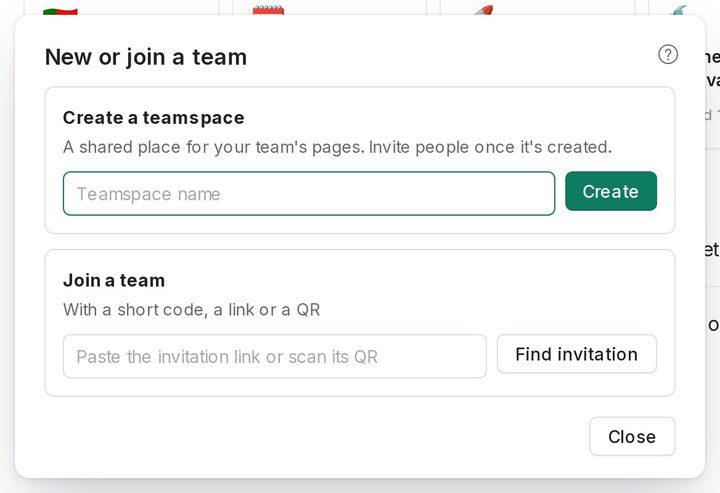
- In the sidebar, press + next to Teams to open New or join a team.
- Under Create a teamspace, type a name and press Create.
- The space appears under Teams. Add pages to it like anywhere else, or move a page from your space with Move to.
Invite people
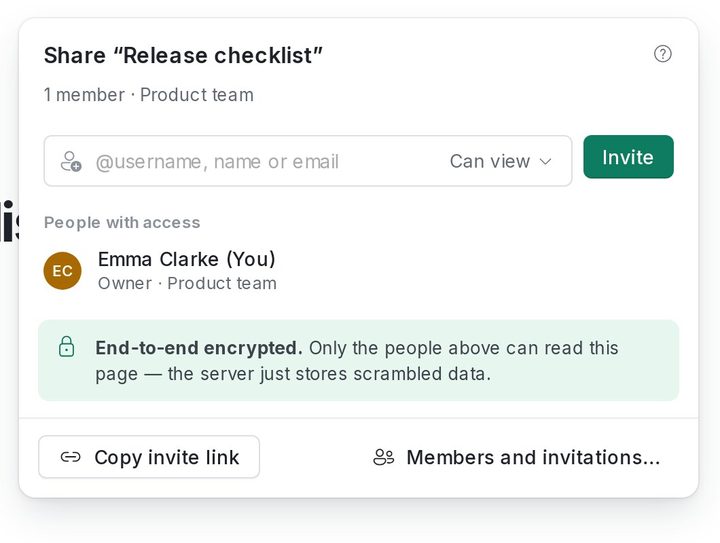
Open a page of the team and press Share. Type someone's @username, choose their role and press Invite: the invitation arrives in their Inbox.
For someone who isn't on 1B Note yet, use Copy invite link: the link expires in 7 days. Members and invitations… lists the members, the pending invitations and the requests to join.
Your @username is set in Settings › Account › Username. People can only find you by your exact username.
Roles
Owner: full control, including deleting the space. Admin: invites people, changes roles and shares pages. Editor: creates, edits and deletes pages. Commenter: reads and comments. Reader: read only.
Removing someone (Remove and rotate keys) changes the space's keys: whatever is written afterwards is unreadable to them.
Share a single page
From Share you can give a guest access to one page and its subpages, with Can view, Can comment or Can edit. The guest sees it under Shared with me, without seeing anything else in the space.
Pages in your personal space can't be shared directly: Move to a team… moves them into a team first.
Join a team
If someone invited you, open the link or, in New or join a team, paste it under Join a team (or type the short code they dictated) and press Find invitation. If you don't have an account yet, 1B Note creates one at that moment.
Safety numbers
To be sure nobody is in between, compare safety numbers with the other person in person or on a call: Settings › Privacy & security › Compare codes, then Mark as verified. If someone's key changes, 1B Note warns you before giving them access to anything new.
Written for 1B Note 0.9 on Windows and Linux, with notes for 1B Note on Android. Real screenshots with example data.