Chapter 3 · User guide · 1B Note
Notebooks, tags and search
Notebooks are the top-level pages of your space. Add favourites and tags, and when you need something, Ctrl+K finds it in milliseconds.
Notebooks
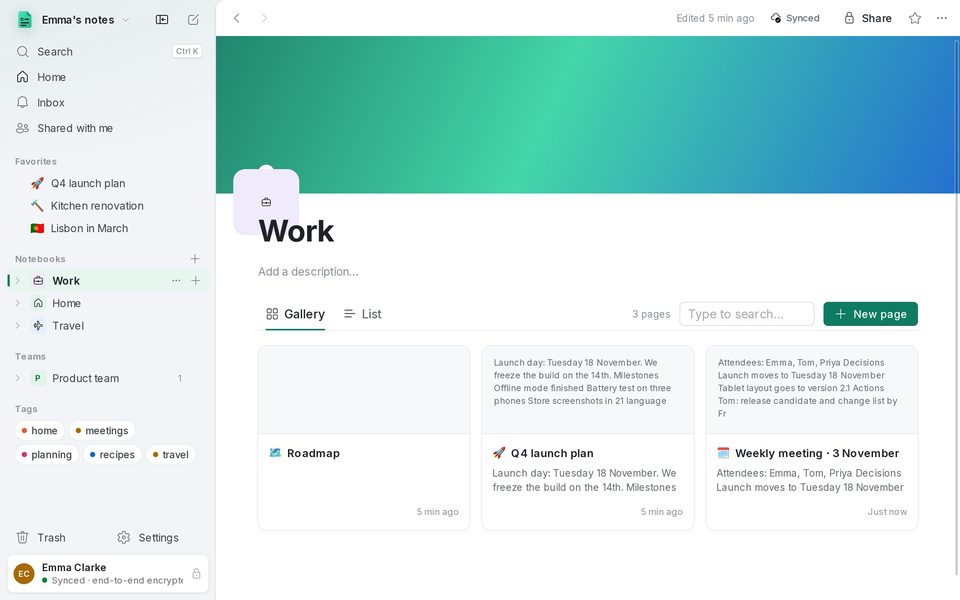
Each page at the top of your space is a notebook. Create one with New notebook (Ctrl+Shift+N) and give it a colour and an icon with right click › Color and icon.
Clicking a notebook opens it as a gallery or a list of all its pages, with a preview of each one, a search box and a New page button.
Order and favourites
Drag pages in the sidebar to reorder them or drop them inside another page. Right click (or ⋯) opens the page menu; F2 renames it.
Press the star at the top of a page to add it to Favorites: favourites stay at the top of the sidebar and on Home.
Tags
Add tags to a page below its title. Every tag appears under Tags in the sidebar with its colour; clicking one lists all the pages that have it.
Deleting a tag removes it from every page, but the pages stay.
Search with Ctrl+K
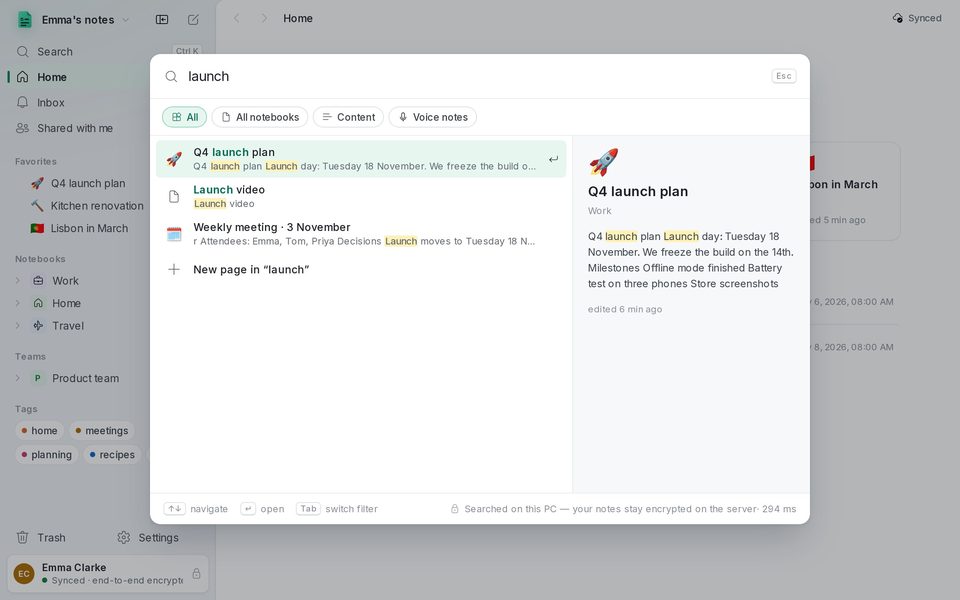
Ctrl+K (or Search in the sidebar) opens the palette. Type and it searches titles and text across all your pages, with a preview on the right. Tab switches between All, All notebooks, Content and Voice notes.
Search runs on this PC, so your notes stay encrypted on the server. The palette also has commands: a new page, the light or dark theme, settings.
The Trash
Deleting a page sends it to the Trash together with its subpages. From there you can Restore it or Delete forever.
Pages in the Trash are deleted for good after 30 days, on all your devices.
Written for 1B Note 0.9 on Windows and Linux, with notes for 1B Note on Android. Real screenshots with example data.