Chapter 8 · User guide · 1B Note
Import and export
Bring what you already have from Notion, Evernote, Obsidian or any Markdown app, and take everything with you whenever you want, in open formats.
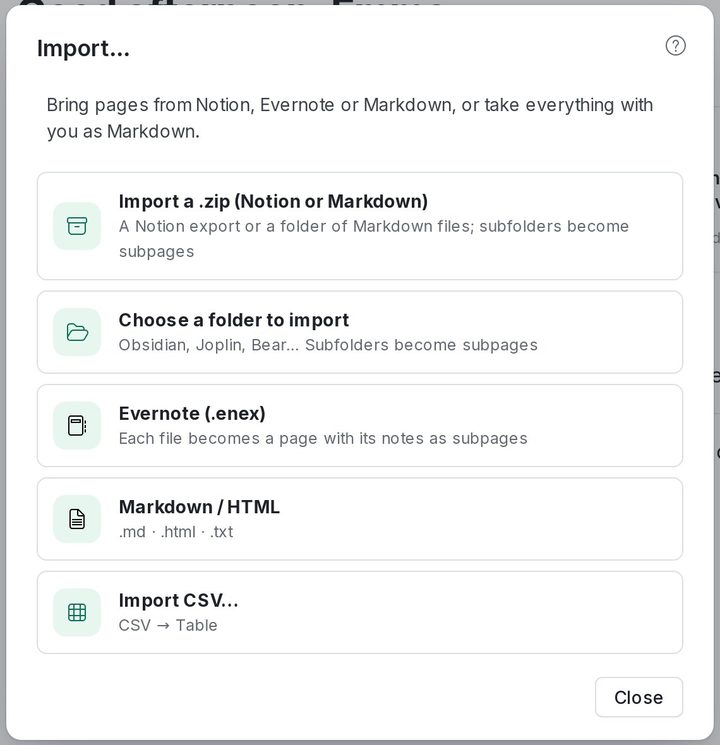
Import
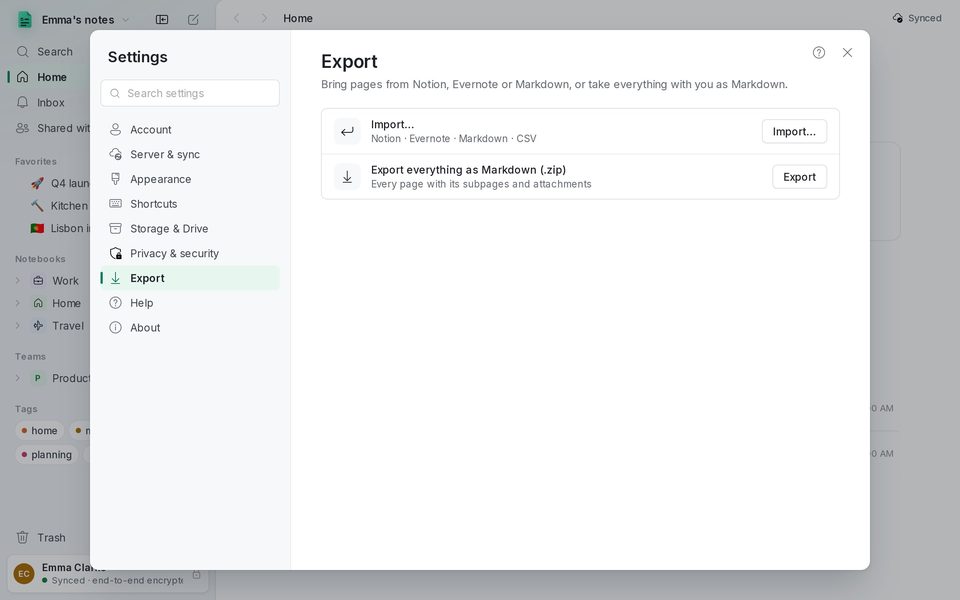
- Open Settings › Export and press Import….
- Choose what you have: Import a .zip (Notion or Markdown) for a Notion export (with its databases) or a zip of Markdown files; Choose a folder to import for Obsidian, Joplin or Bear; Evernote (.enex); Markdown or HTML files; or a CSV.
- Subfolders become subpages. When it finishes, 1B Note says how many pages it imported and what it couldn't bring.
Export
One page: ⋯ › Export › Markdown (.md), or Markdown with subpages (.zip) with its subpages and attachments.
Everything: Settings › Export › Export everything as Markdown (.zip). It's a normal zip with folders, readable by any app and useful as a personal backup.
Written for 1B Note 0.9 on Windows and Linux, with notes for 1B Note on Android. Real screenshots with example data.