Chapter 5 · Guide · 1B Docs
Presentations: PowerPoint (PPTX), editing and presenting
PowerPoint presentations look as they were designed. Change texts, add slides and present full screen straight from your phone or tablet.
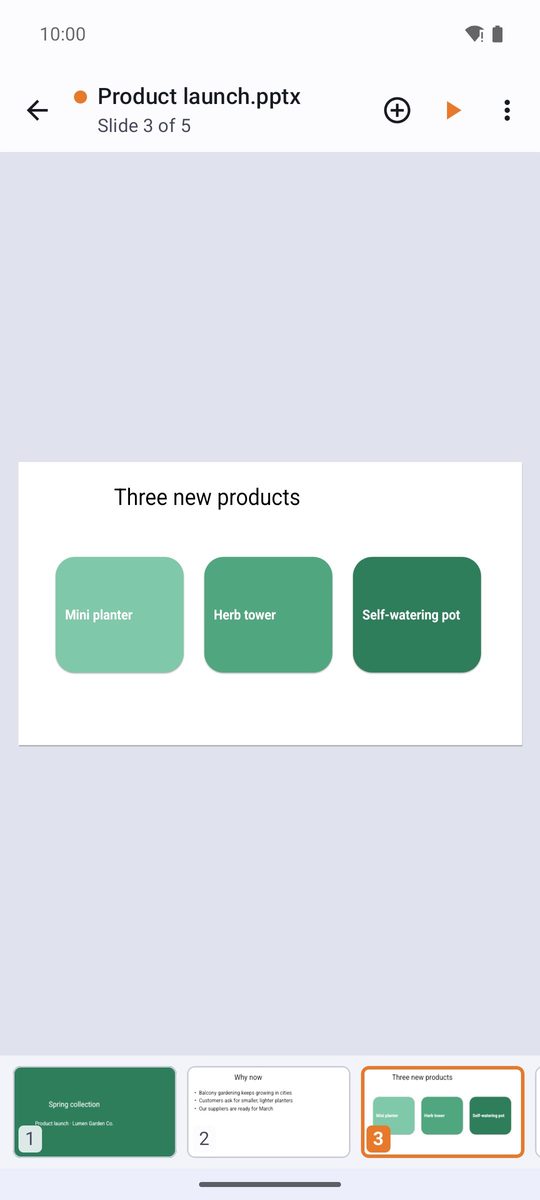
View the slides
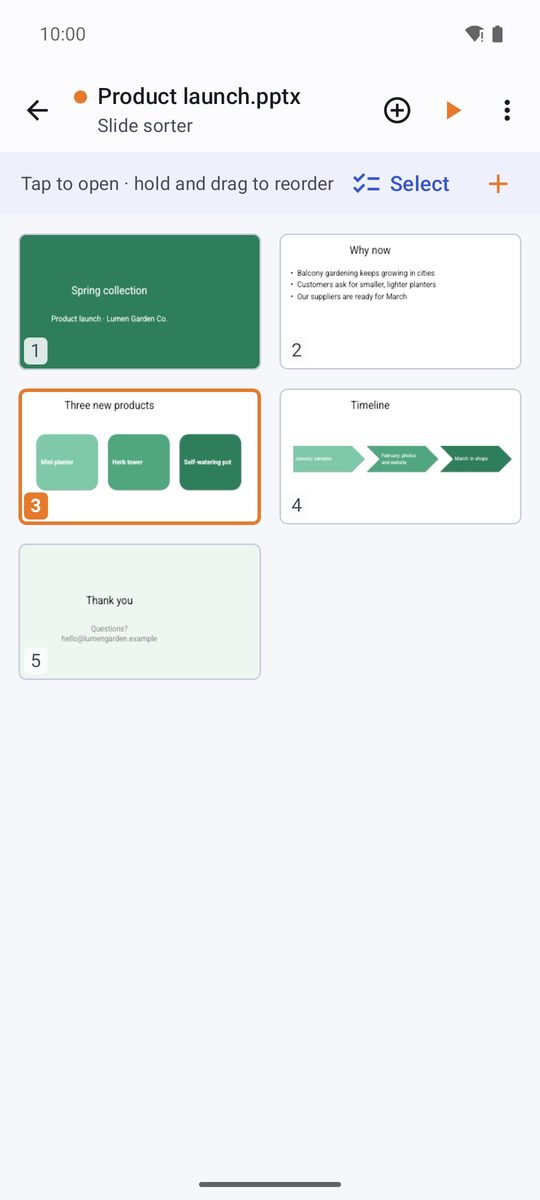
Swipe sideways to change slides; the thumbnails show where you are. Slide sorter (⋮ menu) shows them all in a grid: Tap to open · hold and drag to reorder.
Show notes shows the speaker notes under each slide and Outline lists the titles of all of them.
Edit texts and objects
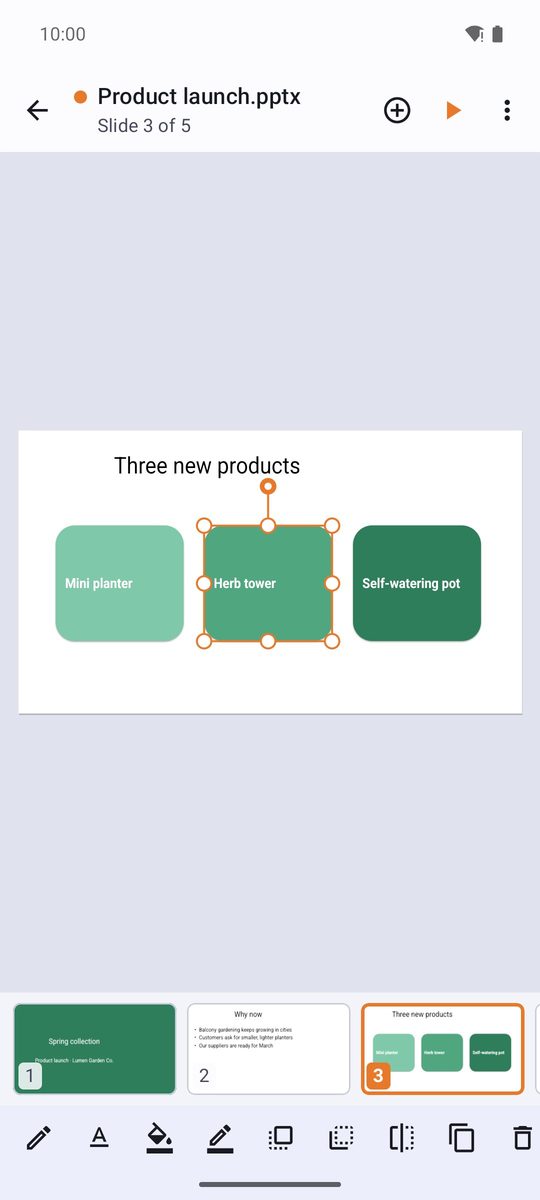
- Tap a text box, shape or image to select it: drag it to move it, and the corners to resize it.
- Tap a text box again (Edit text) to write. The bar at the bottom has Bold, Italic, Text colour, alignment, Bullets and levels.
- With an object selected, the bar offers Fill, Outline, Bring to front, Duplicate and Delete.
Add slides, shapes and images
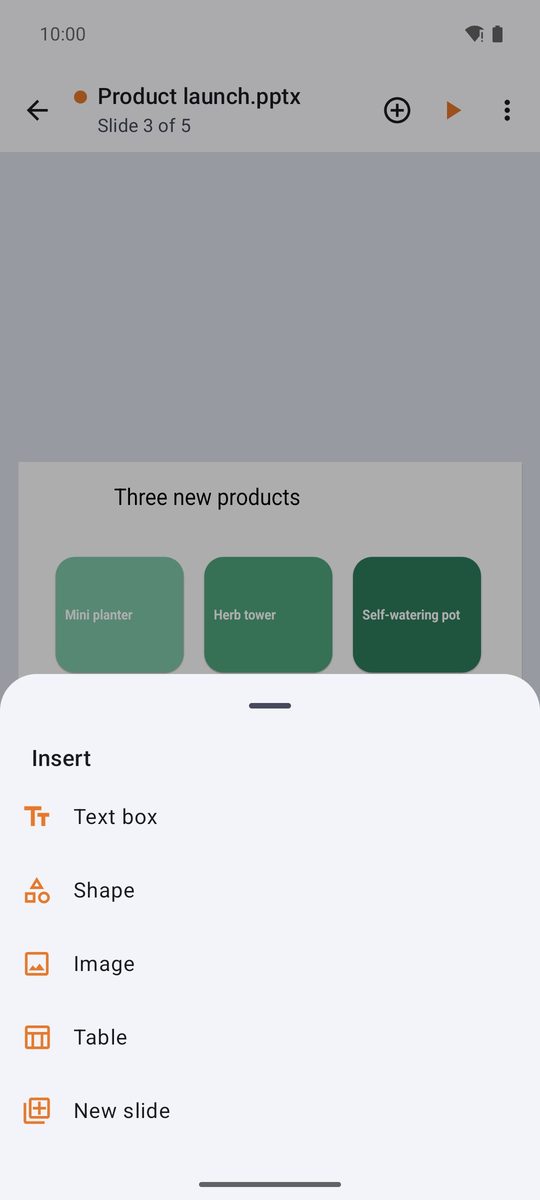
The + at the top (Insert) adds a New slide (you choose its layout), a Text box, a Shape, an Image or a Table. In the slide sorter you can also duplicate, hide or delete slides.
Present
- Tap the play button at the top (Present).
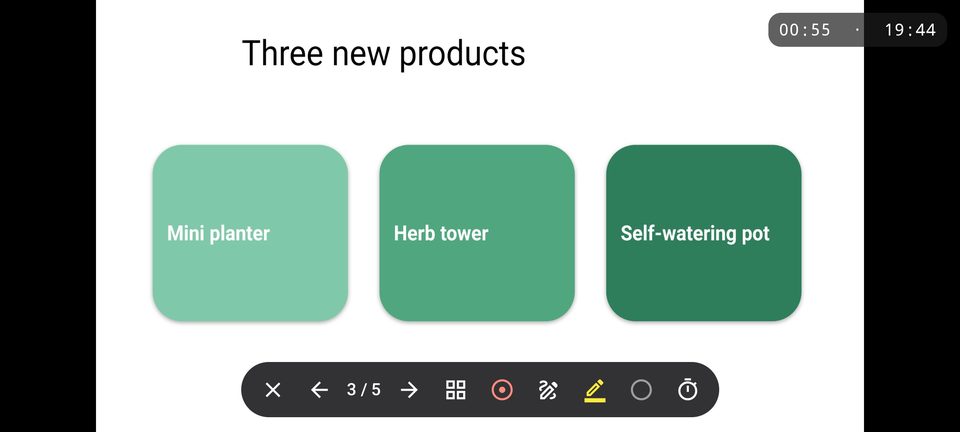
- Tap or swipe to go forward; tap the left edge to go back. Touch and hold (or swipe down) to show the controls: Laser pointer, Pen, Highlighter, Black screen and Auto-advance.
- End show or the back gesture ends the show.
Connect the phone to a TV or projector with a cable or by screen casting: the presentation fills the screen.
PPT and ODP files
PPTX files are saved as they are. Old PPT files (PowerPoint 97-2003) and ODP files from LibreOffice open converted, and a notice at the top tells you, for example: Imported from PPT: changes can only be saved as a PowerPoint (.pptx) copy.
Written for 1B Docs 1.0 on Android 8 or later, with real screenshots and invented example documents.