Chapter 3 · Guide · 1B Docs
Read and edit Word documents (DOCX)
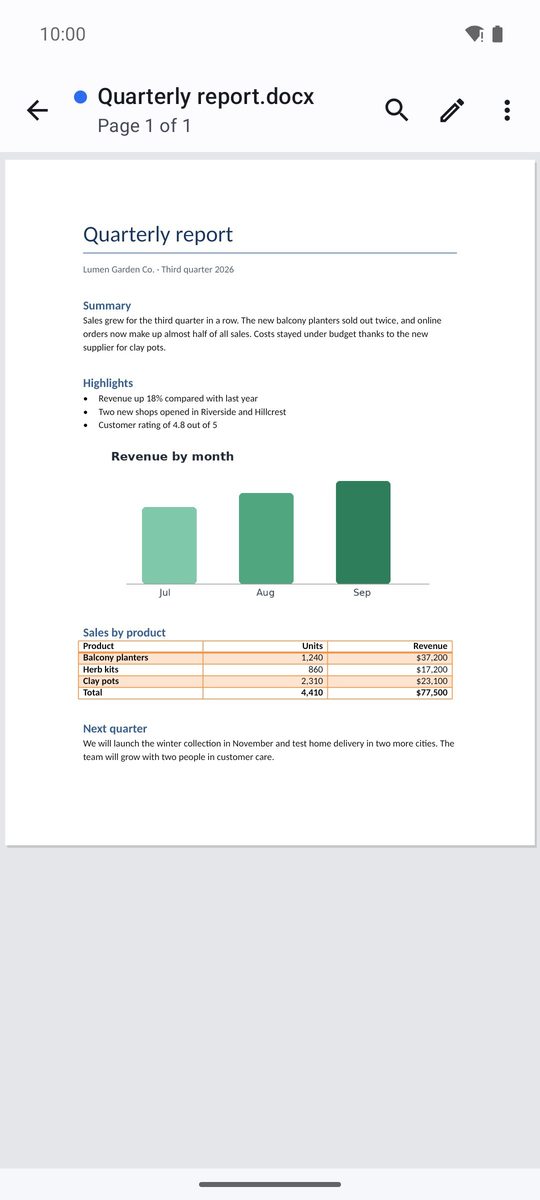
Word documents open as they look on a computer, with their fonts, tables and images. Switch to mobile view to read comfortably, or tap the pencil to write.
Read a document
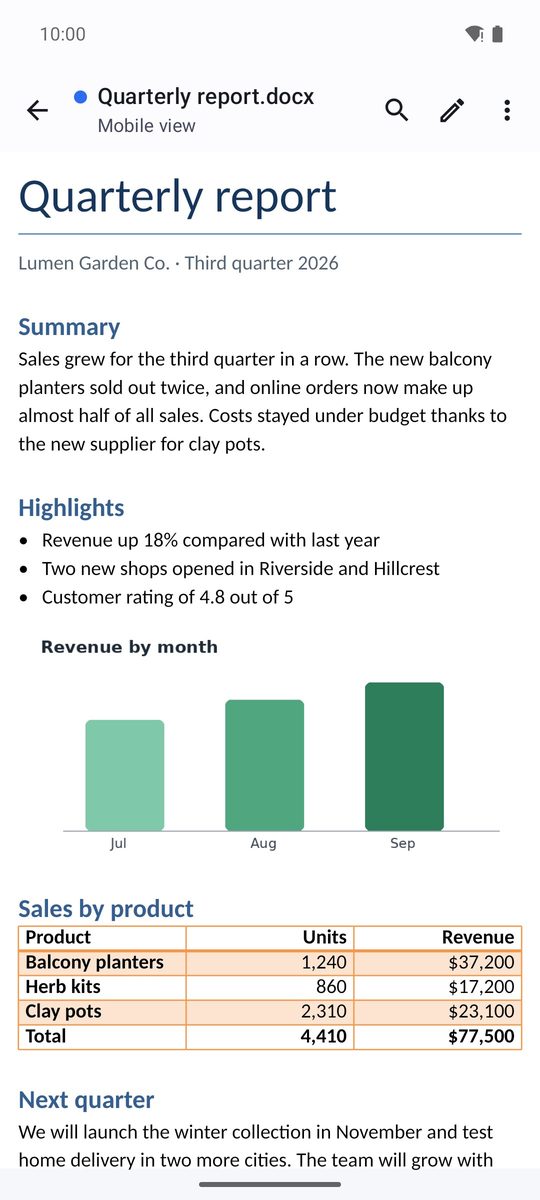
Documents open in Page view, page by page and with pinch to zoom. Mobile view (⋮ menu) fits the text to the width of the screen, with bigger letters, which is easier on a phone.
The ⋮ menu also has Outline (jump to any heading), Go to page, Zoom, Word count, Comments when the document has them and Night mode.
Find and replace
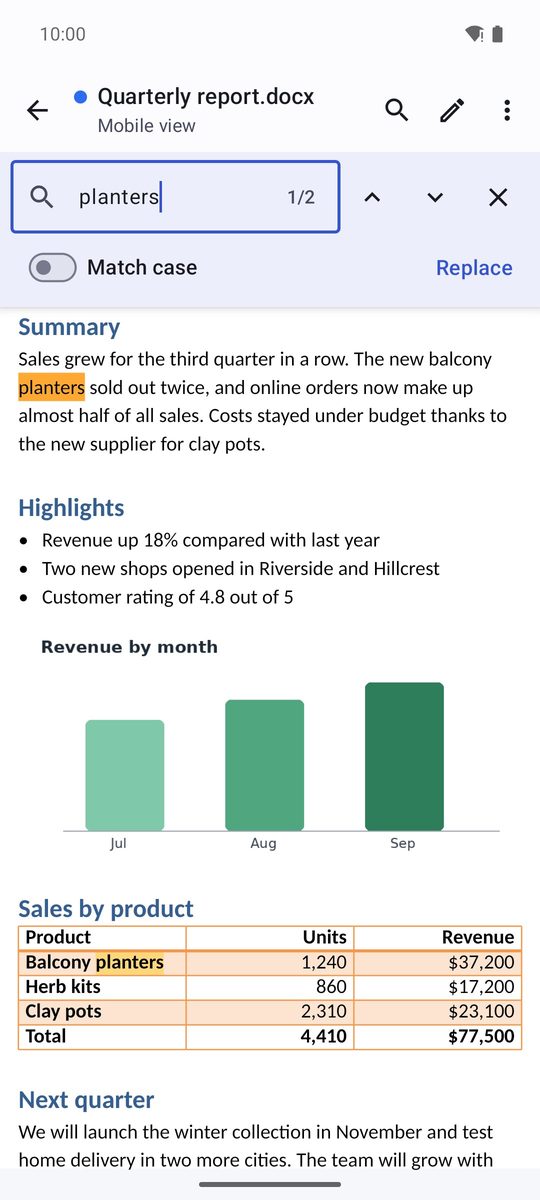
The magnifier at the top opens Find in document: matches are highlighted and the arrows go to the Previous and Next. To change text, open Find and replace in the ⋮ menu, type the new text in Replace with and tap Replace or All.
Edit and format
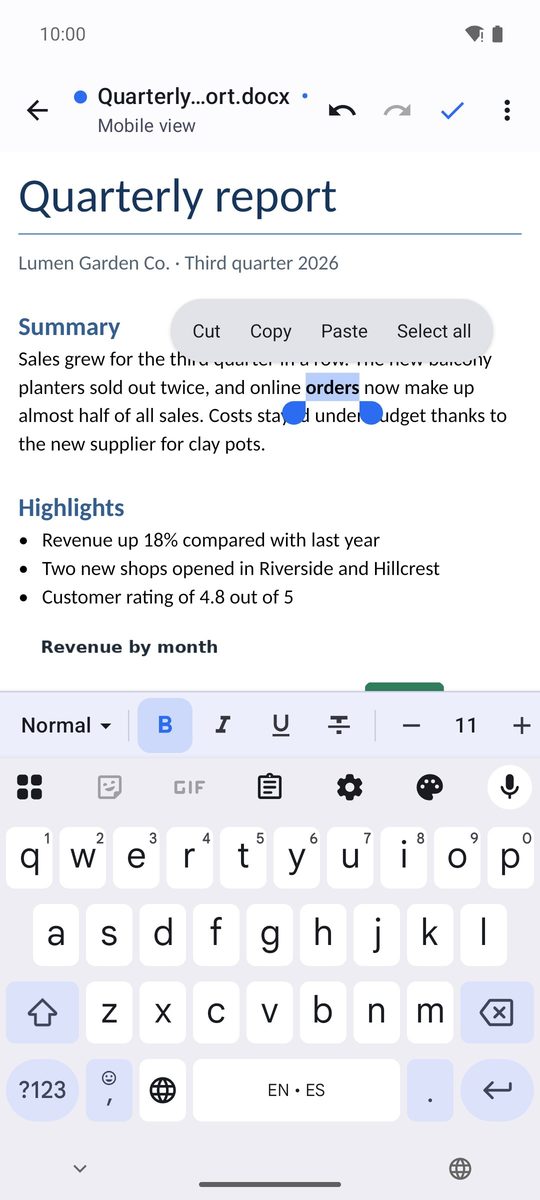
- Tap the pencil (Edit) and touch where you want to write.
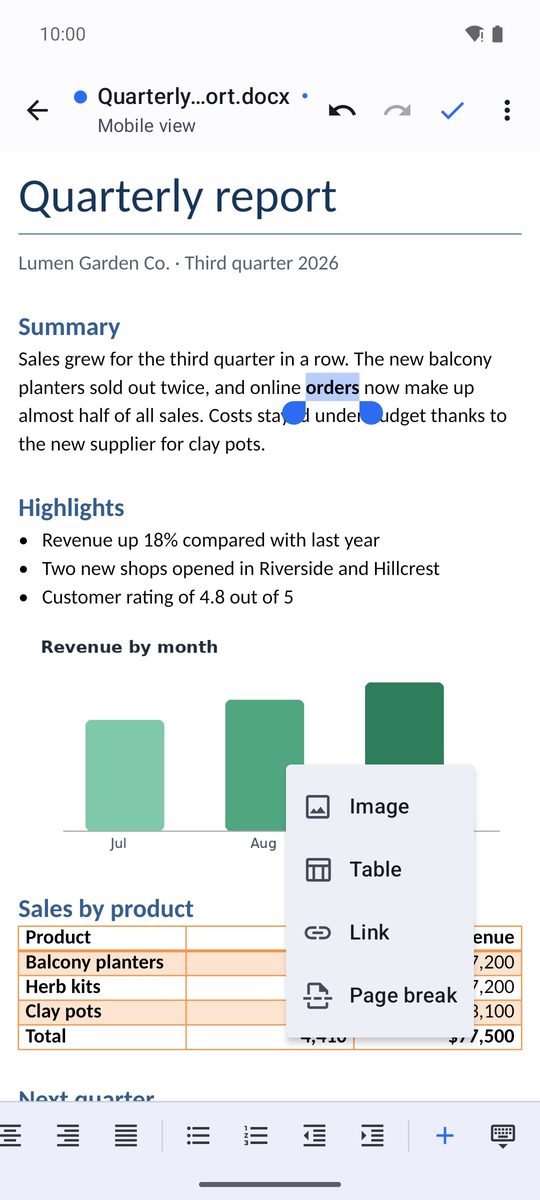
- The bar at the bottom has Bold, Italic, Underline, Text colour, Highlight, alignment, Bulleted list, Numbered list and indents. Swipe it sideways to see everything.
- The first button of the bar shows the paragraph style (Normal, Title, headings, Quote…): tap it to change it.
- Tap the check mark (Done) when you finish, and save from the ⋮ menu.
Undo and Redo are at the top while you edit.
Images, tables and links
While editing, Insert in the format bar adds an Image from your gallery, a Table (choose its Rows and Columns), a Link or a Page break.
DOC, ODT, RTF and HTML files
DOCX files are edited and saved as they are. ODT, RTF and HTML files open too, but changes are saved as a DOCX copy, and the app says so at the top. Old .doc files from Word 97-2003 show only their text, read-only: use Save a copy as DOCX… to edit them.
Written for 1B Docs 1.0 on Android 8 or later, with real screenshots and invented example documents.