Chapter 2 · Guide · 1B Docs
Create documents, templates and saving
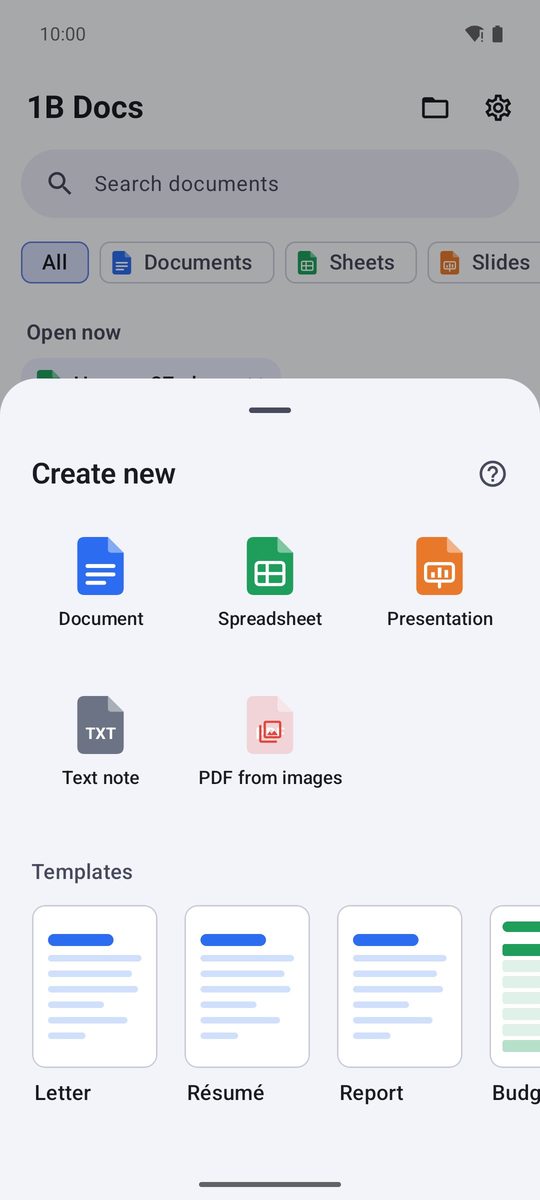
The New button creates a blank document or one from a template in a second. Then you save it wherever you want.
Create a document
- On Home, tap New.
- Choose Document, Spreadsheet, Presentation, Text note or PDF from images.
- The new document opens ready to edit. Nothing is written to your storage until you save it.
Start from a template
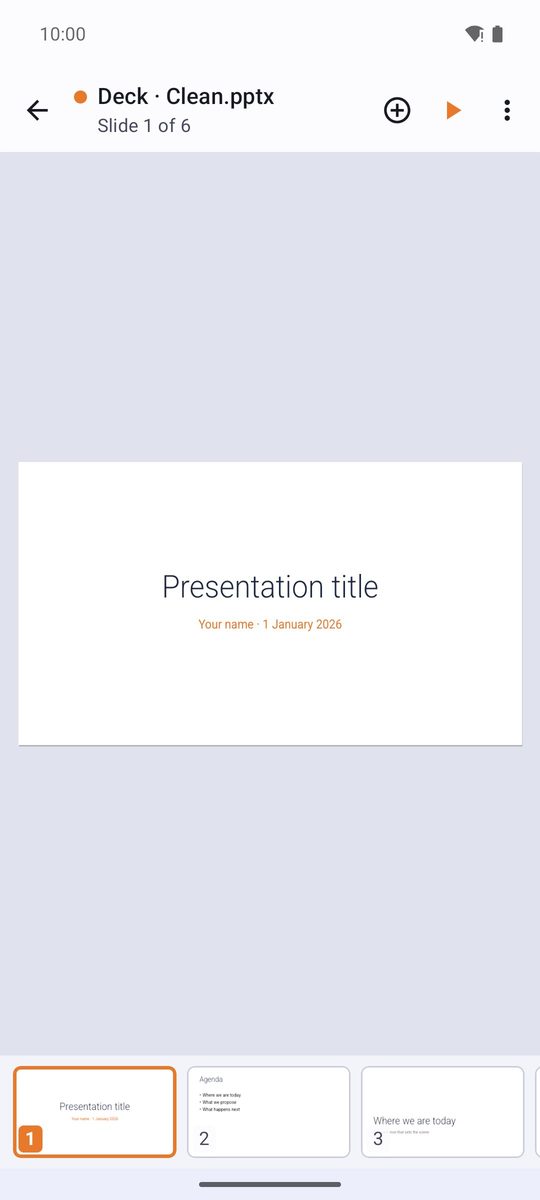
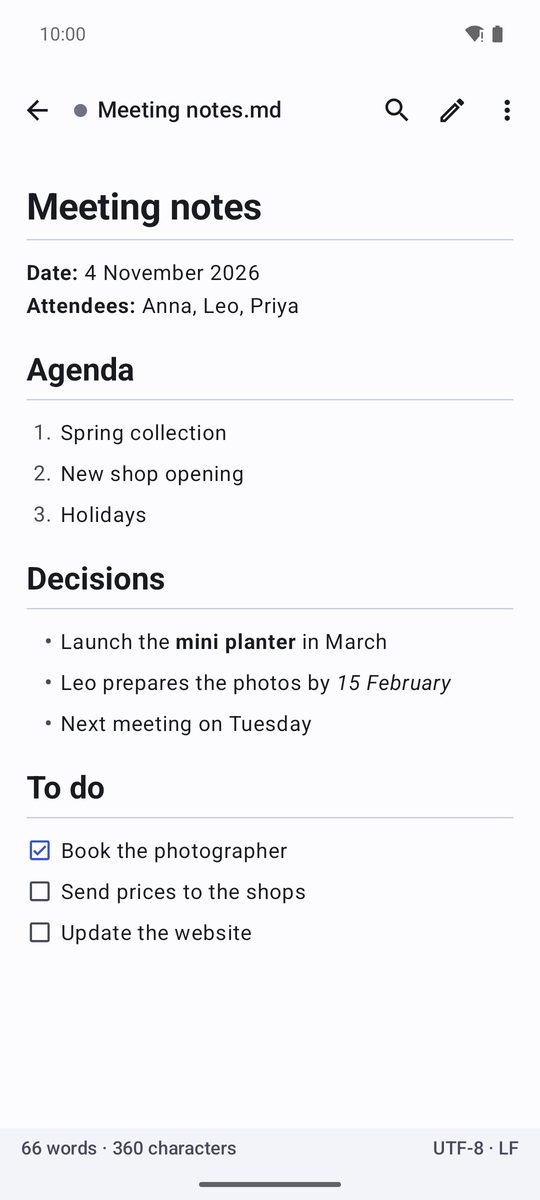
Under Templates there are ready-made documents to fill in: Letter, Report and Résumé for texts, Budget, Invoice and Task tracker for spreadsheets, two presentations (Deck · Clean and Deck · Midnight) and notes like Meeting notes, To-do list and Journal.
A template opens as a new document: change the texts and save it with your own name. The template itself never changes.
Save and save as
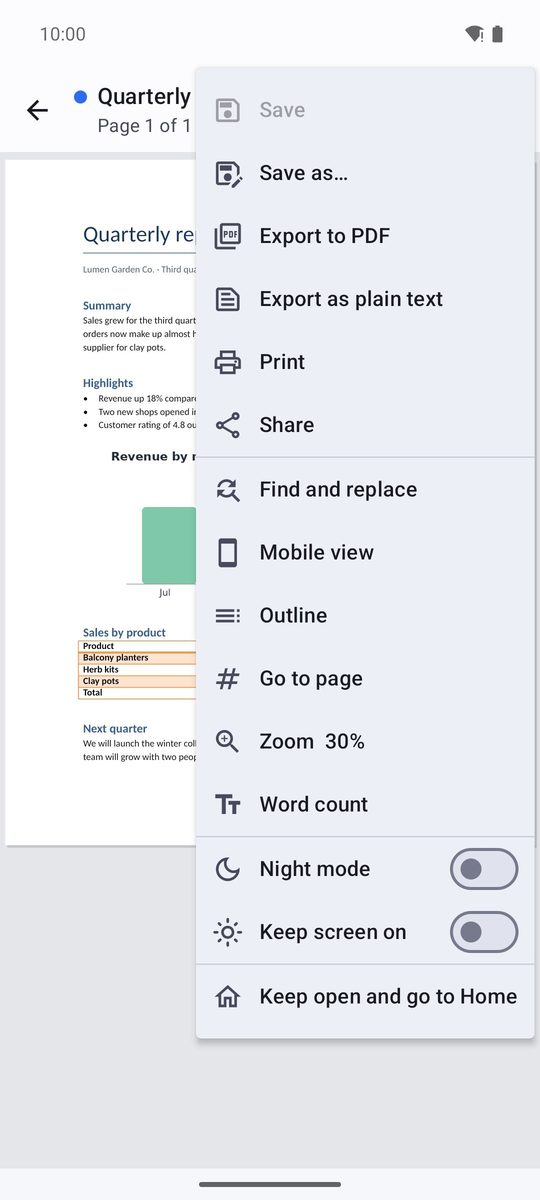
In the ⋮ menu of any document, Save writes the changes over the file and Save as… makes a copy with another name or in another folder. A dot next to the title (•) means there are unsaved changes.
The first time you save a new document, Android's save screen opens in Default save folder (Documents/1B Docs unless you change it in settings): check the name and tap Save.
1B Docs writes the new version beside the original, checks it and only then replaces the file. If anything fails, your original stays as it was.
Unsaved changes
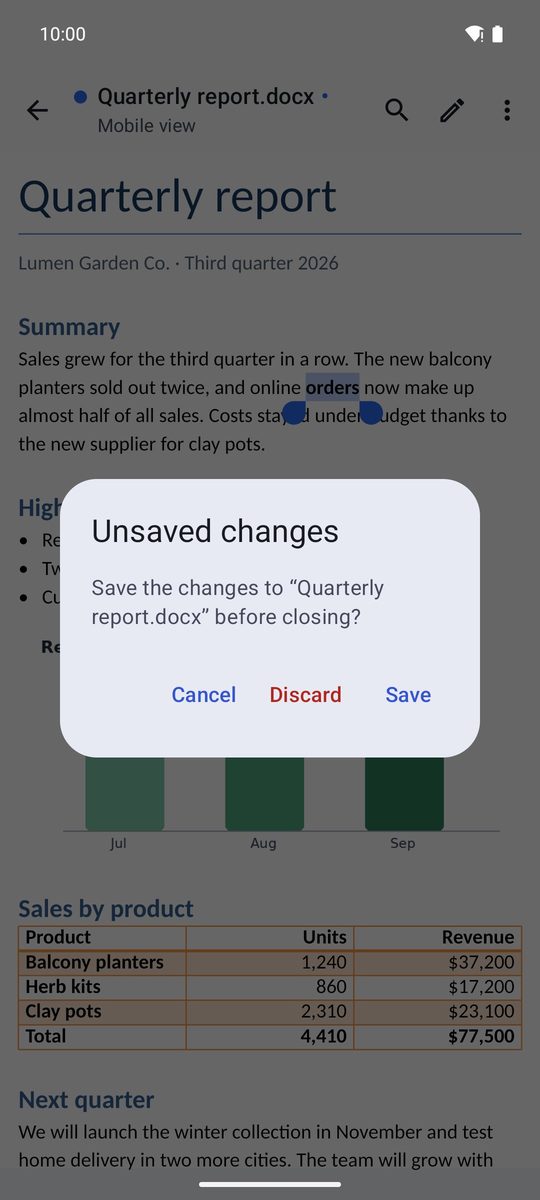
If you close a document with changes, the app asks: Unsaved changes, with Save, Discard or Cancel.
If Android closes the app while you're writing, the next time you open that document a bar offers Recover changes: your changes come back as they were.
Text notes and Markdown
Text note opens a plain text editor, also used for TXT, Markdown, JSON, XML, logs and code. The ⋮ menu has Find and Replace, Go to line, Word wrap, Line numbers, Monospace font and Word count.
Markdown files show a formatted Preview (on wide screens, beside the text). Online images are never loaded, because the app doesn't connect to the Internet.
Written for 1B Docs 1.0 on Android 8 or later, with real screenshots and invented example documents.