Chapter 6 · Guide · 1B Docs
Read, annotate, fill in and sign PDFs
PDFs open fast and stay sharp at any zoom. You can highlight, write on them, fill in forms and sign them without printing anything.
Read and search
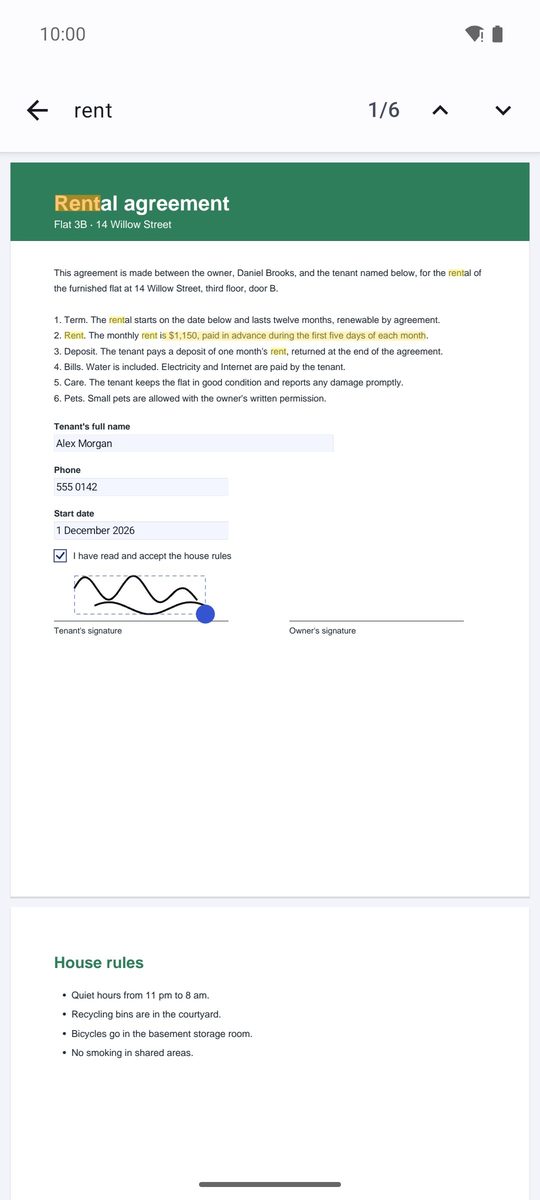
Scroll through the pages or pinch to zoom. The magnifier at the top searches the text (Search in document); touch and hold a word to select text and copy it.
The ⋮ menu has Go to page, Night mode (white text on black, easier at night), Page by page and Two pages side by side for wide screens.
Highlight and annotate
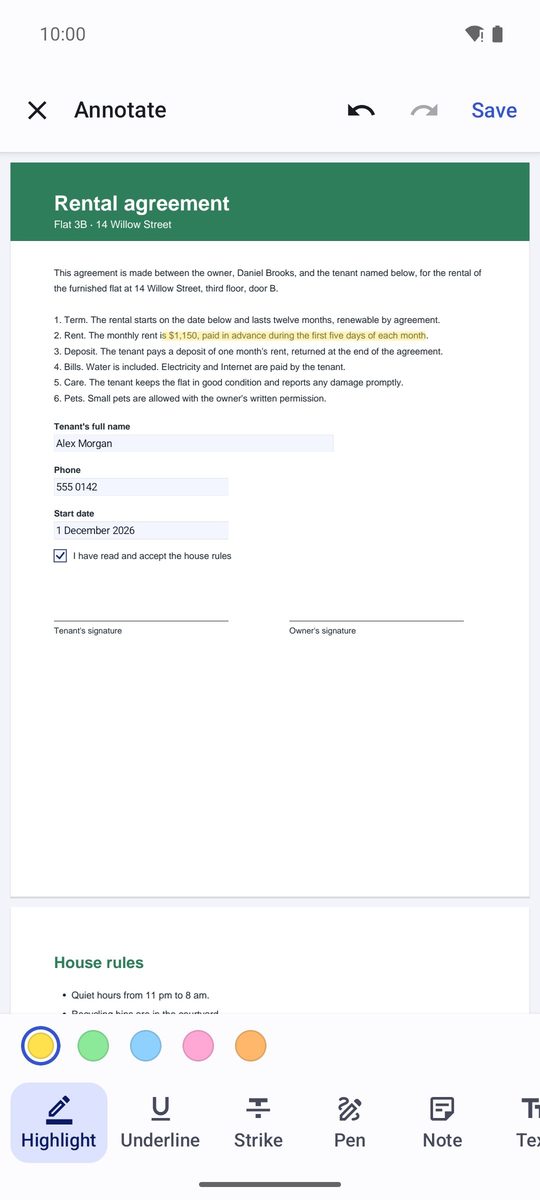
- Tap the pen at the top (Annotate).
- Choose a tool: Highlight, Underline, Strike, Pen, Note or Text. For text, drag over the words.
- Eraser removes an annotation: Tap an annotation to remove it.
- Save from the ⋮ menu. The annotations are real PDF annotations: they appear in any other PDF reader.
Sign a PDF
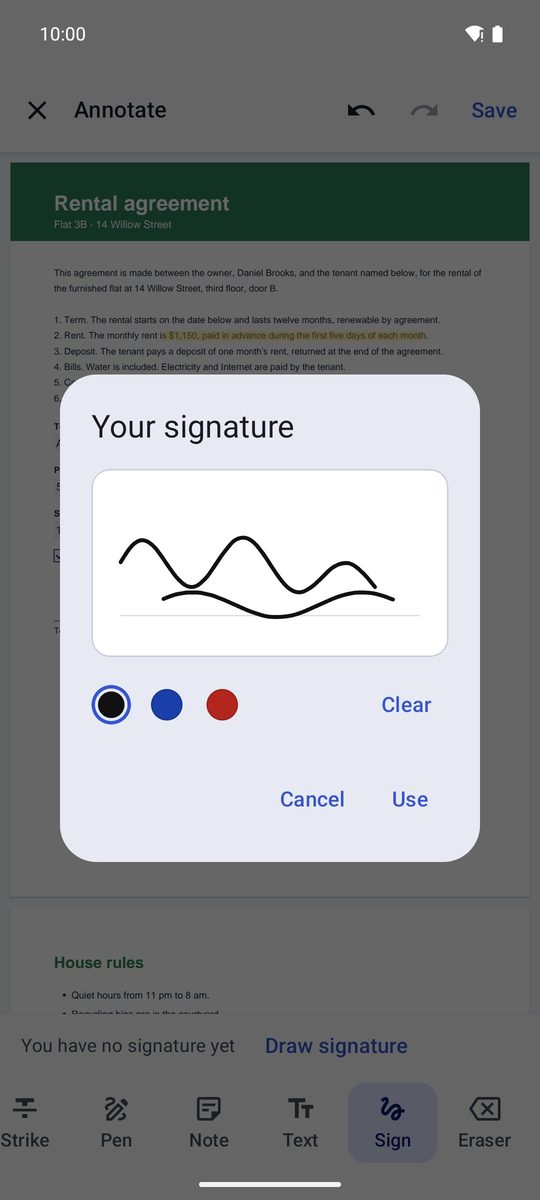
- In the annotation tools, choose Sign.
- The first time, tap Draw signature and draw your signature with your finger, then tap Use. It is kept only on this device for the next times.
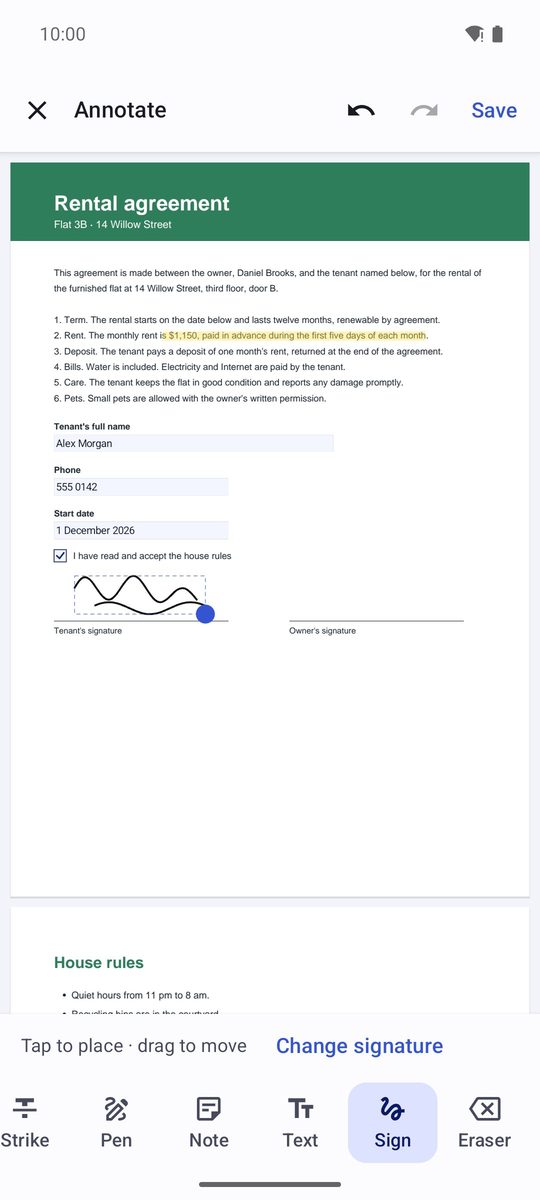
- Tap to place · drag to move. The dot in the corner makes it bigger or smaller.
- Save the PDF, or use Save as… to keep the original unsigned.
Fill in forms
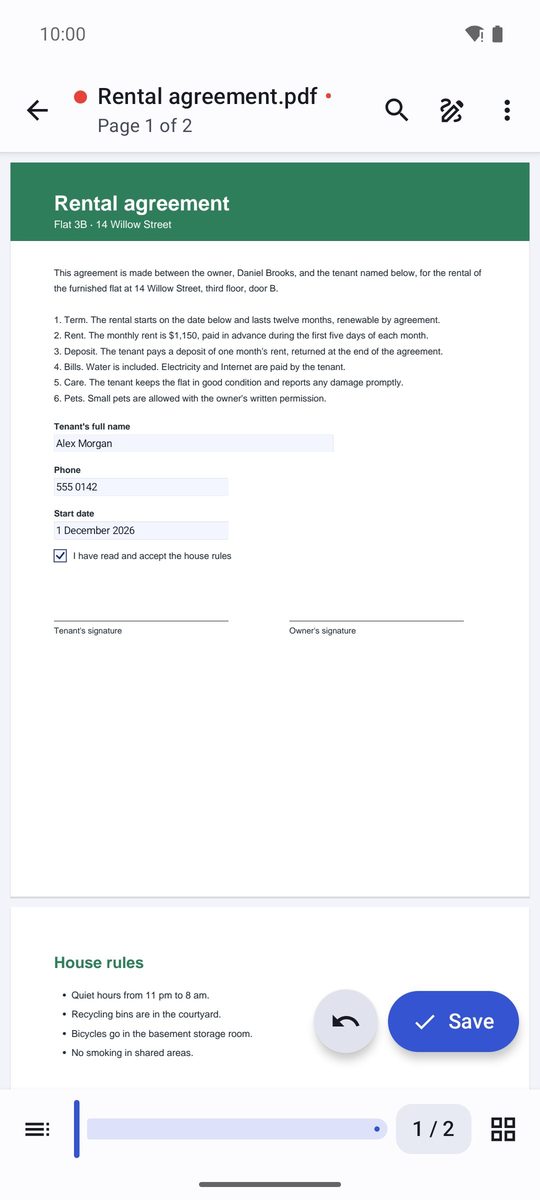
If the PDF has a form, the app tells you: Form: tap a field to fill it in. Tap a text field and a box opens to type its value; checkboxes, options and lists change with a tap. A Save button appears at the bottom: the PDF stays a fillable form.
PDFs with a password
A protected PDF asks for its password when you open it (Protected PDF). To protect your own PDFs or remove a password, see the PDF tools.
Written for 1B Docs 1.0 on Android 8 or later, with real screenshots and invented example documents.