Chapter 7 · Guide · 1B Docs
PDF tools: merge, split, compress, organise and convert
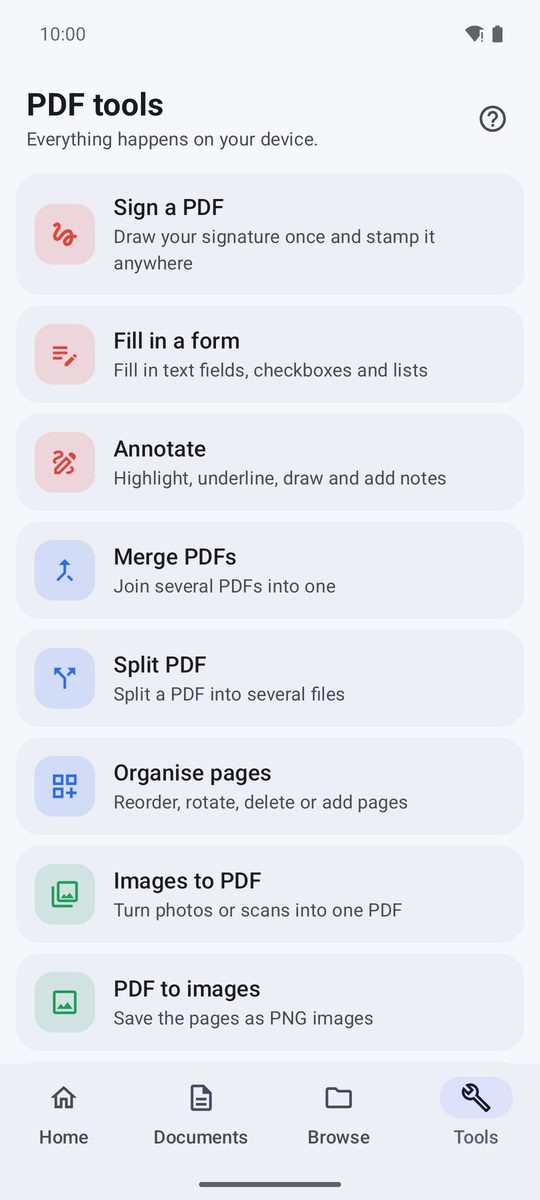
The Tools tab gathers everything you can do with a PDF. It all happens on your device: your files are never uploaded anywhere.
Where the tools are
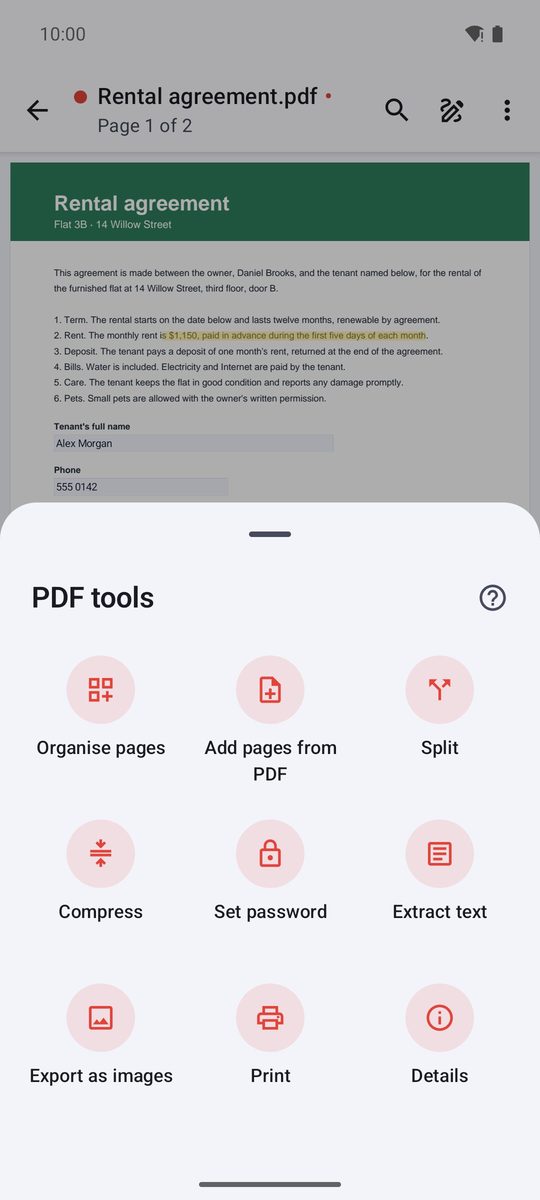
In Tools, choose a tool and then the PDF. With a PDF open, the same tools are in the ⋮ menu › PDF tools.
Every change is made on a working copy and checked before it replaces anything; until you save, your original stays as it was.
Merge PDFs
- In Tools, tap Merge PDFs.
- Choose two or more PDFs in the order you want them.
- The merged PDF opens: save it with the name you want.
To add pages from another PDF to the one you have open, use Add pages from PDF in its PDF tools.
Organise pages
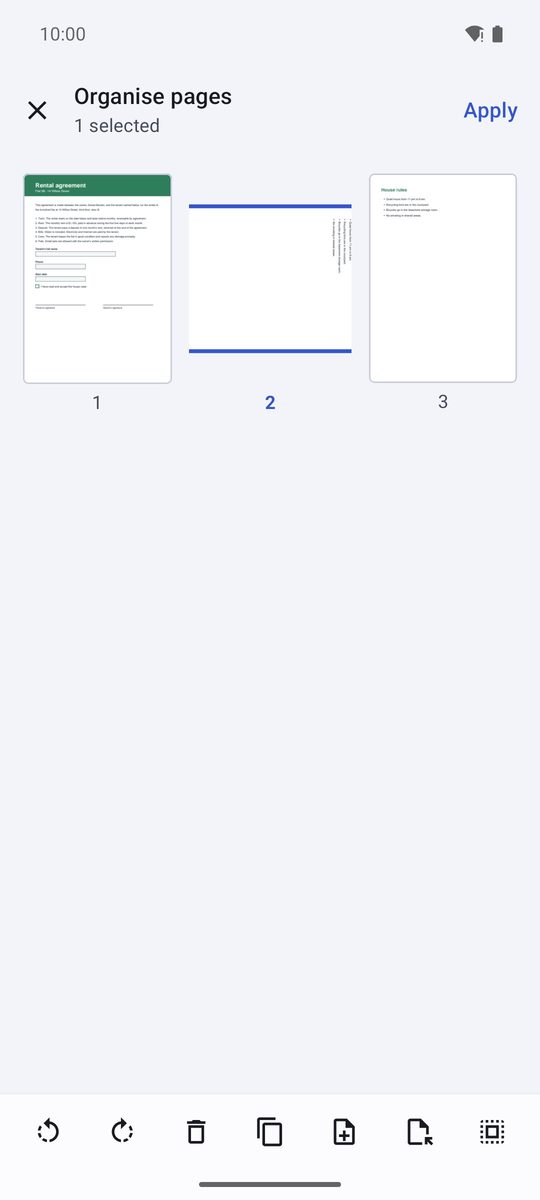
Organise pages shows all the pages: Tap to select · hold and drag to reorder. With pages selected you can rotate them (Rotate left, Rotate right), Delete, Duplicate or Extract them into a new PDF; Insert blank page adds an empty page. Tap Apply to keep the changes.
Split and compress
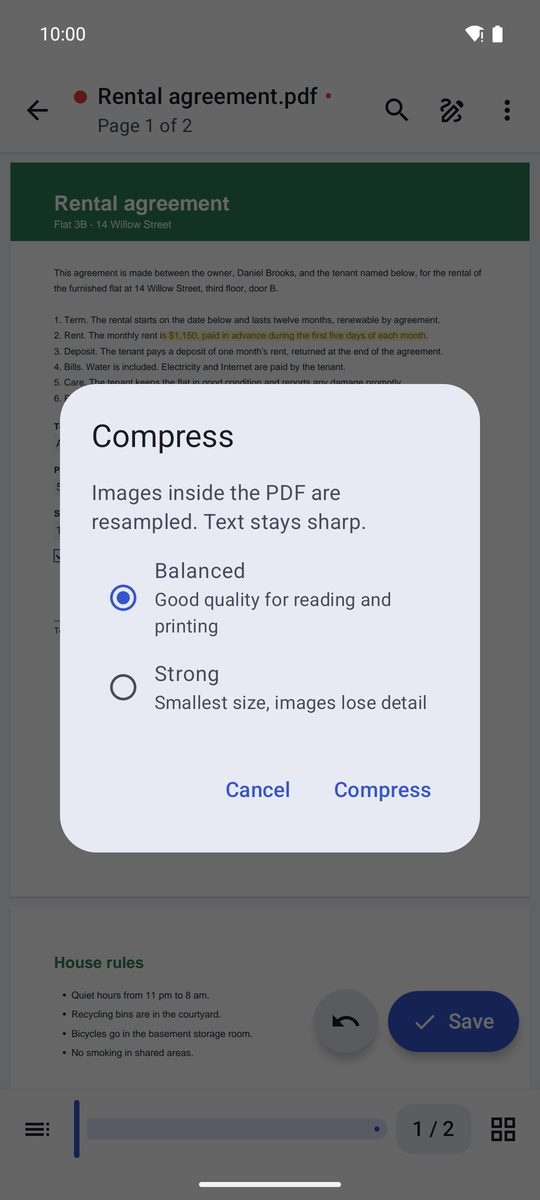
Split cuts a PDF every few pages into separate files, saved in the folder you choose. Compress makes it smaller to send: Balanced keeps good quality, Strong gives the smallest size. Text stays sharp; only images are reduced.
Protect with a password
Set password asks for the password twice; from then on the PDF asks for it every time it's opened. On a protected PDF, the same tool offers Remove password. Save to keep the change.
A forgotten password can't be recovered: keep it somewhere safe, for example in 1B Pass.
Images to PDF, PDF to text or images
Images to PDF joins photos or scans into one PDF, one per page (PDF from images in Create new does the same). PDF to text gets the text of a PDF as a note you can copy or save; a scanned PDF without text says so. PDF to images saves every page as a PNG image.
Written for 1B Docs 1.0 on Android 8 or later, with real screenshots and invented example documents.